
Set Up Tickets and Pricing
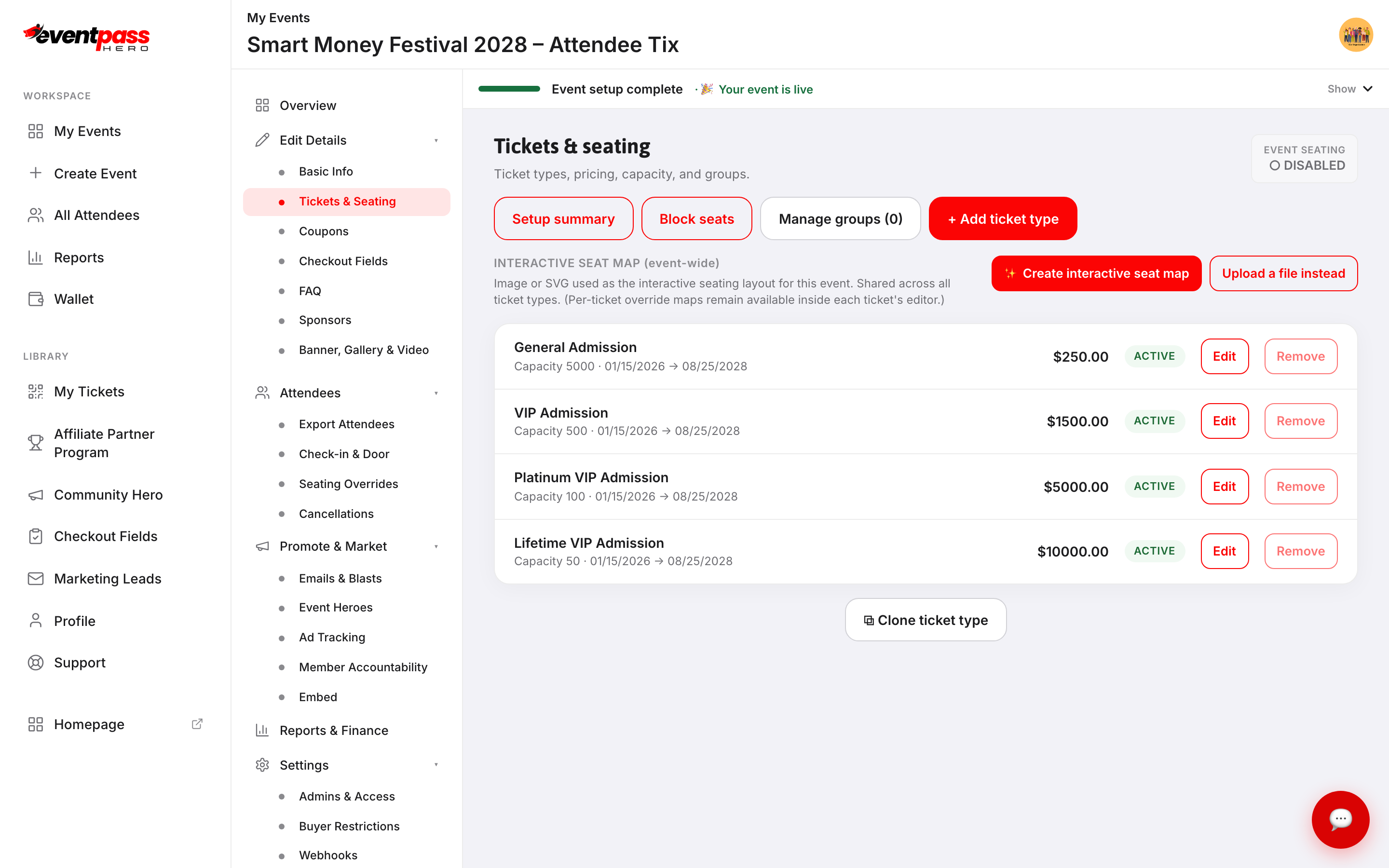
Tickets are how your event gets funded, and everything about them lives on one screen. Open your event and click Tickets & Seating in the sidebar, then click + Add ticket type for anything you sell — general admission, VIP tiers, full tables, sponsor packages, add-ons, or free tickets. Each ticket type carries its own price, capacity, per-order limits, and sales window, and you can adjust any of it at any time.
Step-by-step
- 1. From My Events, open your event and click Tickets & Seating in the sidebar. The screen lists every ticket type with its price, capacity, sales window, and an ACTIVE or DISABLED badge. To change the order buyers see tickets in, use the ▲ / ▼ arrows on the left of each row — or drag a ticket by its handle. The new order applies everywhere your tickets appear.
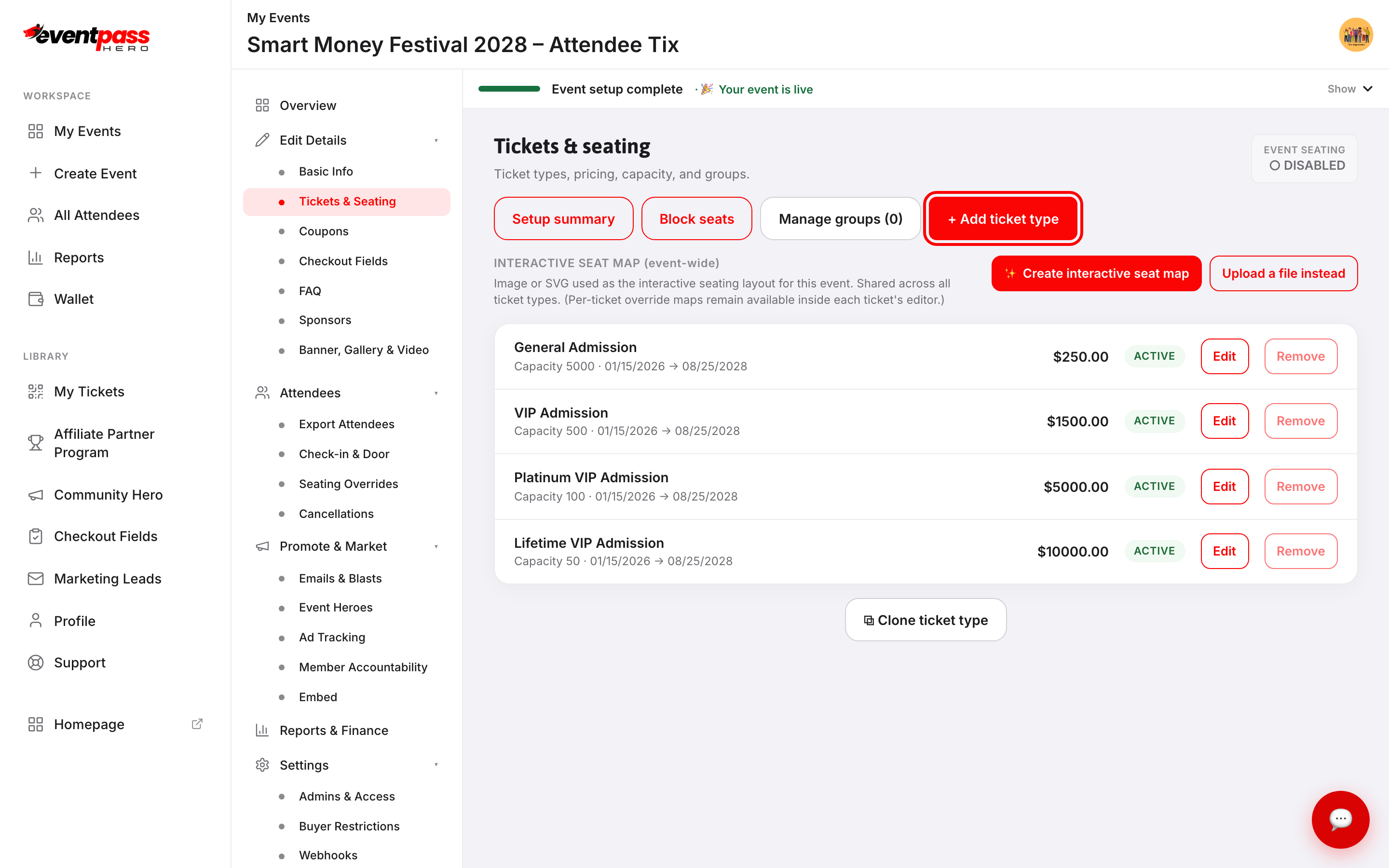
- 2. Click + Add ticket type (or Edit on an existing one).
- 3. Fill in the basics: Ticket name, Price ($), and Total capacity. Leave the price at 0 for a free ticket.
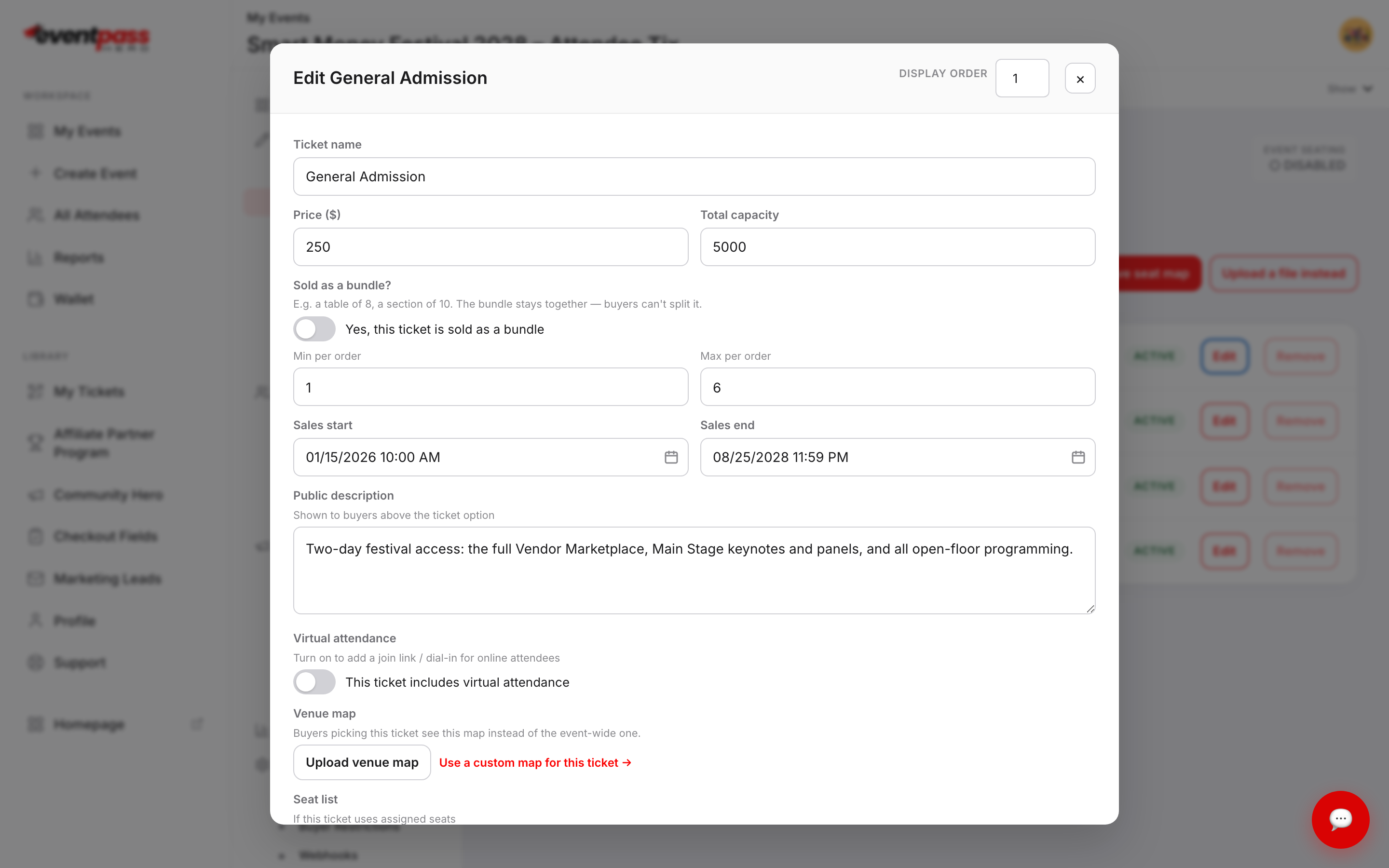
- 4. Set Min per order and Max per order to control how many a buyer can take in one purchase.
- 5. Set Sales start and Sales end — the ticket only appears for sale inside this window. This is how you run early-bird pricing: one ticket type whose sales end when the next one begins.
- 6. Add a Public description buyers see above the ticket option, then click Save changes.
Selling tables and bundles
Turn on Yes, this ticket is sold as a bundle to sell a table of 8 or a section of 10 as one purchase. Set Tickets per bundle, and optionally a Bundle price for the whole table. The bundle stays together, so buyers can't split it, and Total capacity counts tickets (10 tables of 8 = 80). Each seat still becomes its own ticket with its own QR code, which the buyer can send to a guest.
If a ticket type's name looks like a table ("Table for 8", "Seating for 12"), the Tickets & Seating screen suggests a bundle and can convert it in one click at the same price. See Sell a table as a bundle.
More options in the ticket editor
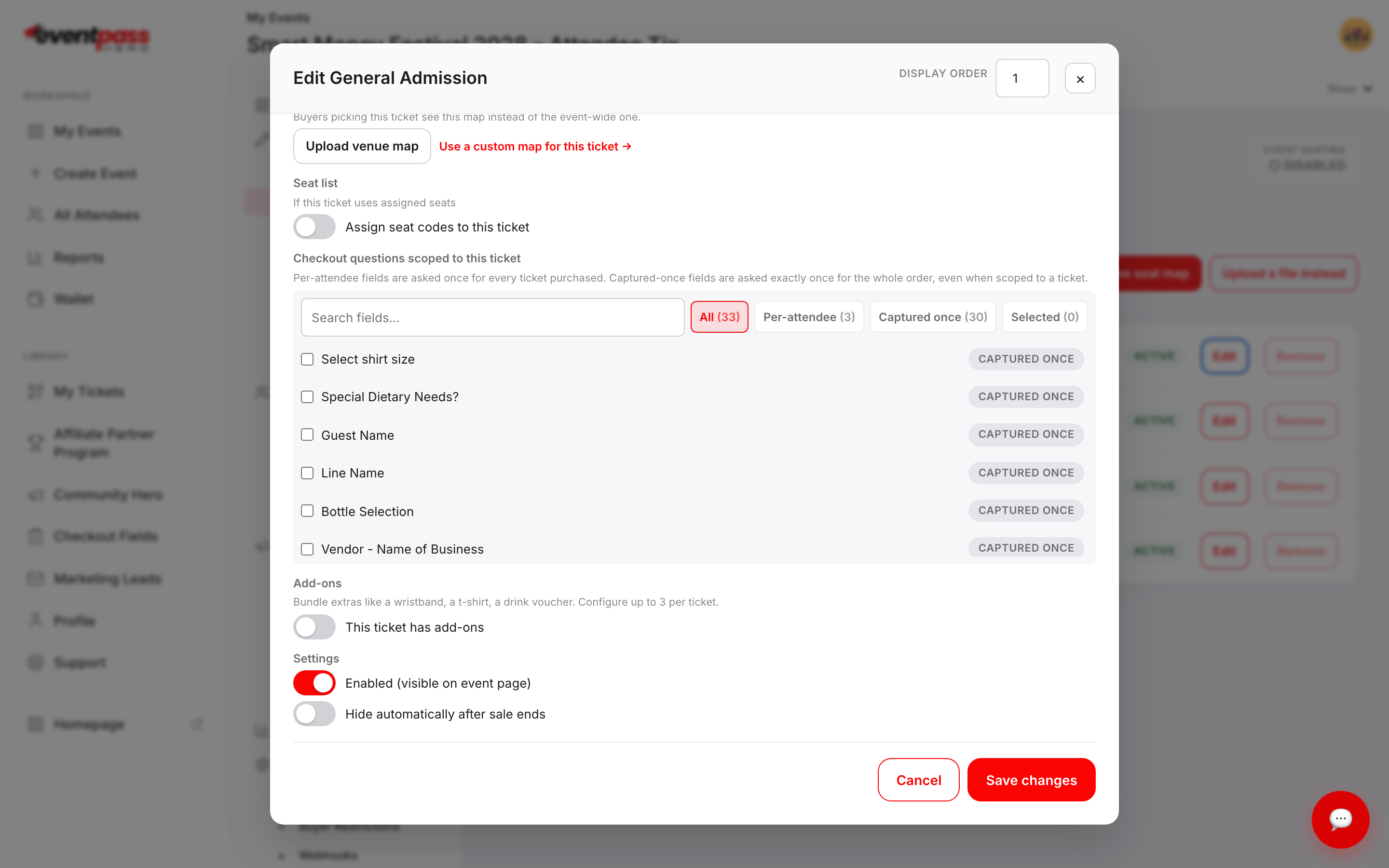
- Virtual attendance — add a join link or dial-in for online attendees on this ticket.
- Seat list — assign seat codes when this ticket uses reserved seating (see the interactive seating article below).
- Checkout questions scoped to this ticket — attach questions like meal choice or shirt size; per-attendee fields are asked once for every ticket purchased, captured-once fields once per order.
- Add-ons — bundle extras like a wristband, t-shirt, or drink voucher (up to 3 per ticket).
- Settings — Enabled (visible on event page) and Hide automatically after sale ends.
The Setup summary button on the Tickets & Seating screen shows sold counts and remaining capacity for every ticket type at a glance.
Troubleshooting
- A ticket isn't showing on the event page — check its sales window (it only shows between Sales start and Sales end) and confirm the Enabled toggle is on.
- Buyers can grab too many tickets — set Max per order on the ticket type.
- You need to stop sales right now — edit the ticket and turn off Enabled, or move Sales end to the past. Existing orders are unaffected.
Last updated 2026-10-18 · All FAQs & video tutorials