

Sell a Table as a Bundle So Every Guest Gets a Ticket
Sell tables as bundles instead of one ticket per table. The buyer still pays the same table price, but they get a ticket for every seat. They send those tickets to their guests, each guest's name shows up on your list when they accept, and everyone checks in on their own. EventPassHero spots table-style ticket types on Tickets & Seating and converts them for you in one click.
Why one ticket per table causes problems
When a "Table for 8" is a single ticket, the buyer gets one QR code for the whole table. You end up chasing the buyer for a guest list, and everyone at that table has to arrive together to get in. A bundle fixes both.
Step-by-step: convert a table ticket
- 1. Open your event and click Tickets & Seating. A ticket type whose name looks like a table, such as "Gala Table for 8", shows a LOOKS LIKE A TABLE tag and a tip underneath it.
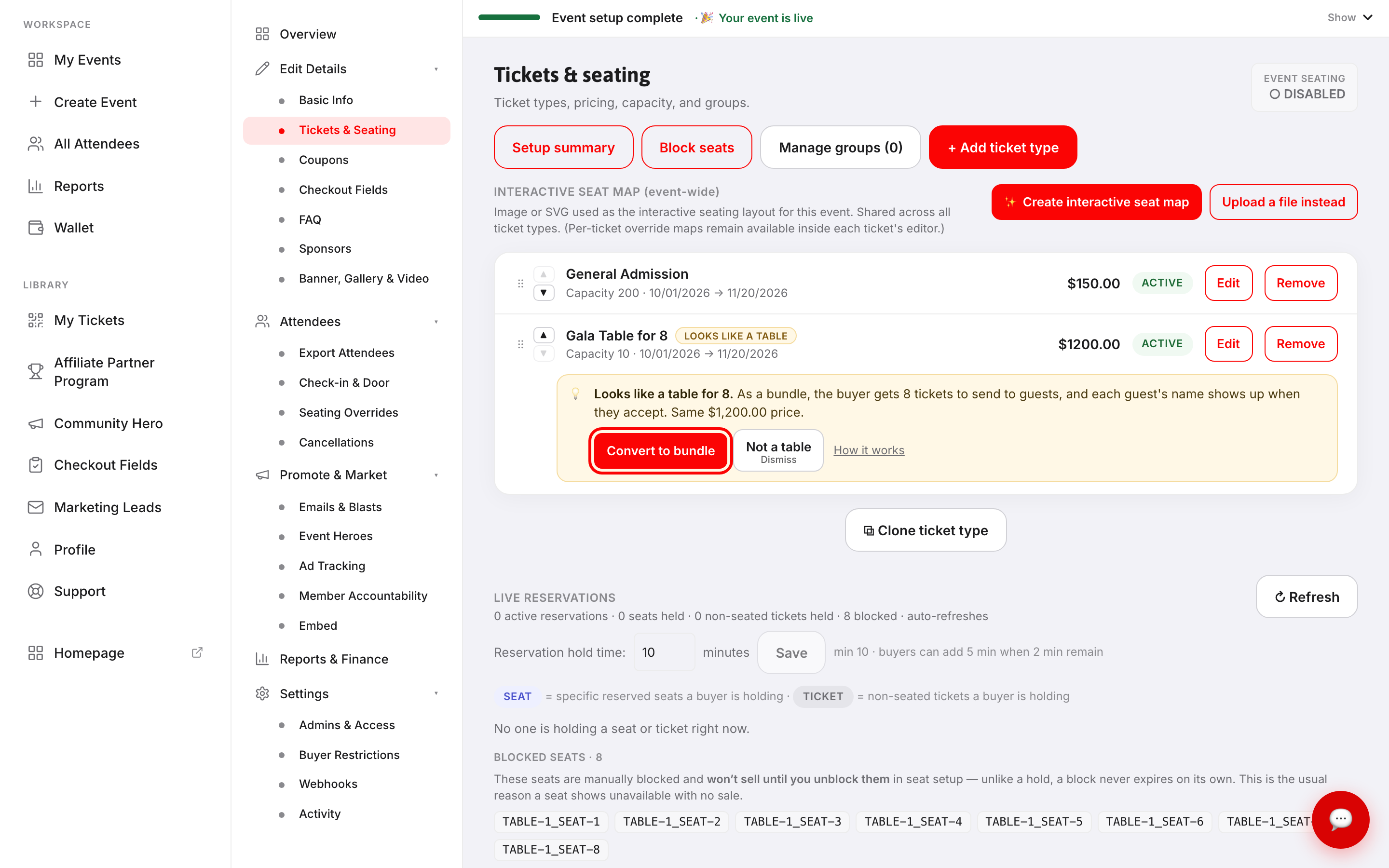
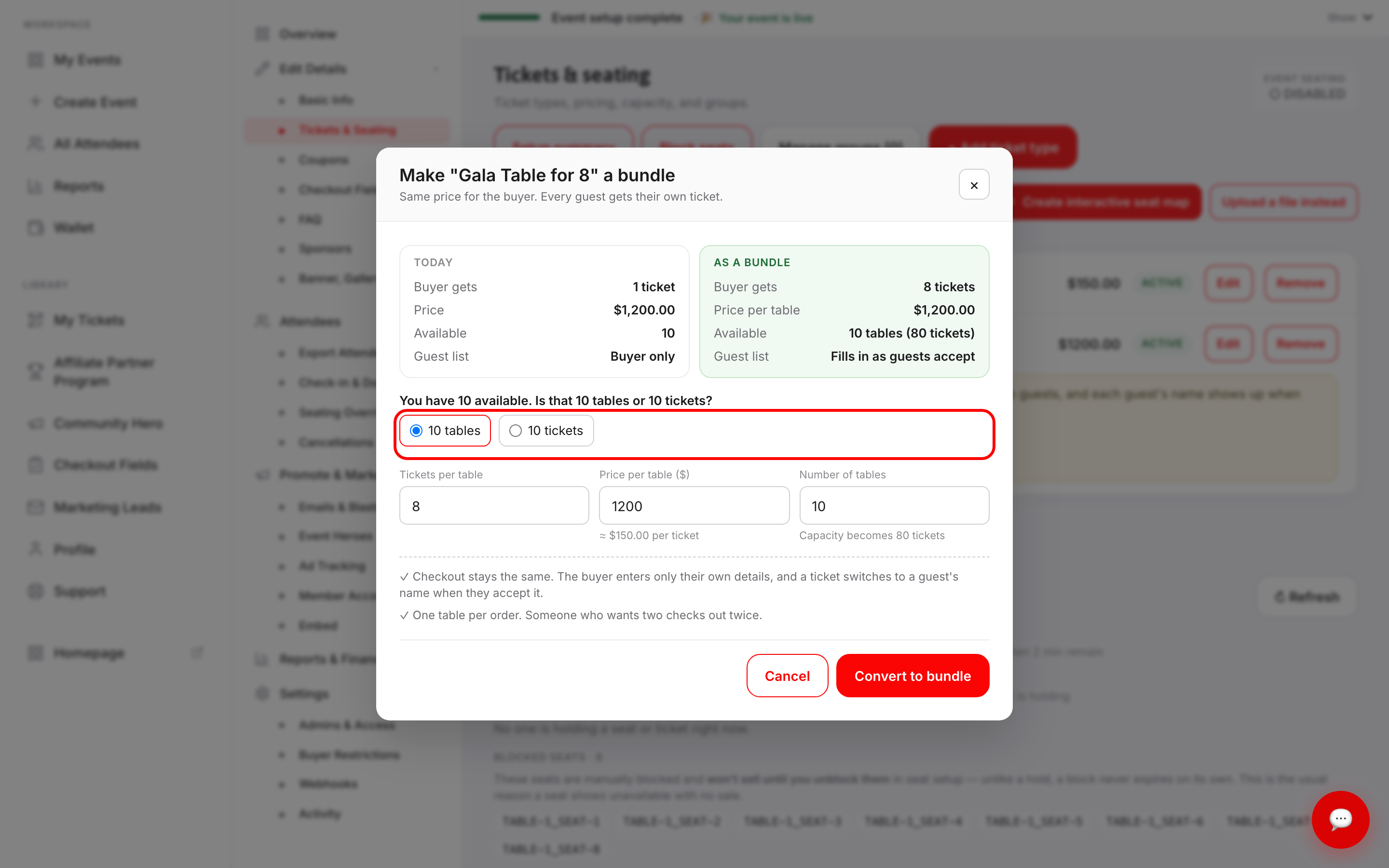
- 2. Click Convert to bundle. The preview compares the ticket today with the bundle version.
- 3. Answer "Is that 10 tables or 10 tickets?" so the capacity comes out right. If your number counted tables, 10 tables of 8 becomes 80 tickets.
- 4. Check Tickets per table, Price per table, and Number of tables. The price per table starts at your current price, so the buyer pays exactly what they paid before.
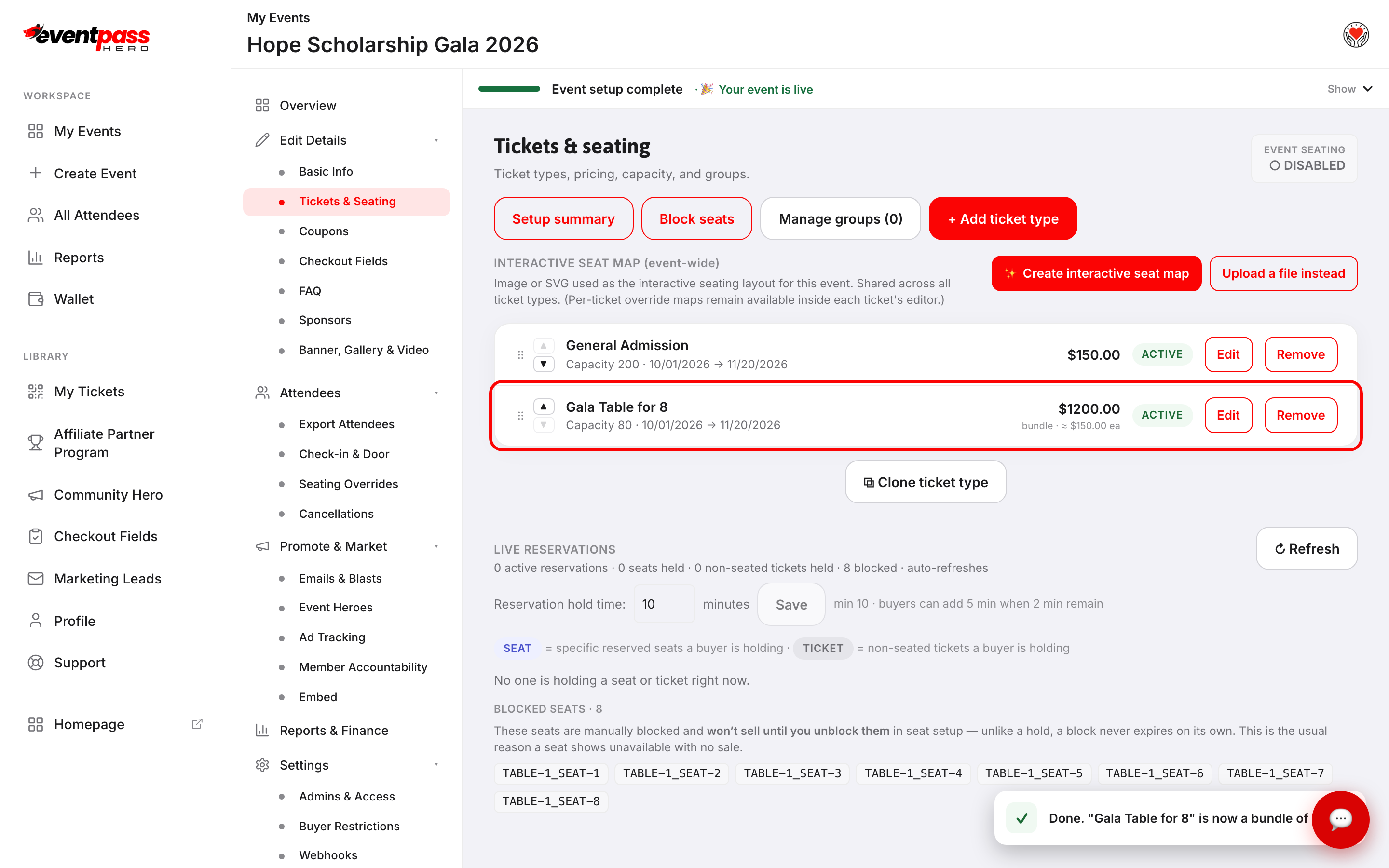
- 5. Click Convert to bundle. The row now shows the table price with the per-ticket price underneath.
How to create a new table as a bundle
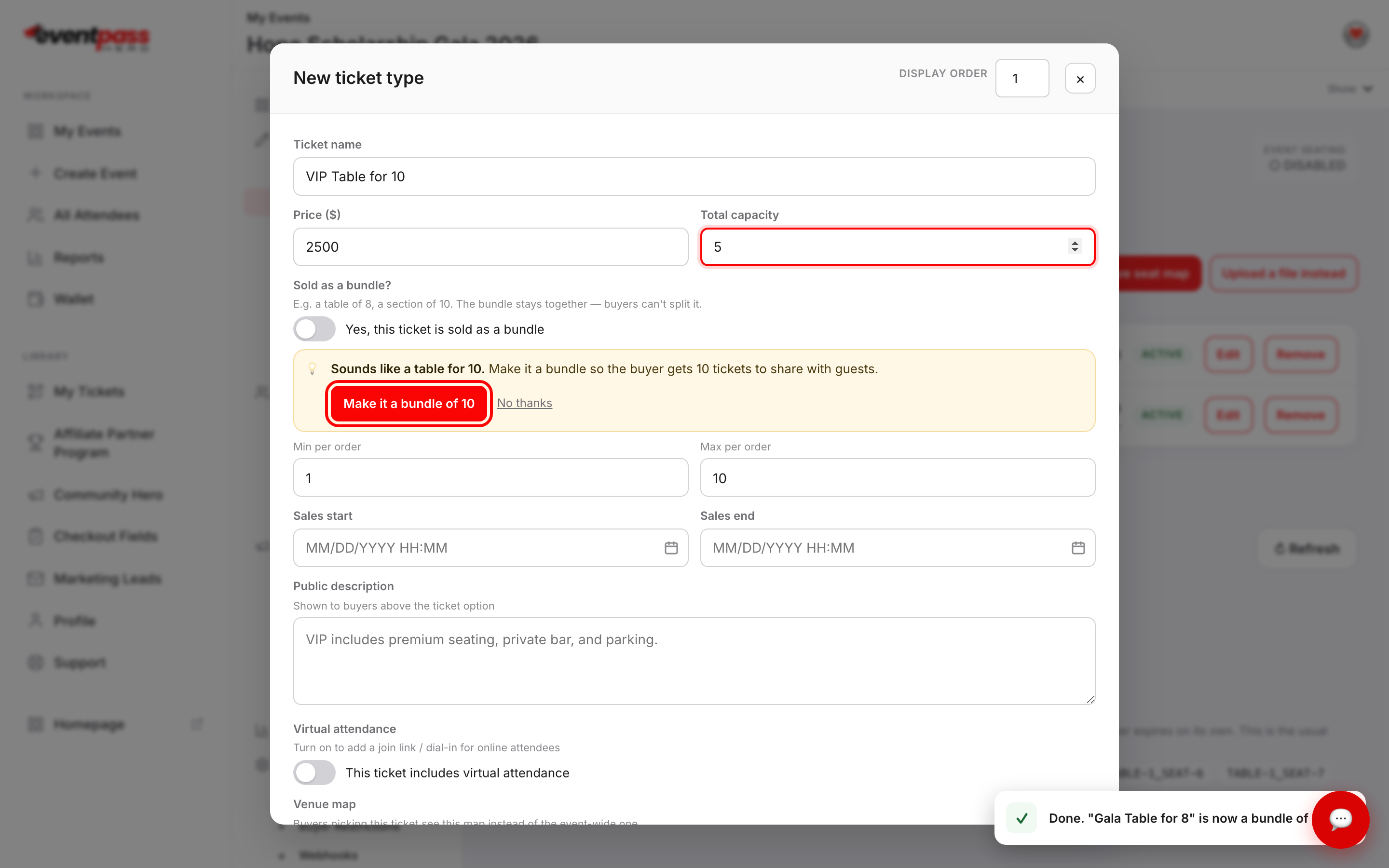
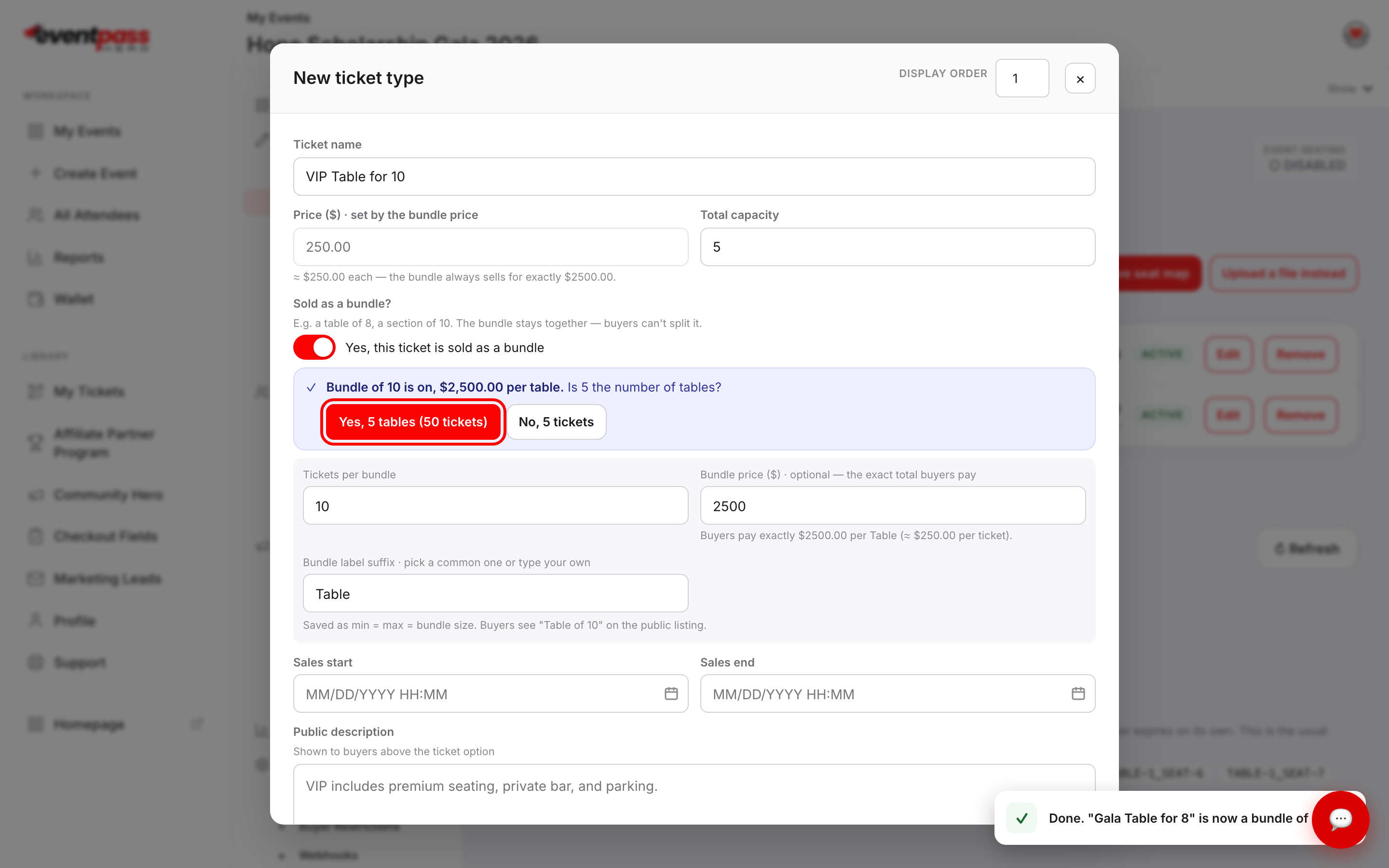
On Tickets & Seating, click + Add ticket type and type a name like "VIP Table for 10". A tip appears under Sold as a bundle?. Click Make it a bundle of 10. The price you entered becomes the price for the whole table, and EventPassHero asks whether your capacity counts tables. Click Yes to multiply it, or No to keep it as a ticket count.
What buyers and guests see with a bundle
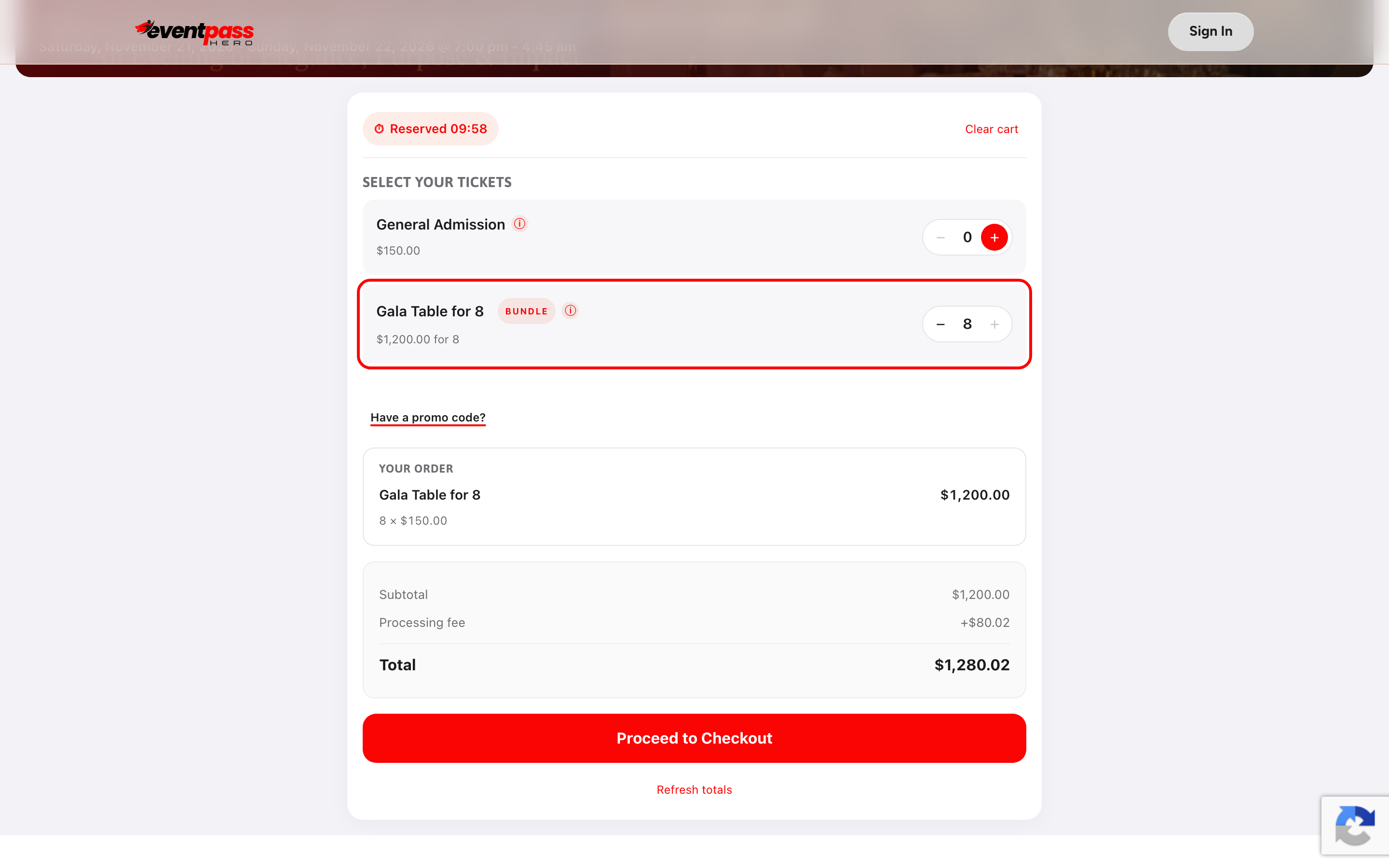
On the event page, the buyer adds the whole table in one tap and pays one price, shown as "$1,200.00 for 8". Checkout stays quick because the buyer only enters their own details. Afterward they send tickets to their guests whenever they like. Each ticket switches to the guest's name when the guest accepts it, and any ticket not sent stays under the buyer's name.
Troubleshooting
- There's no Convert button on my table ticket — the ticket has already sold, so the tip only suggests a bundle for next time. Existing orders are never changed.
- The tip says to set it up in Edit — the ticket uses assigned seats. Each guest needs their own seat code first, so turn on Sold as a bundle in Edit after setting up the seats.
- A buyer wants two tables — each order holds one table, so they check out twice.
- The tip isn't a table — click Not a table to hide it for that ticket type.
Last updated 2026-10-18 · All FAQs & video tutorials