

Create Coupons and Promo Codes
Want to reward early birds, sponsors, or your members with a discount? Coupons take seconds to set up. On your event's Coupons screen you create a code with a dollar or percentage discount, an active window, a usage cap, and the ticket types it covers. Buyers type the code into the cart and watch the price drop before they pay.
Step-by-step
- 1. Open your event and click Coupons under Edit Details.
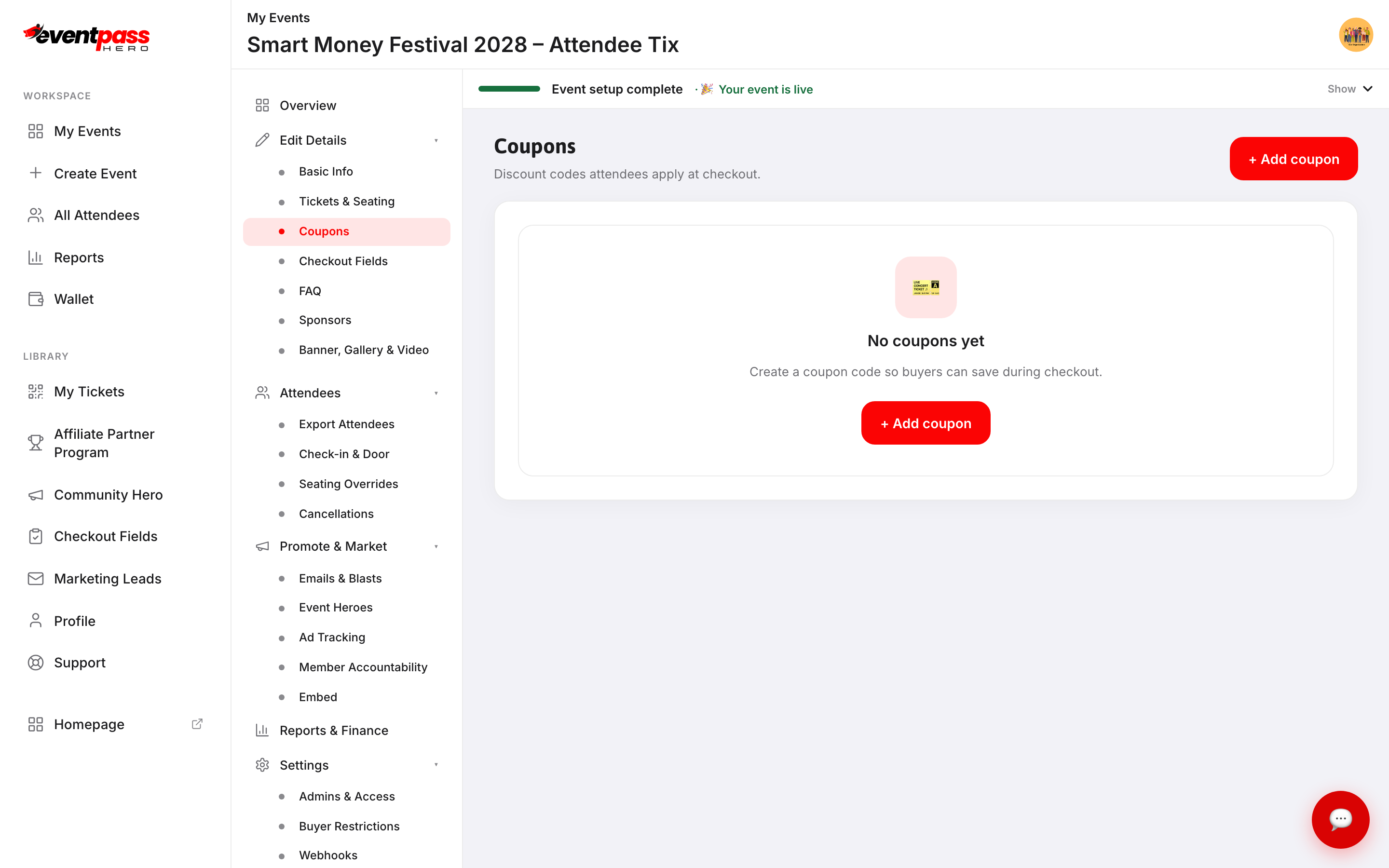
- 2. Click + Add coupon.
- 3. Enter the Discount code buyers will type (like
EARLYBIRD). Keep it short and easy to spell. - 4. Set the discount: $ amount off or % amount off — fill exactly one of the two.
- 5. Set the active window: Starts on / Start time and Ends on / End time. The code only works inside this window.
- 6. Set Max uses — how many times the code can be redeemed. The cart enforces this cap, so give it a number (a high number like 999 works fine when you don't want an effective limit).
- 7. Under Applies to, choose All ticket types or Specific ticket types only and tick the tickets the code should discount.
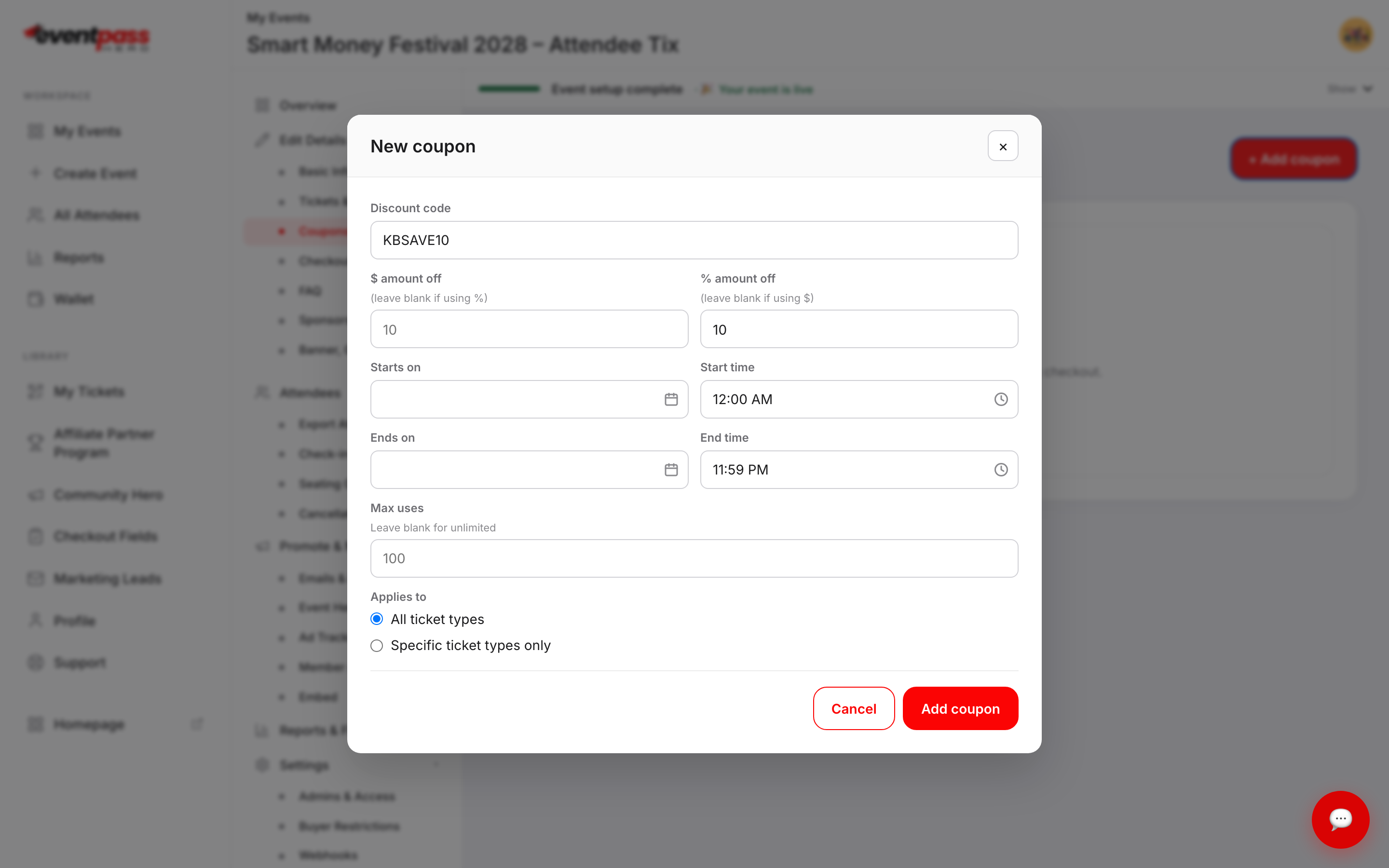
- 8. Click Add coupon. The code appears in the list with its discount, cap, window, and scope.
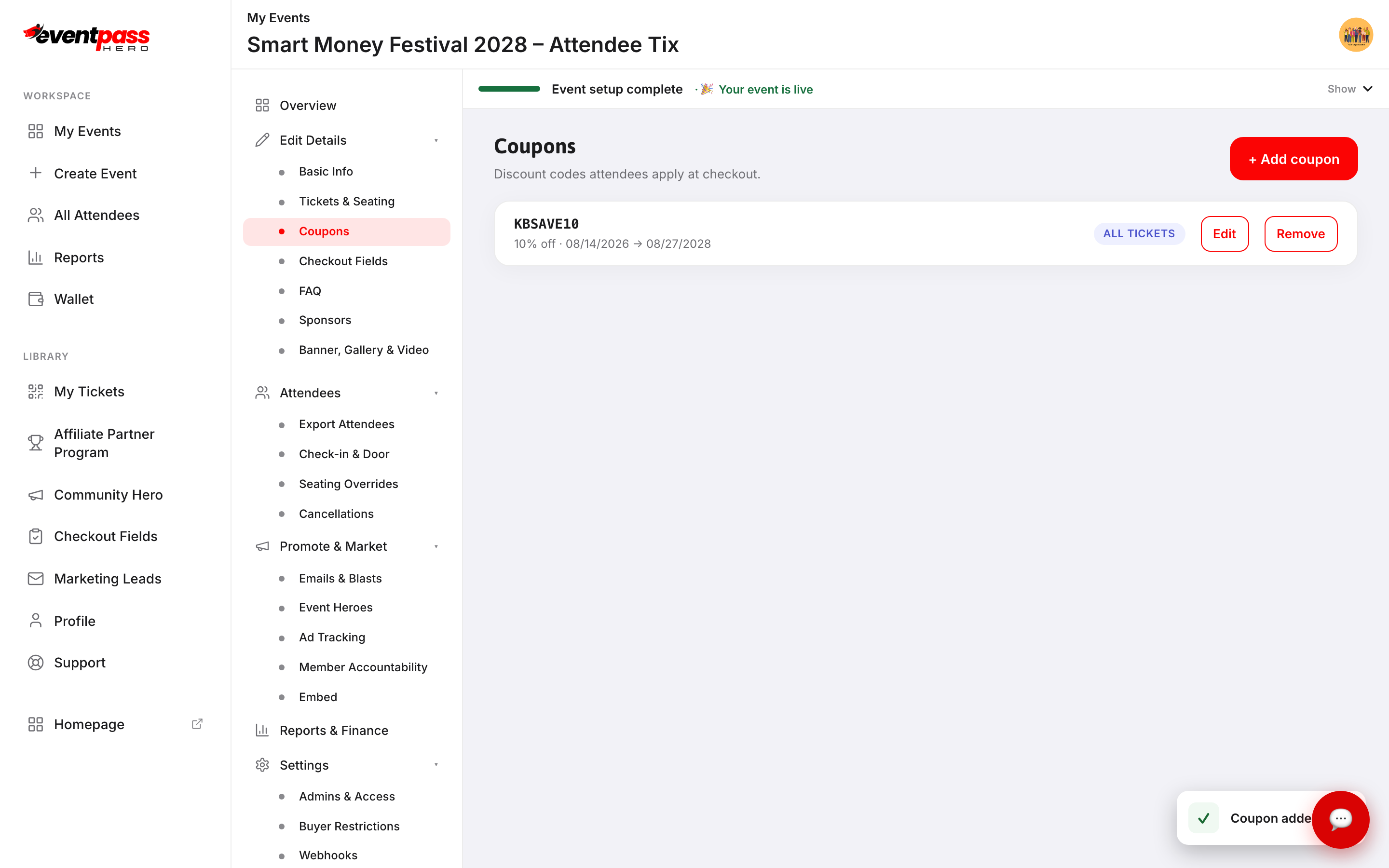
- 9. Test your code before announcing it: open your own event's cart, add a ticket, and apply the code. You should see "Promo applied" and a Promo discount line in the totals.
Sharing and tracking codes
Share codes anywhere — email blasts, social posts, text, printed flyers. Buyers apply them in the cart's Have a promo code? field. Redemptions show up in your event's Reports & Finance screen under Coupon usage, so you can see which codes actually drive sales.
Troubleshooting
- Buyers see "That code isn't valid for this event." — the code is outside its active window, has used up its Max uses, or has a typo. Check the coupon's dates and cap, and remember codes are event-specific.
- The code is accepted but the price doesn't change — the discount only applies to the ticket types in the coupon's scope. Edit the coupon, set Specific ticket types only, tick every type it should cover, save, and re-test at the cart.
- You need to kill a code immediately — Edit the coupon and move its Ends on date to the past, or Remove it.
Last updated 2026-08-14 · All FAQs & video tutorials