
Preview, Share, and QR Your Event
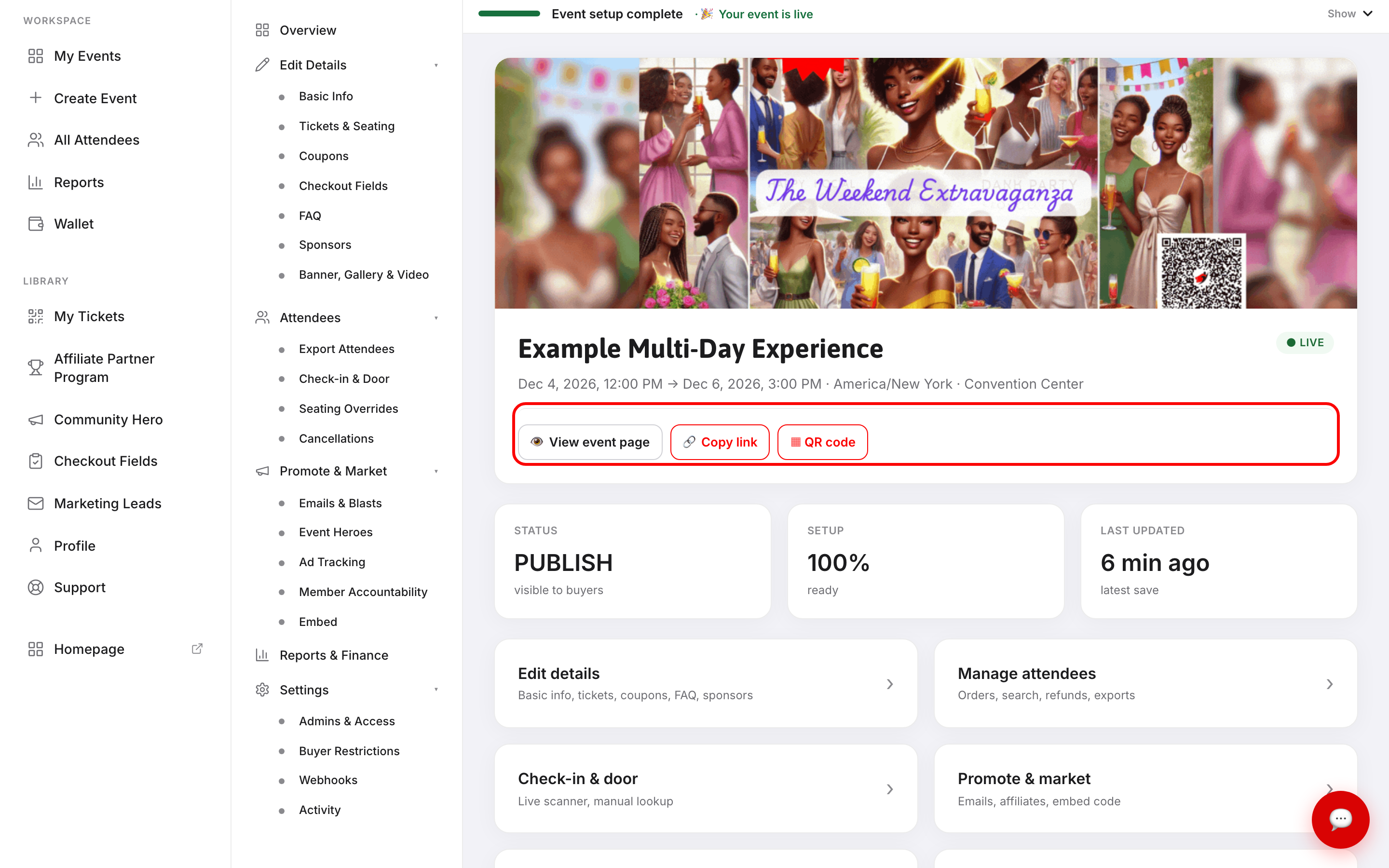
Once your event exists, everything you need to show it to someone sits in one row at the top of the event hub.
View event page
Click 👁 View event page and your live event opens in a new tab — exactly what a buyer sees.
Before you publish, the same button reads 👁 Preview Event. Click it and EventPassHero generates a private preview link, then opens it. It briefly shows Generating… while it works. The preview lets you check your banner, description, ticket list, and buy flow without anyone stumbling across an unfinished event.
Preview a draft at least once before publishing. Copy that reads fine in the editor often reads differently on the page.
Copy link
🔗 Copy link puts your event's public web address on your clipboard, ready to paste into an email, a social post, or a text message. You'll see Event URL copied. when it lands.
If you've set a short link in Basic Info, that's what gets copied — a shorter, tidier address that survives being read aloud or printed on a flyer.
QR code
▦ QR code opens a ready-made code pointing at your event page.
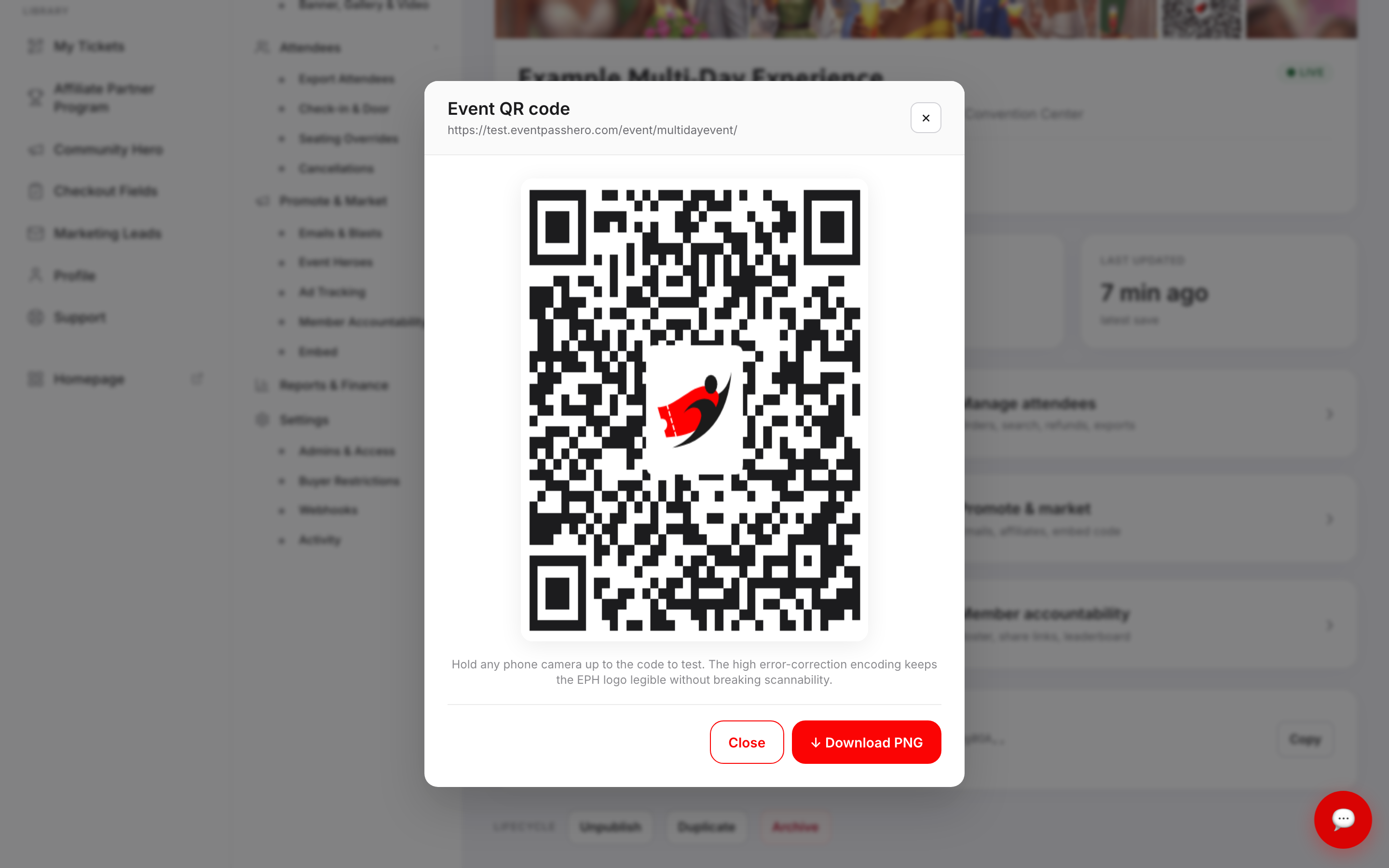
The code carries the EventPassHero logo in the middle. As the dialog explains, it's encoded with high error correction, so the logo doesn't stop a phone reading it. Hold any phone camera up to the code on screen to test it before you commit it to print.
Click ↓ Download PNG to save it. Use it on:
- Flyers, posters, and table tents
- Programs and church bulletins
- Slides at another event
- Business cards and signage
Print it big enough. A code smaller than about an inch across gets unreliable, especially on textured paper or from a distance.
Getting listed on Browse Events
Published events also appear on EventPassHero's Browse Events list, where buyers discover events. An event is listed only when all of these are true:
- It's published and has a banner (not the default image).
- It doesn't have a Private passcode. Private events never appear on Browse Events.
- If it sells paid tickets, your Stripe account is connected and can both take payments and send payouts. Free events don't need Stripe.
If your event is missing from Browse Events, check those three things. The list refreshes regularly, so a fix can take a little while to show. Your event page, short link, and QR code work either way.
Troubleshooting
- Copy link and QR code are greyed out — there's no public address yet. You'll see No public URL yet — set a short link in Basic info, then publish. Publish the event and they come alive.
- Preview says it couldn't generate a link — save the event first, then try again. A never-saved event has nothing to preview.
- The QR code goes to a page that says the event is private — that's a passcode-protected event behaving correctly. Anyone scanning still needs the passcode.
- My link is long and ugly — set a short link in Basic Info. Once it's set, Copy link uses it automatically on your live event.
- I changed my short link and my old QR codes stopped working — codes are printed with whatever address was current when you downloaded them. Settle on a short link before you send anything to a printer.
- I want the tickets on my own website, not a link to ours — that's the embed, not the share link.
Last updated 2026-10-11 · All FAQs & video tutorials