
Make Your Event Private With a Passcode
Some events aren't for everyone — a members-only gala, a donor preview, a soft launch you want to test before announcing. A private passcode locks the whole event page behind a single shared secret. Without it, nobody gets past the front door.
Step-by-step
- 1. Open your event and go to Edit Details → Basic Info.
- 2. Scroll to the bottom, to the Privacy section.
- 3. Type a passcode into Private passcode. Leave it blank and the event stays public.
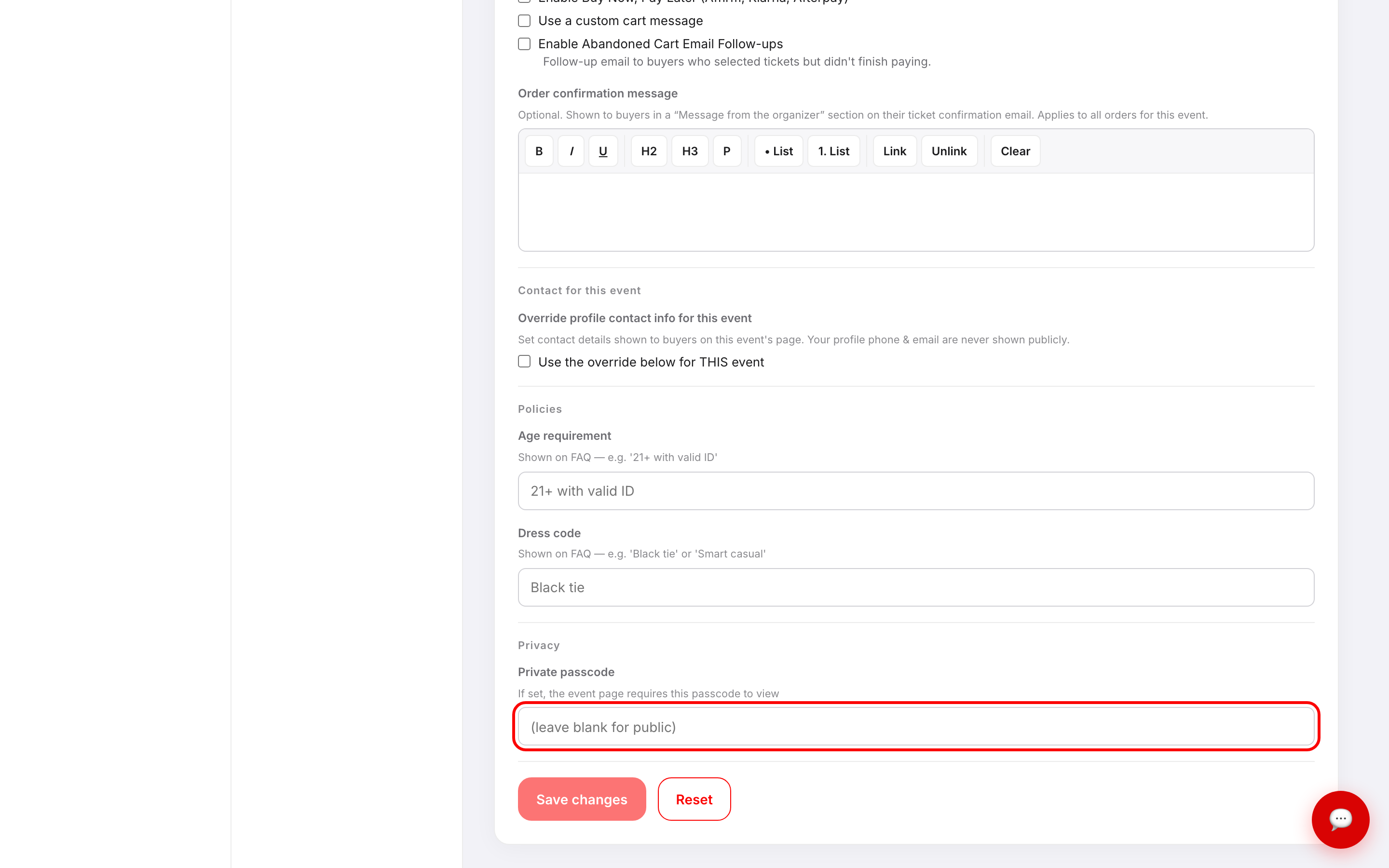
- 4. Click Save changes.
Pick something easy to say out loud — you'll be putting it in an invitation, and buyers will be typing it.
What visitors see
Anyone who opens the event page without the passcode gets a lock screen. Your banner and the event date still show, along with a Private event chip and a 🔒 on the title, but that's all.
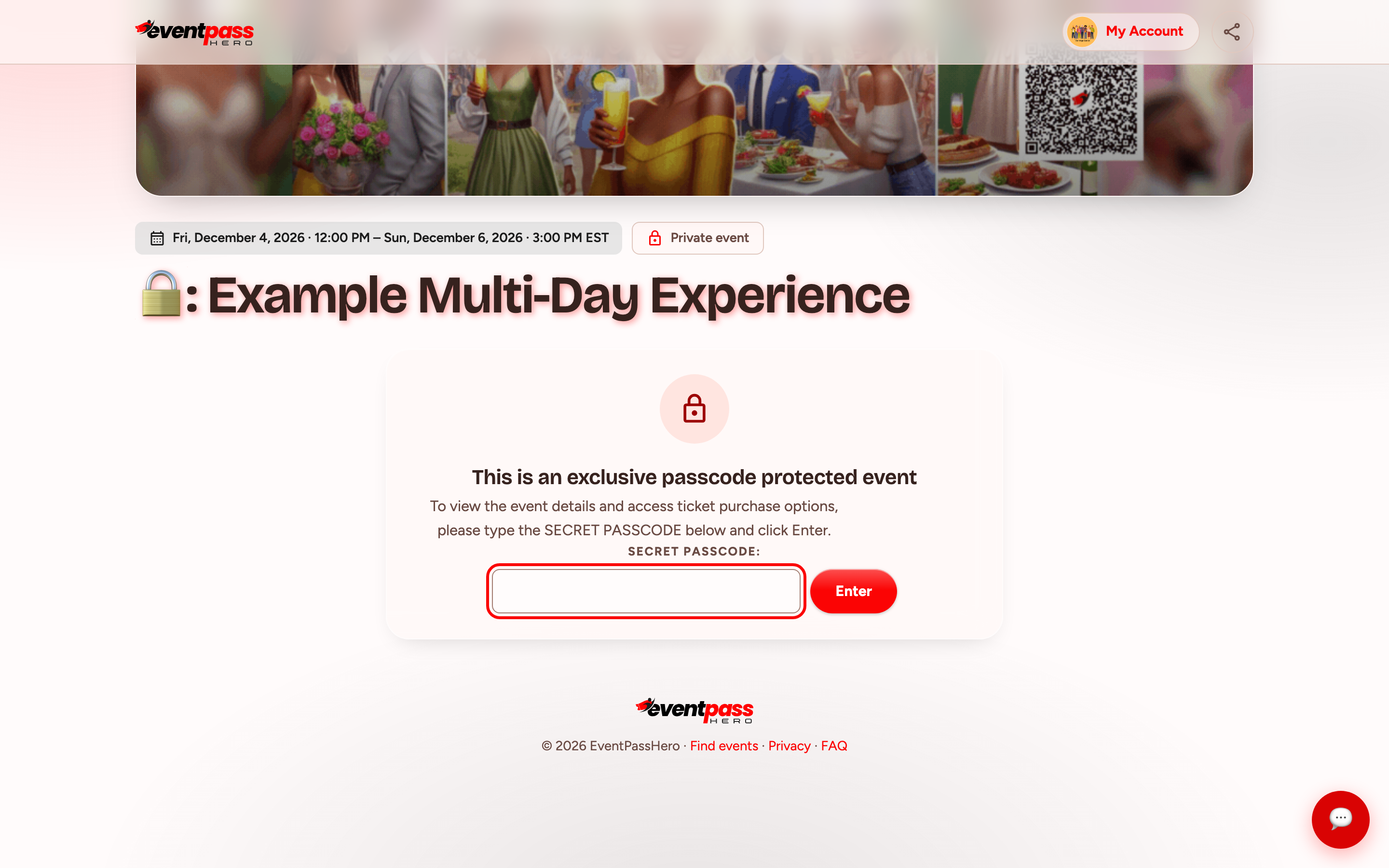
Everything else is hidden until they enter the passcode: your ticket list, the buy button, your description, dates, gallery, FAQ, sponsors, the donation card, and the QR code tool. There's no way to buy a ticket from the lock screen. The share button stays in the top bar, so someone can still pass the link on — they just can't see what's behind it.
Once someone types the passcode and clicks Enter, the full event page loads and their browser remembers it, so they aren't asked again every visit.
Private events never appear on EventPassHero's Browse Events list, so the only way in is the link you share.
Sharing the passcode
EventPassHero doesn't send the passcode out for you — that part is yours. Put it in the invitation email, the printed card, or the text message that carries your event link.
It's one shared secret, not a per-person code. Everybody uses the same one, and anyone who has it can pass it along. Treat it as a soft gate that keeps casual visitors out, not as identity verification. If you need to control exactly who can buy, use buyer restrictions instead — and you can use both together.
Turning it off
Clear the Private passcode field and click Save changes. The event page unlocks immediately, and the padlock disappears from the title.
Passcode or buyer restrictions?
They solve different problems, and they stack:
- A passcode hides the entire event page from everyone who doesn't have it. Nobody sees your tickets or prices until they're in.
- Buyer restrictions let anyone read the page but limit who can complete a purchase — by email, by membership, by list.
Use a passcode when the event itself is confidential. Use restrictions when the event can be seen but only certain people should be able to buy.
Troubleshooting
- A buyer says the passcode doesn't work — passcodes are case-sensitive and keep any spaces you typed. Check the field for a stray space at the end, and confirm you shared exactly what's saved.
- I set a passcode but the page still opens for me — if you'd already entered it in that browser, it's remembered. Check in a private or incognito window to see what a new visitor sees.
- My event title has a 🔒 in front of it — that's the padlock marking a passcode-protected event. It's added automatically wherever the title appears, including your own event lists, and it goes away when you clear the passcode.
- Nobody can find the event — that's the point of a passcode, but if you also want people to reach it, remember they still need the link. The passcode unlocks a page; it doesn't advertise one.
- I want the event completely off the internet instead — don't publish it. A passcode still serves a page at your event's address.
Last updated 2026-10-11 · All FAQs & video tutorials