

Build Your Event Page
Your event page is your first impression — it's what turns visitors into buyers. Everything on it comes from two screens inside your event: Basic Info (title, story, dates, venue, and buyer-facing options) and Banner, Gallery & Video (the visuals). A banner is required before you can publish, and to appear on the Browse Events list.
Basic Info: your event's story
Open your event and click Basic Info under Edit Details.
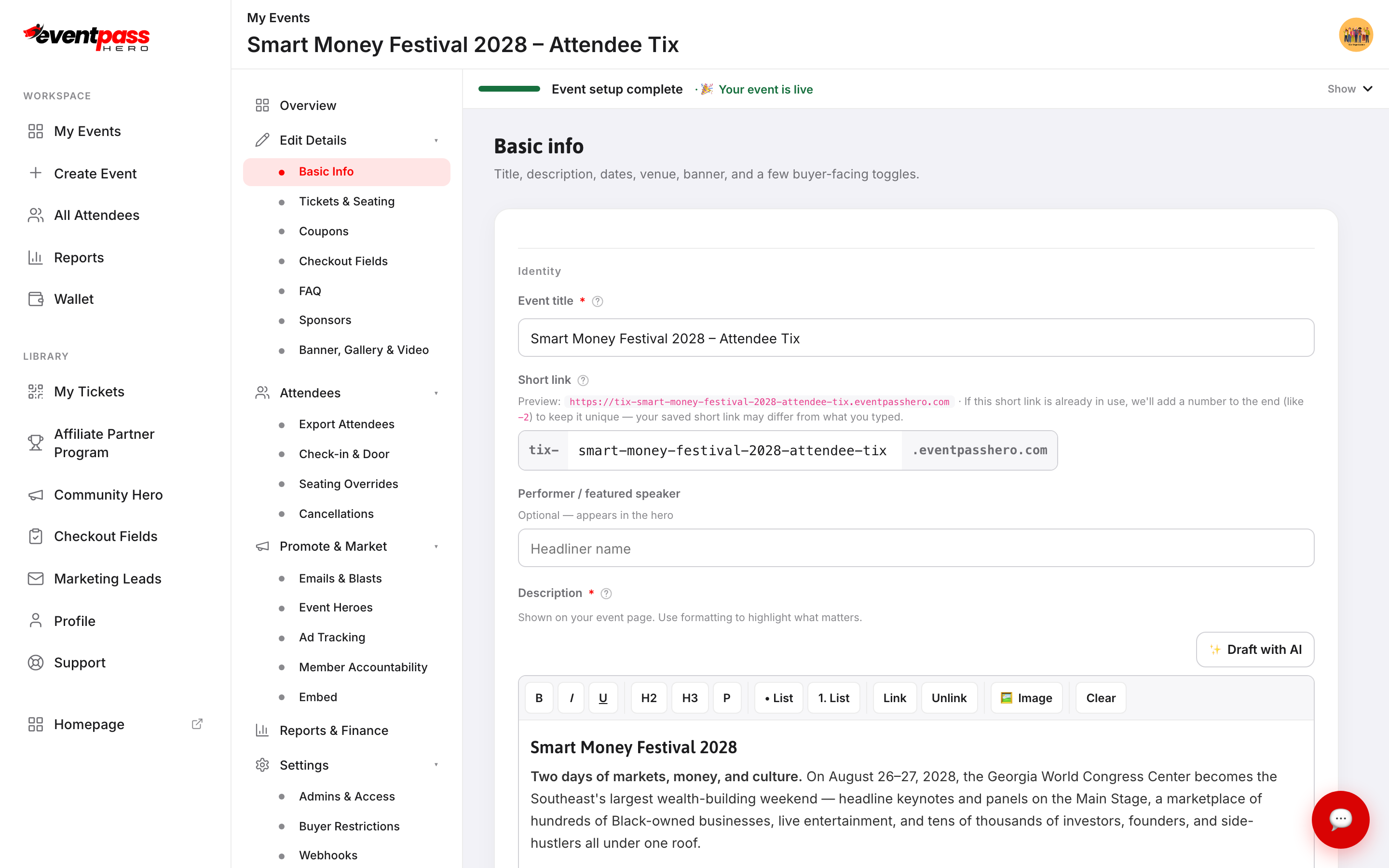
- Event title and a Short link — a memorable
tix-your-event.eventpasshero.comaddress for flyers and posts. - Description — a rich-text editor with headings, lists, links, and images. Tell the story: what's happening, who it's for, what's included. There's a ✨ Draft with AI button if you want a starting point.
- Schedule and Where — start/end times, venue name, and the address (picked from Google suggestions, which also sets your timezone and map pin).
- Category & links and Theme — pick a category, a Color theme for accents, and a Light or Dark landing page theme.
- Buyer experience — choose the Checkout button label (Tickets, Register, RSVP, Purchase, Reserve Spot, or Contribute) and toggles like Allow donations at checkout.
- Policies — an Age requirement (for example "21+ with valid ID") and Dress code, both shown in the event page's FAQ section.
Click Save changes when you're done.
Banner, Gallery & Video: the visuals
Click Banner, Gallery & Video in the sidebar.
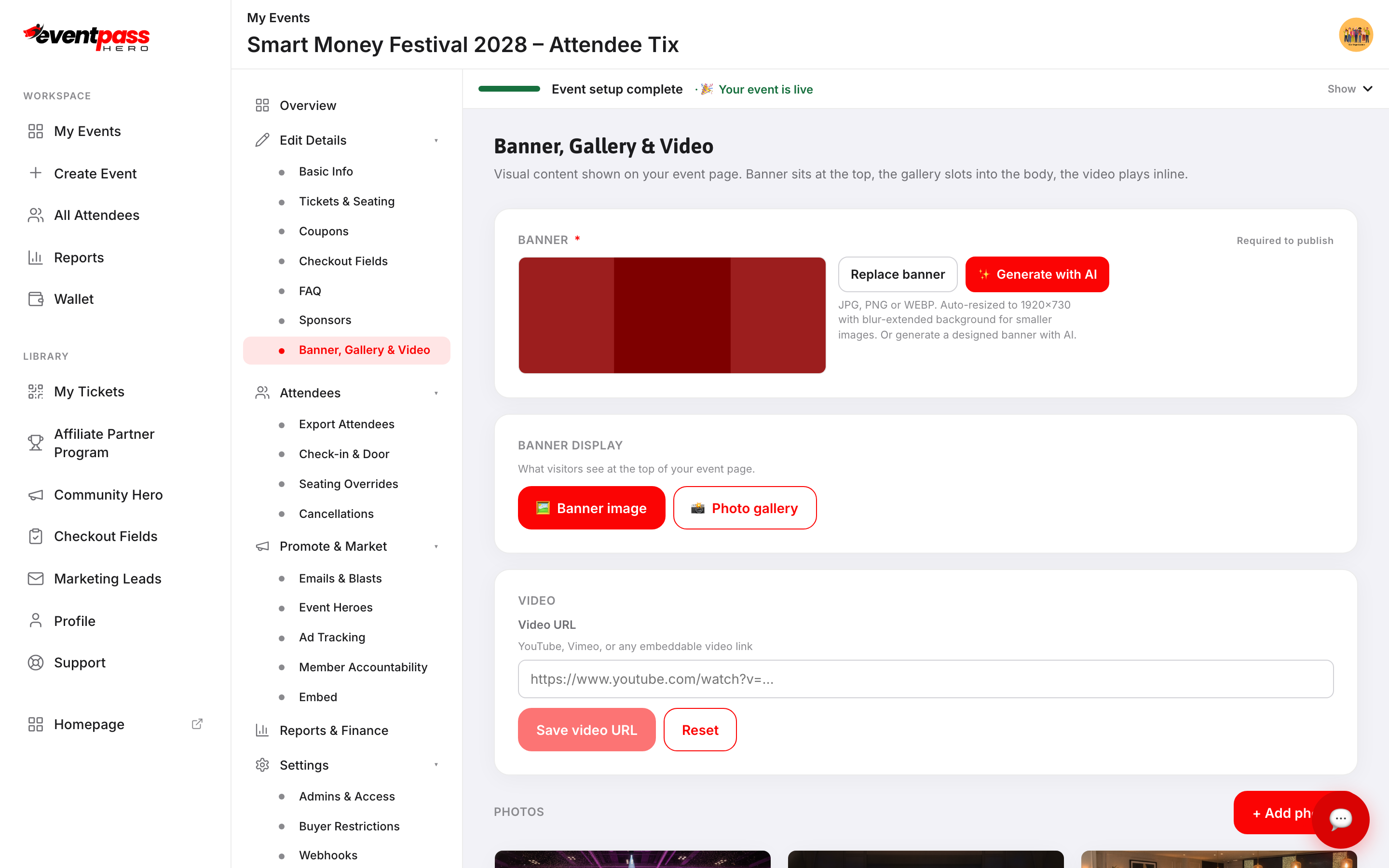
- Banner — upload a JPG, PNG, WEBP, or GIF. Images are auto-resized to 1920×730 with a blur-extended background for smaller images. GIFs are used as-is so any animation keeps playing, so make an animated banner 1920×730. Or click ✨ Generate with AI for a designed banner in about 30 seconds. The banner is required to publish.
- Banner display — show the Banner image or a rotating Photo gallery at the top of your page.
- Video — paste a YouTube, Vimeo, or any embeddable video link; it plays inline on the page.
- Photos — click + Add photos to build a gallery that shows the energy of past events.
See it as buyers see it
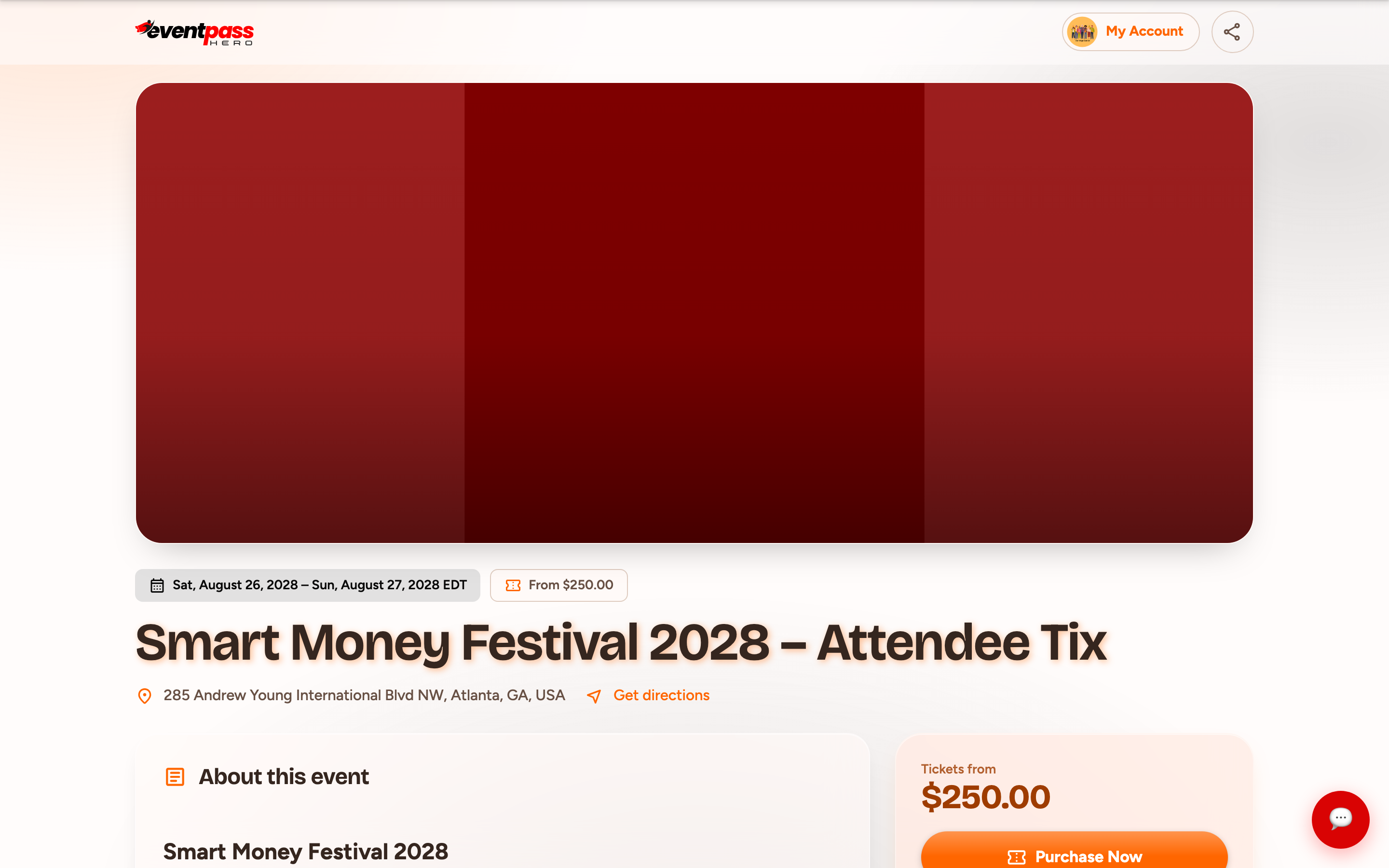
Use Preview Event from the event's Overview (or open your short link) to check the finished page: banner up top, your story, gallery, video, and a clear path to the checkout button.
Troubleshooting
- You can't publish — a banner is required. Upload one on Banner, Gallery & Video.
- The banner looks cropped or letterboxed — images are fit to 1920×730; smaller or differently-shaped images get a blur-extended background. Upload closer to that shape for edge-to-edge coverage.
- My animated GIF banner looks cropped — GIFs aren't resized, so one that isn't 1920×730 is cropped to fit. Export the GIF at 1920×730.
- The video doesn't show — use a standard YouTube or Vimeo link (or another embeddable URL) and click Save video URL.
Last updated 2026-10-11 · All FAQs & video tutorials