

Organize Tickets Into Groups
When an event has a lot of ticket types, a flat list is hard to read. Groups sort them into labelled sections on your public event page — one per day of a weekend, one per sponsorship tier, one for vendor registrations. Buyers get a scannable list instead of a wall of ticket names, which makes groups especially worthwhile on multi-day events.
Step-by-step
- 1. Open your event and go to Edit Details → Tickets & Seating.
- 2. Click Manage groups in the header. The number in brackets is how many groups you already have.
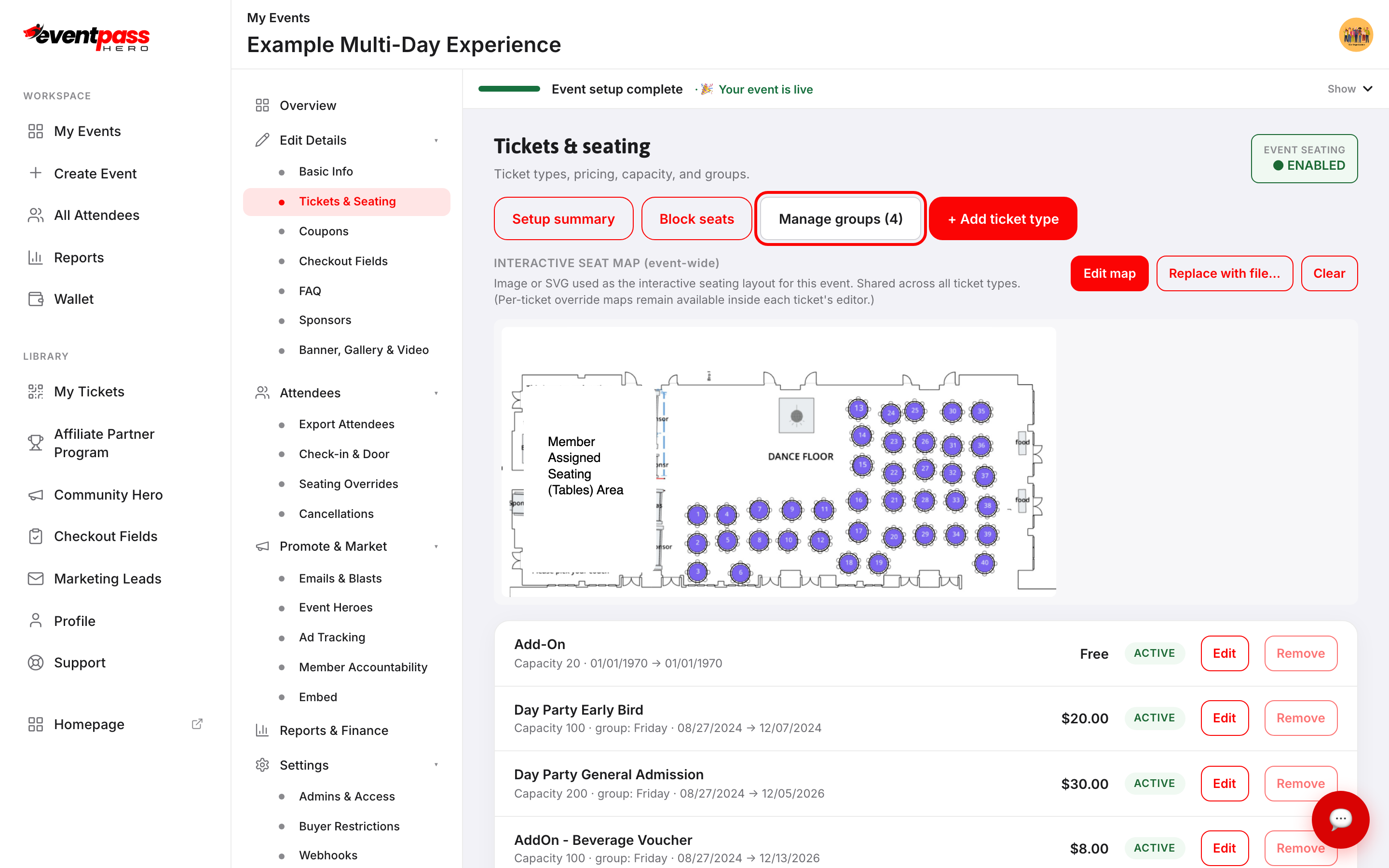
- 3. Fill in the group's details. Only Group name is required.
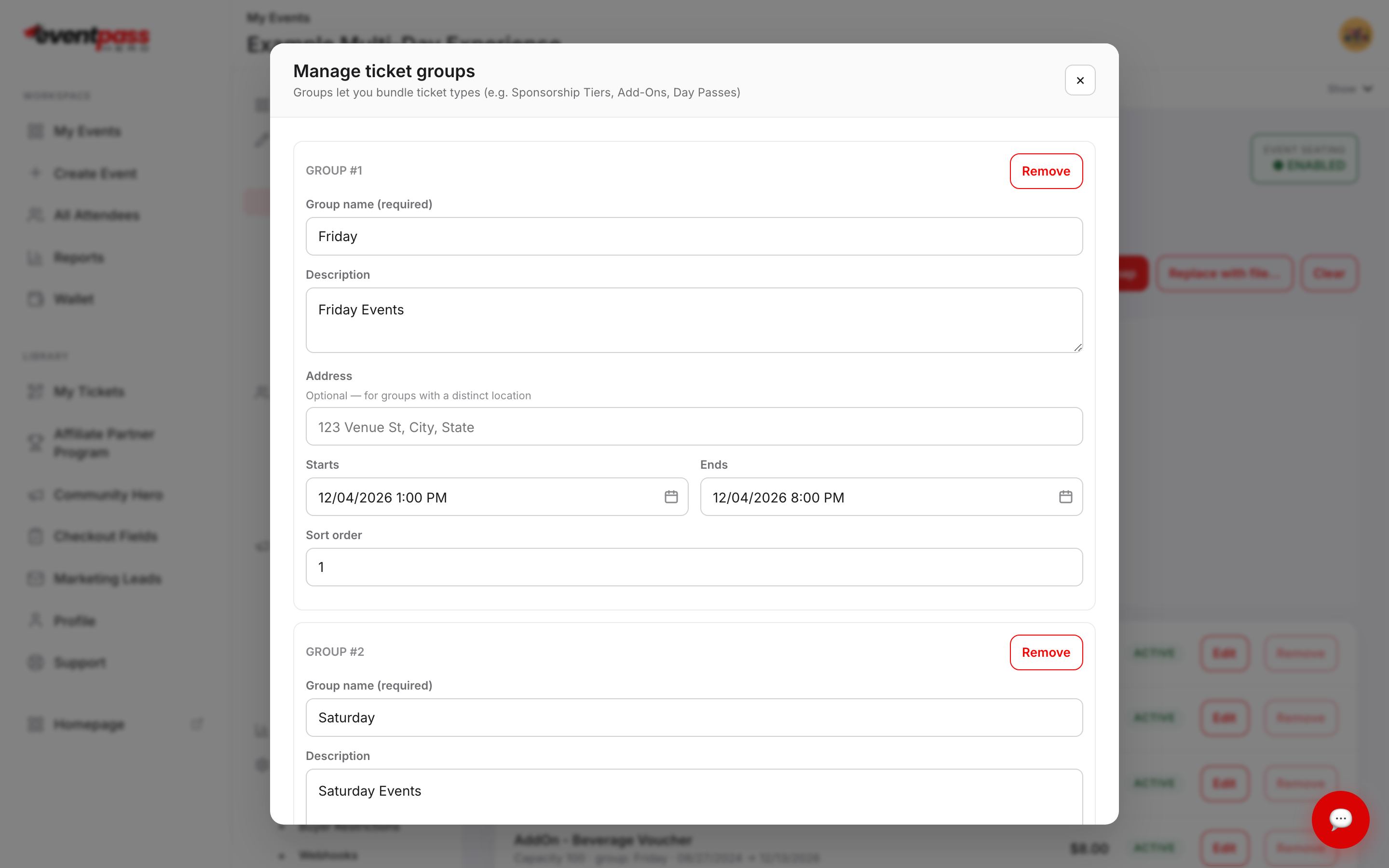
- 4. Click + Add another group for each additional section you need.
- 5. Click Save groups.
What each field does
- Group name (required) — the heading buyers see, e.g. Friday or Sponsors and Vendor Reg. This is the field that does the work on your public page, so make it carry the meaning on its own: Friday — Day Party reads better than Friday.
- Sort order — a number controlling which group block appears first. Lower numbers come first. Easier still: back on the Tickets & Seating list, every group header has ▲ / ▼ arrows (and a drag handle) — move a group up or down right there and the order saves instantly, everywhere buyers see it.
- Description, Address, and Starts / Ends — recorded with the group for your own reference. They aren't printed in the ticket list on your event page today, so don't rely on them to tell buyers when or where a group happens. Put that in the group name, or in your event description.
Assigning ticket types to a group
Groups don't do anything until tickets are in them. Once at least one group exists, a Ticket group dropdown appears in every ticket type's editor.
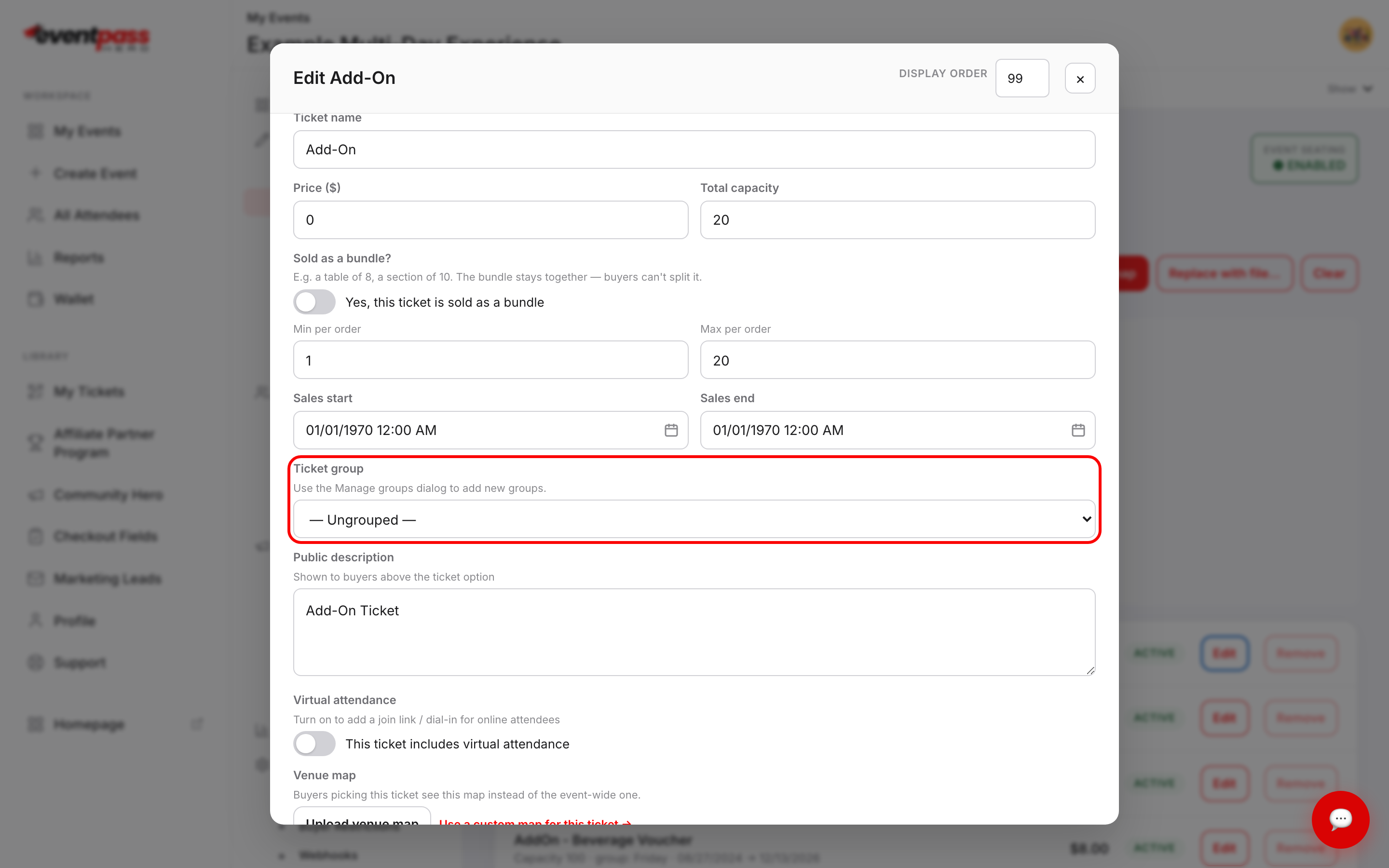
Click Edit on a ticket type, pick a group from the dropdown, and click Save changes. Repeat for each ticket type. Back on the ticket list, every assigned ticket shows its group next to its capacity.
Leave a ticket set to — Ungrouped — and it still sells normally; it just isn't filed under a heading.
What buyers see
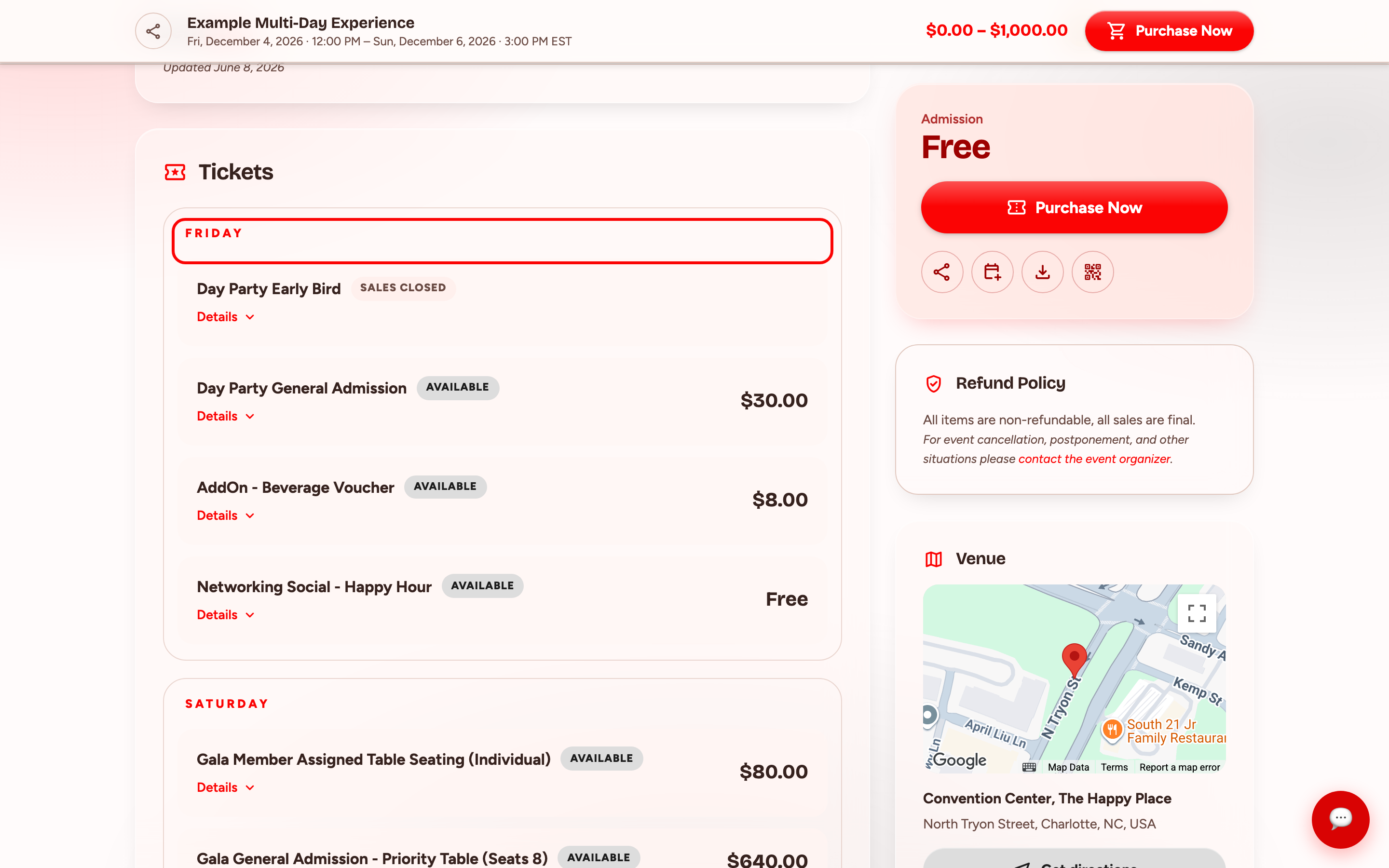
The Tickets card on your event page splits into one labelled section per group, in your sort order. Each section shows the group name as a heading, then its ticket types with an availability chip, the price, and a Details link buyers can expand. Ungrouped tickets appear on their own without a heading.
Troubleshooting
- There's no Ticket group dropdown in my ticket editor — you have no groups yet. Create one with Manage groups first; the field appears as soon as one exists.
- My groups are in the wrong order — use the ▲ / ▼ arrows on the group headers right on the Tickets & Seating list (or drag them). The Sort order number in Manage groups does the same thing — lower numbers come first.
- Removing a group — click Remove next to it and save. The ticket types in it aren't deleted; they revert to ungrouped and keep selling.
- I want to sell a paid extra as part of a group — create it as its own ticket type with a price, then assign it to the group. That's different from the free add-ons bundled inside a single ticket type.
Last updated 2026-09-07 · All FAQs & video tutorials