

Draft Descriptions and Emails With AI
The blank page is the slowest part of setting up an event. ✨ Draft with AI fills it — writing a first draft from the details you've already entered, so you start by editing rather than staring.
It appears in two places: on the event description in Basic Info, and on the compose step of an email blast.
Drafting an event description
- 1. Go to Edit Details → Basic Info and find the description.
- 2. Click ✨ Draft with AI.
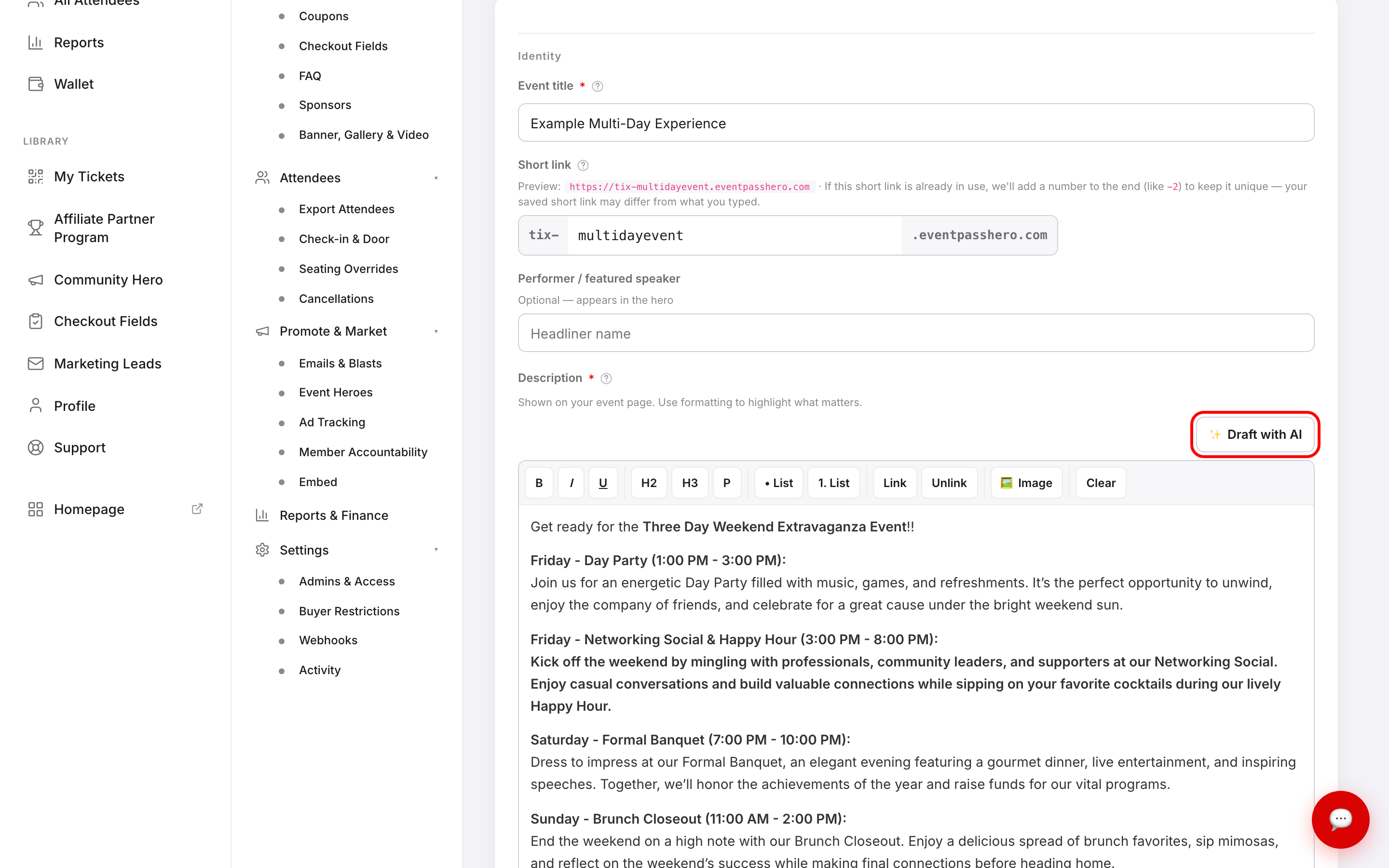
- 3. Choose your options and click generate.
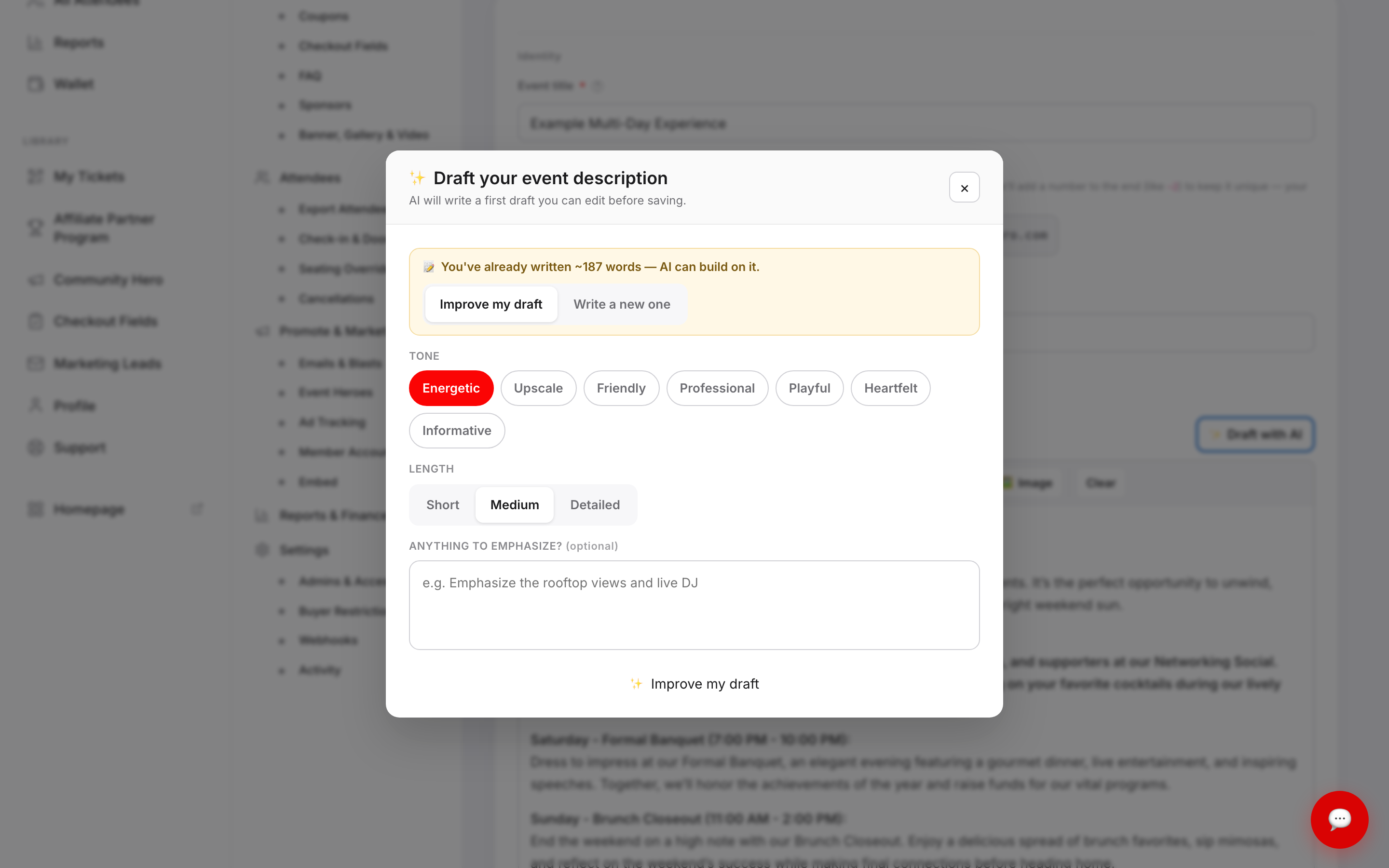
If you've already written something, the dialog notices — You've already written ~187 words — AI can build on it — and offers Improve my draft or Write a new one. Improving keeps your facts and your voice; writing new starts clean.
You then pick:
- Tone — Energetic, Upscale, Friendly, Professional, Playful, Heartfelt, or Informative.
- Length — Short, Medium, or Detailed.
- Anything to emphasize? — optional, and the most useful box on the screen. "Emphasize the rooftop views and live DJ" produces a noticeably better draft than leaving it empty.
Reviewing before you accept
The draft lands in an editor you can type in directly. Nothing has been applied to your event yet.
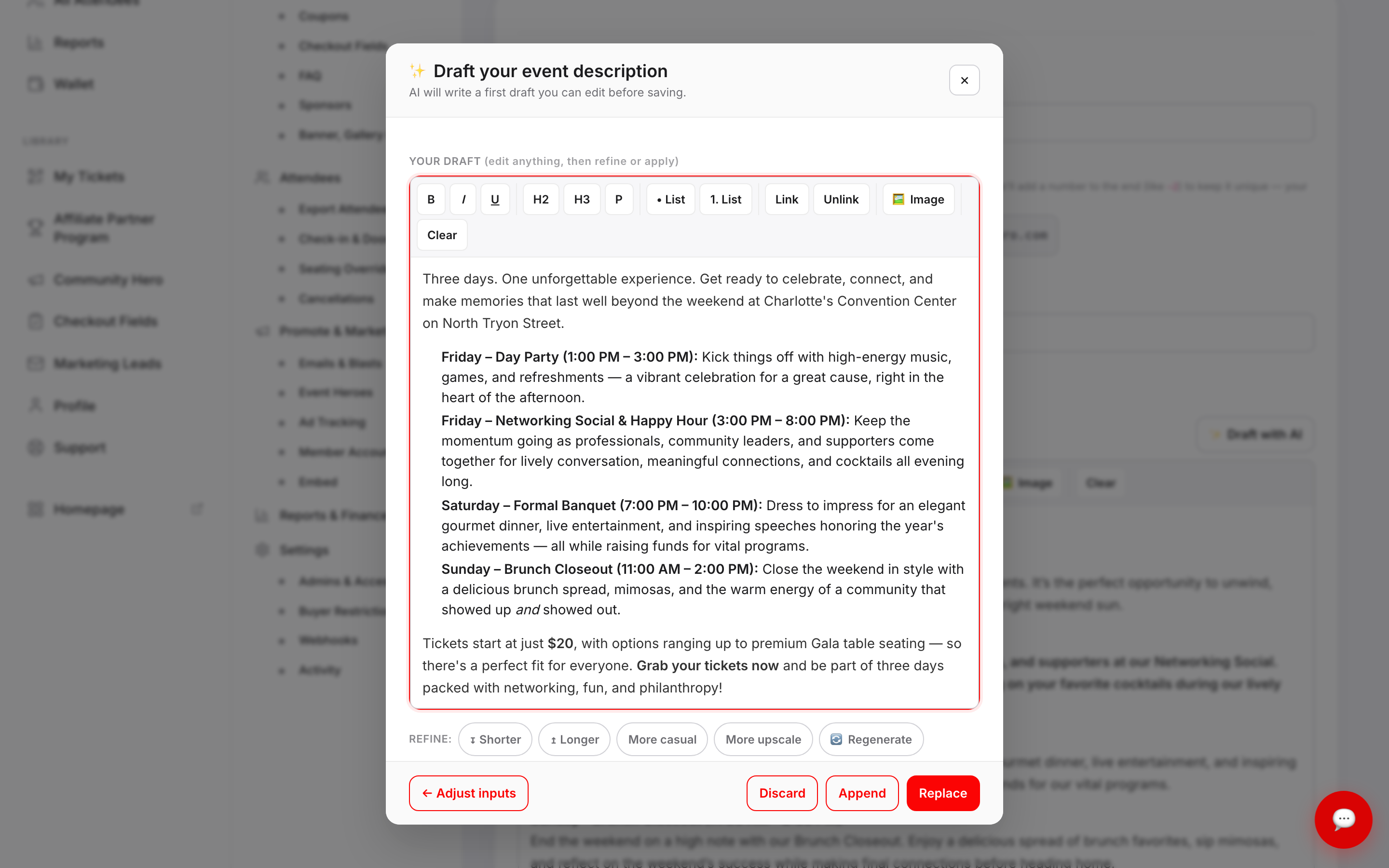
Edit it freely, or nudge it with the refine chips — ↧ Shorter, ↥ Longer, More casual, More upscale, 🔄 Regenerate, ↺ Start over. Refining works from whatever is currently in the box, so your edits are carried along rather than thrown away.
Then choose what happens:
- Replace — swap your existing description for this one.
- Append — keep what you had and add this after it.
- Discard — throw it away and change nothing.
- ← Adjust inputs — go back and try a different tone or length.
Drafting an email blast
On Emails & Blasts, ✨ Draft with AI opens ✨ Compose your message, which drafts a subject line and a body.
It adapts to who you're writing to. The Goal of this message options change with your audience — marketing leads get Invite / announce, Sell the value, Early-bird offer, Last-chance urgency, Re-engage; ticket holders get Reminder, Know before you go, Event update, Upgrade / add-ons, Thank you; members get Rally the team, Sales reminder, Recognize sellers, Announcement.
Tone options are Energetic, Warm, Professional, Playful, or Urgent. Leave Subject line blank and one is suggested for you. Use subject & body drops both into the composer, where you can keep editing before sending.
Always check the facts
The dialog says it plainly: review facts (dates, prices) before sending or publishing.
AI writes fluent, confident sentences — including confidently wrong ones. It can round a price, guess a door time, or invent a detail that sounds plausible. Read every draft against your actual event before it goes anywhere, and be especially careful with:
- Dates, times, and doors
- Prices and what's included
- Venue names and addresses
- Any promise about refunds, parking, or accessibility
Treat it as a fast first draft from someone who hasn't been to your event. The words are a gift; the facts are your job.
Limits
There's a cap so nobody can run up an unbounded bill:
- 25 generations per event per day
- 75 generations per day across all your events
- A short-term burst limit of about 6 per minute
Hit one and you'll see You've reached today's AI limit for this event, You've reached your daily AI limit, or Please slow down — try again in a minute. They reset daily. In normal use you won't come close — but refining a draft counts as a generation, so a long tuning session adds up.
There's also an AI banner generator on the banner upload step, capped separately at 10 per event.
Troubleshooting
- The draft got my dates wrong — fix them in the editor before applying. Also check the dates on your event are correct, since that's what the draft was built from.
- It ignored what I asked for — put it in Anything to emphasize? rather than hoping. Specific instructions work far better than tone alone.
- I liked the previous version better — ↺ Start over returns you to the inputs. Once you've clicked Replace, though, the old text is gone unless you saved it.
- I clicked Replace by mistake — leave Basic Info without clicking Save changes and your stored description is untouched.
- Nothing happens when I generate — you may have hit a limit; the message says which. Otherwise try again in a minute.
- My formatting disappeared when I applied it — the description supports rich text, but the order confirmation message strips headings. Check where you're pasting.
Last updated 2026-08-15 · All FAQs & video tutorials