

Email Blasts and Marketing
Reaching your audience usually means paying for a separate email tool — with EventPassHero it's built in. Your event's Emails & Blasts screen sends one-off emails to your marketing leads, your ticket holders, or your organization members, using a branded template that already carries your event banner. Preview it, send yourself a test, blast it, then watch delivery and open stats come in.
Step-by-step
- 1. Open your event and click Emails & Blasts under Promote & Market.
- 2. Pick your Audience: Marketing Leads (your promo list), Ticket Holders / Attendees (everyone with an order), or Organization Members (your Member Accountability roster).
- 3. Write the Subject and Body. The editor gives you headings, bold, lists, links, and images — no design tools or HTML needed. There's a ✨ Draft with AI button if you want a head start.
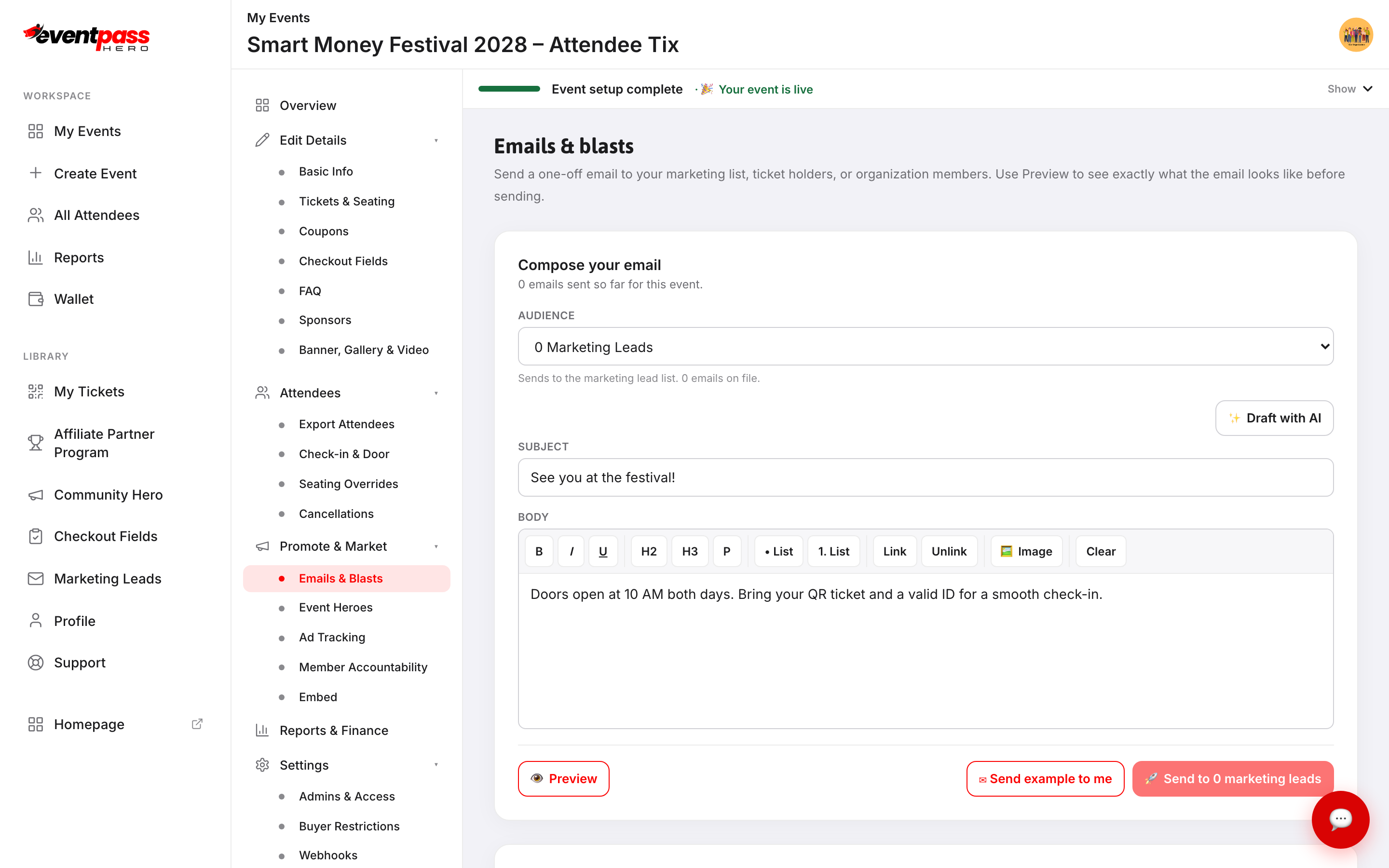
- 4. Click 👁 Preview to see exactly what recipients get — your event banner on top, your message below, and a link to the event page.
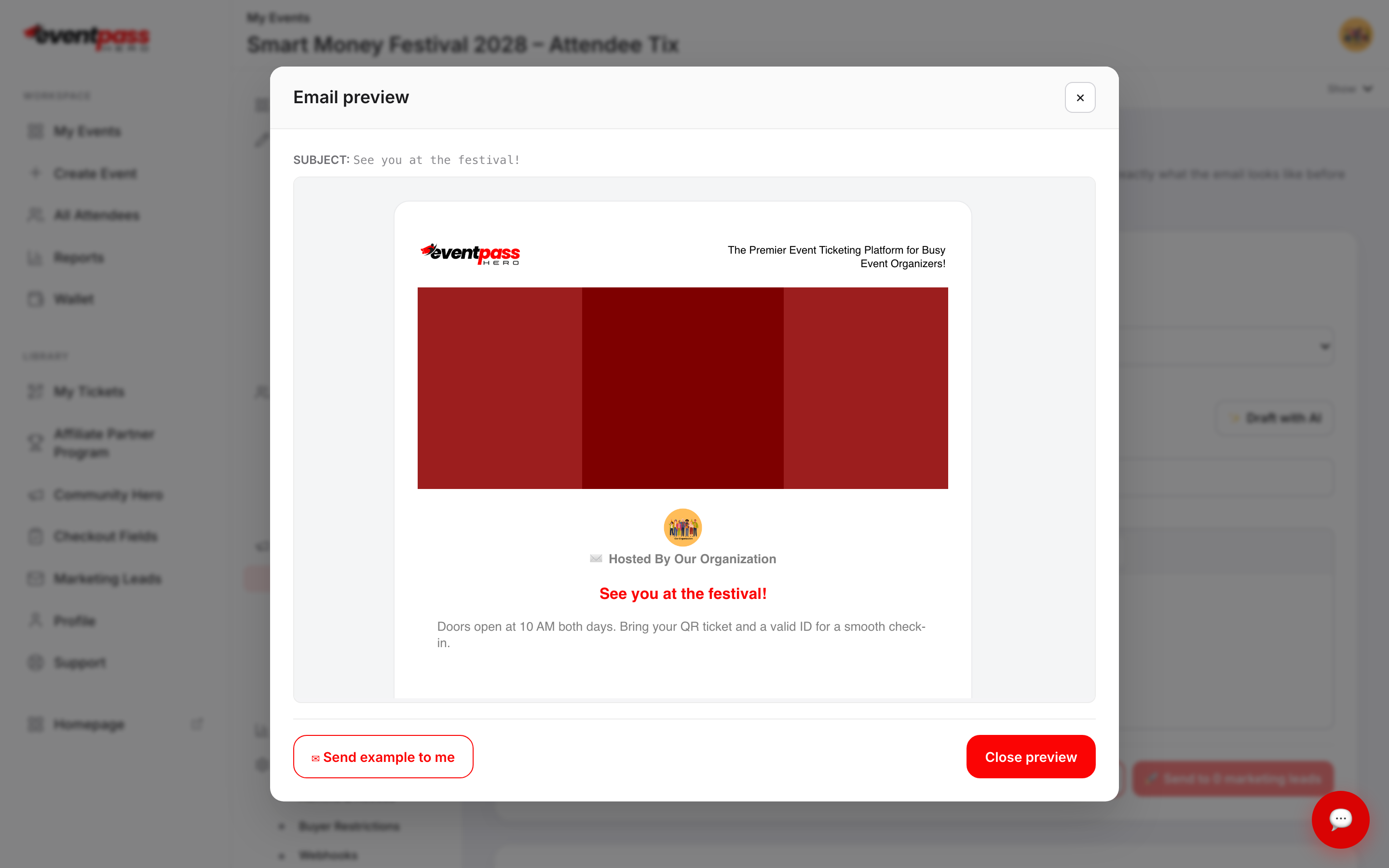
- 5. Click ✉ Send example to me for a real test in your own inbox, then hit the 🚀 Send button when it's right.
Your marketing lead list
The Marketing lead list section on the same screen manages your promo audience: type leads in, paste from Excel, ⤵ Merge from prior event to reuse a list you built last year, and ⬇ Export anytime. One contact list, searchable and reusable across your events — the workspace Marketing Leads screen shows it all in one place.
Delivery and open stats
Sent messages at the bottom shows delivery and open stats for every blast on this event, powered by the email platform. Every email includes one-click unsubscribe, and unsubscribes are honored automatically on future promotional sends.
Ad tracking for paid campaigns
Running Meta or Google ads? The Ad Tracking screen (also under Promote & Market) takes your Meta Pixel ID and Google Tag ID so your public event page reports traffic back to your ad accounts — your dashboard and checkout stay untracked.
Troubleshooting
- The send button says "0 recipients" — your selected audience is empty. Add marketing leads (or switch audience); the counts next to each audience show what you'll reach.
- Worried about spam folders — sending is authenticated (SPF/DKIM/DMARC) and inbox placement is high; clear subject lines and engaged lists keep it that way.
- A member says they got no email — confirm they're on the Member Accountability roster (that's what the Organization Members audience uses) and check their spam folder.
Last updated 2026-08-14 · All FAQs & video tutorials