
Create an Event from Your Flyer
Already made a flyer for your event? Upload it and EventPassHero fills in the event for you. It reads the title, date, start time, venue, address, and ticket prices off the flyer, shows everything next to your flyer so you can check it, and creates a draft event. Nothing is published until you say so.
Step-by-step
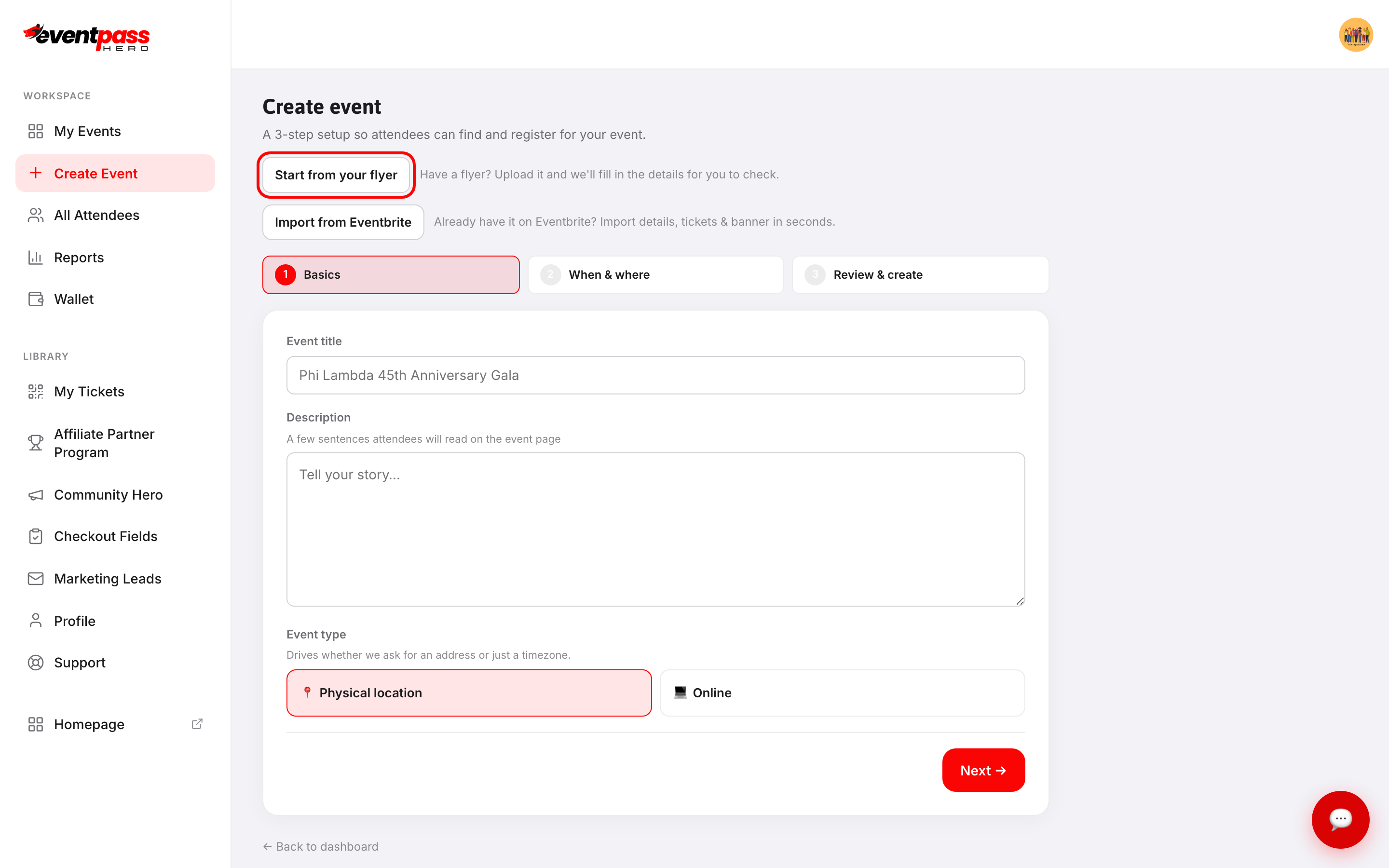
- 1. Click Create Event in the sidebar, then Start from your flyer. The same button is on My Events and Start Selling.
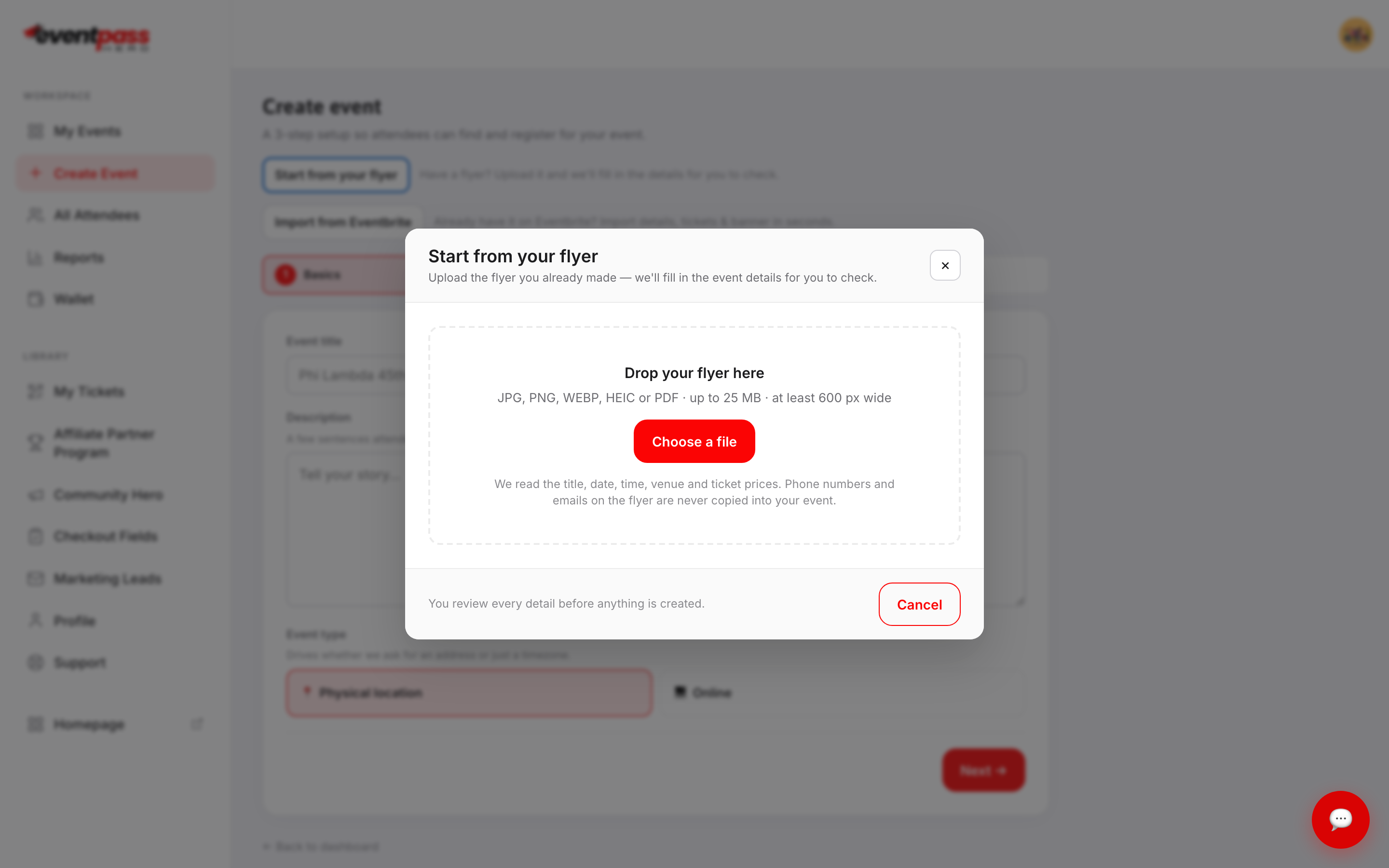
- 2. Drop your flyer into the window or click Choose a file. JPG, PNG, WEBP, HEIC (iPhone photos), and PDF all work, up to 25 MB and at least 600 pixels wide.
- 3. Wait about 10 seconds while your flyer is read. The review screen opens with your flyer on the left and the event details on the right.
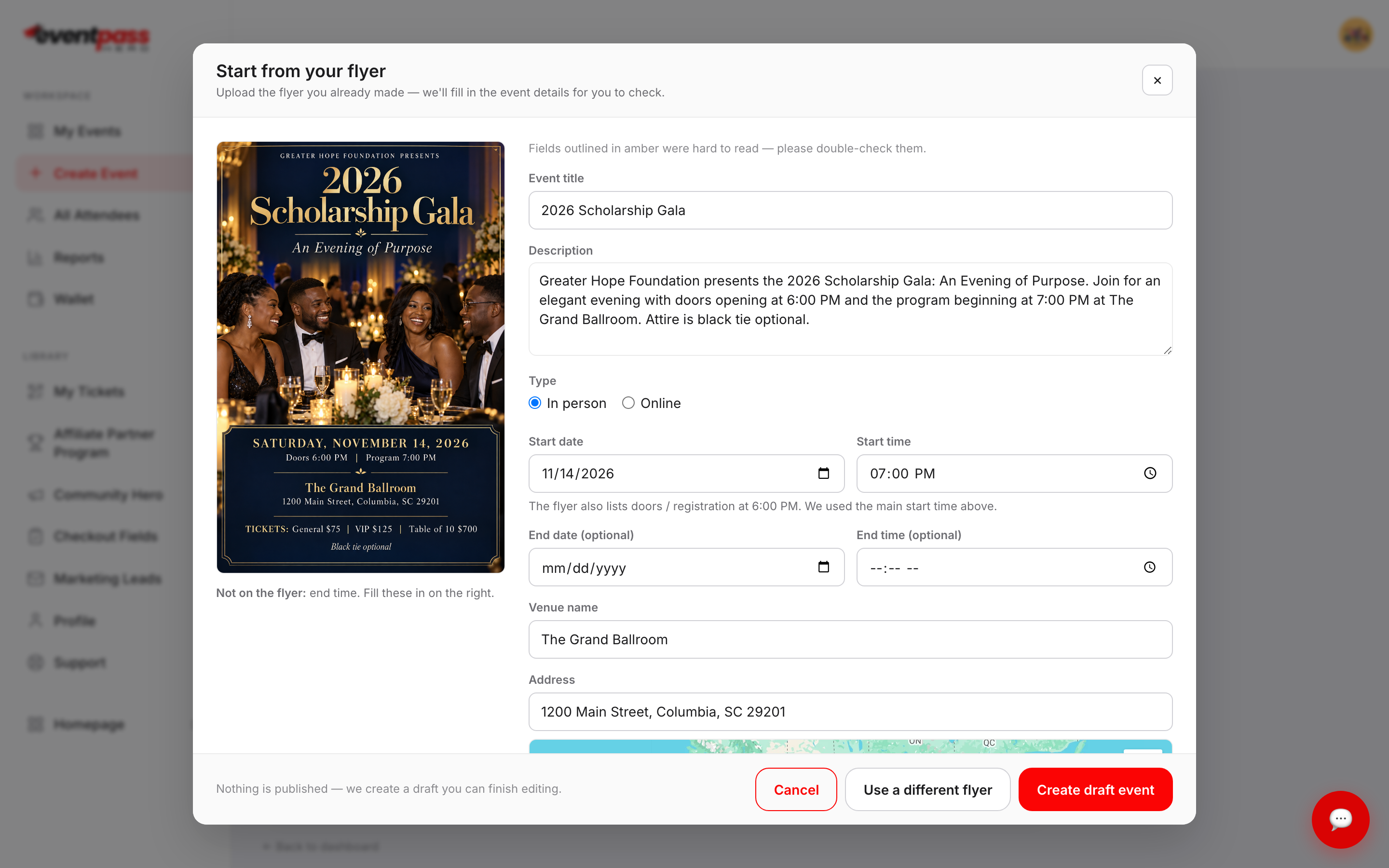
- 4. Check every field against your flyer. Fields outlined in amber were hard to read. Anything the flyer doesn't say, such as an end time, is listed under Not on the flyer so you can fill it in.
- 5. Pick the address from the Google suggestions to confirm it. That also sets the event's time zone.
- 6. Check your ticket types (see below), choose your banner, and click Create draft event. You land on the new event's Basic Info screen.
Ticket types from the flyer
Each price on the flyer becomes a ticket type. "Table of 10 $700" becomes one ticket type sold as a Group of 10 for $700. Add a quantity if you want to limit sales; otherwise 100 are available. Every ticket type needs a price, or tick Free. If your flyer shows no prices, a General Admission ticket is added for you to price.
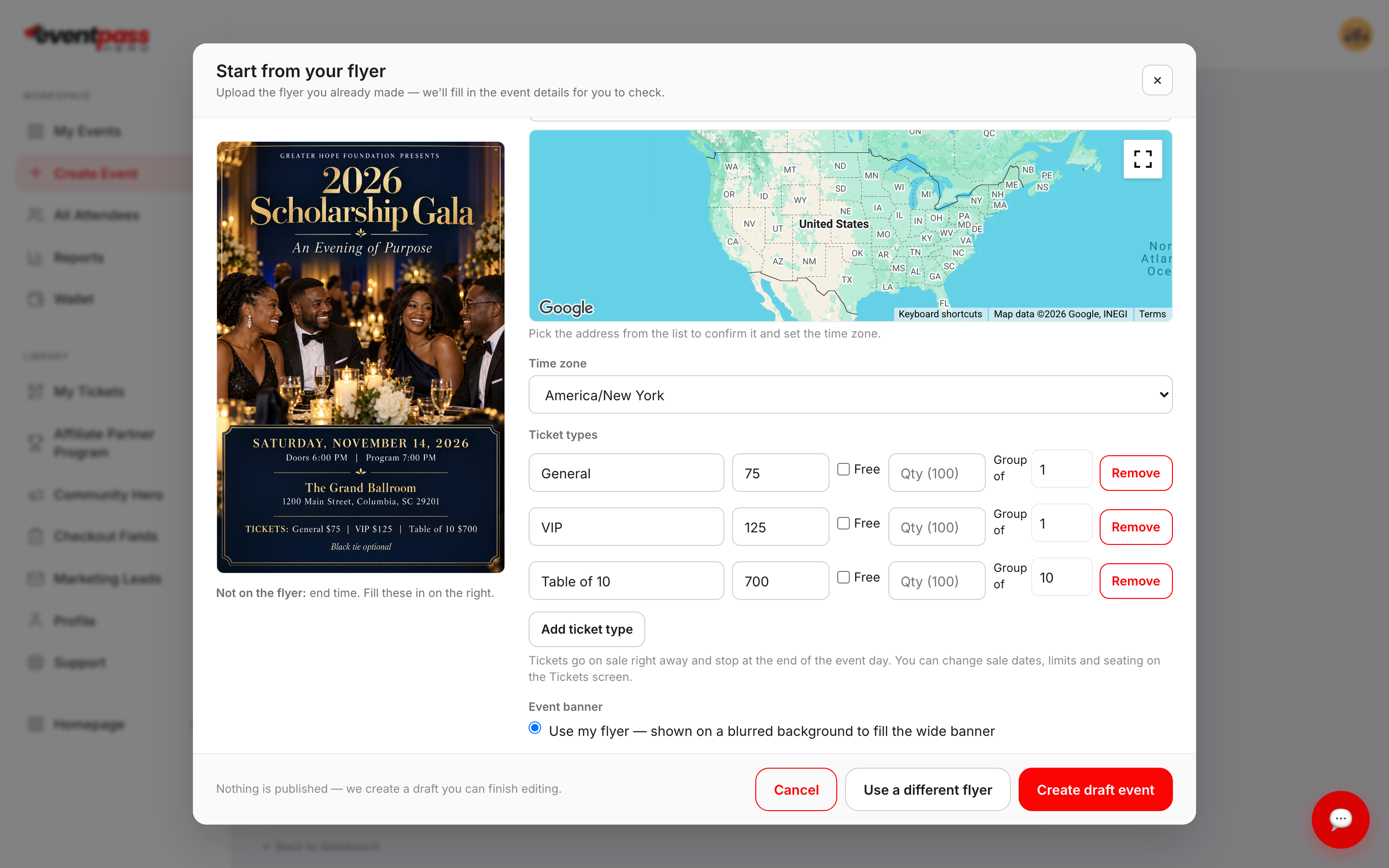
Tickets go on sale right away and stop at the end of the event day. Change sale dates, limits, and seating on the Tickets & Seating screen after the event is created.
Choosing your banner
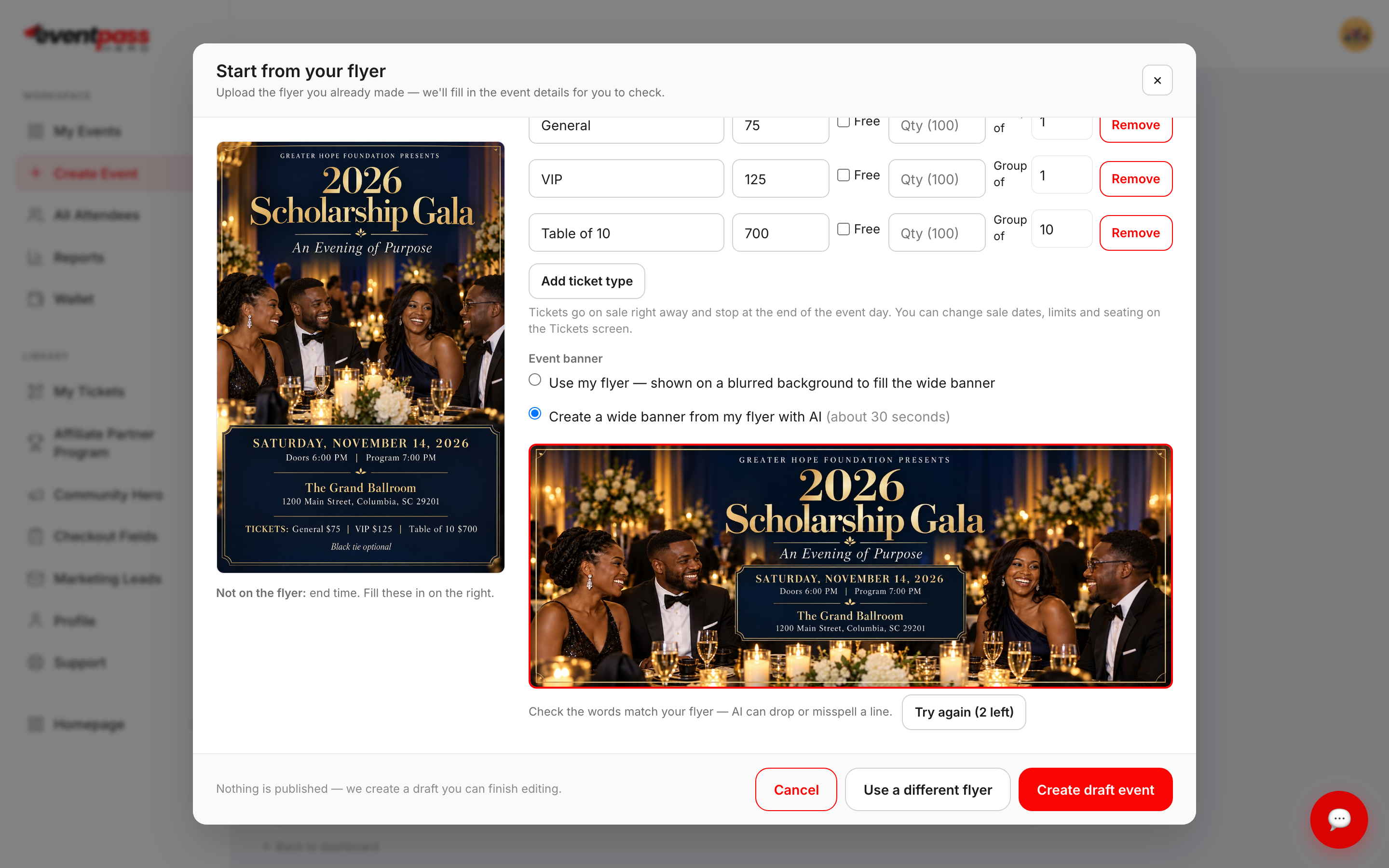
Under Event banner, choose Use my flyer to show your flyer on a blurred background that fills the wide banner. Or choose Create a wide banner from my flyer with AI: in about 30 seconds you get a 1920×730 banner in your flyer's style. Check that the words match your flyer, because AI can drop or misspell a line. Click Try again for a new version (up to 3 per flyer).
What happens to my flyer
Your flyer is used only to set up your event. Phone numbers and email addresses on the flyer are never copied into your event. The uploaded file is deleted after 45 days.
Troubleshooting
- "We couldn't find event details on that image" — upload the flyer itself rather than a photo or logo, or set the event up with Create Event.
- "That image is too small to read" — upload the original design file or a larger screenshot, at least 600 pixels wide.
- A date or time is wrong — fix it on the review screen before you create the event. The flyer may list doors or registration separately; that time is noted under the start time.
- I don't see the Start from your flyer button — contact support.
Last updated 2026-10-11 · All FAQs & video tutorials