

Copy a Ticket Type From Another Event
If you run the same event every year, or you're building a tier that's almost identical to one you've already set up, cloning saves you re-entering a dozen fields. You pick a source ticket type, EventPassHero copies it into the ticket editor, and you review and adjust before anything is saved.
The source can be a ticket in the event you're editing, or a ticket from any other event you own or co-manage.
Step-by-step
- 1. Open your event and go to Edit Details → Tickets & Seating.
- 2. Scroll past your ticket list to ⧉ Clone ticket type.
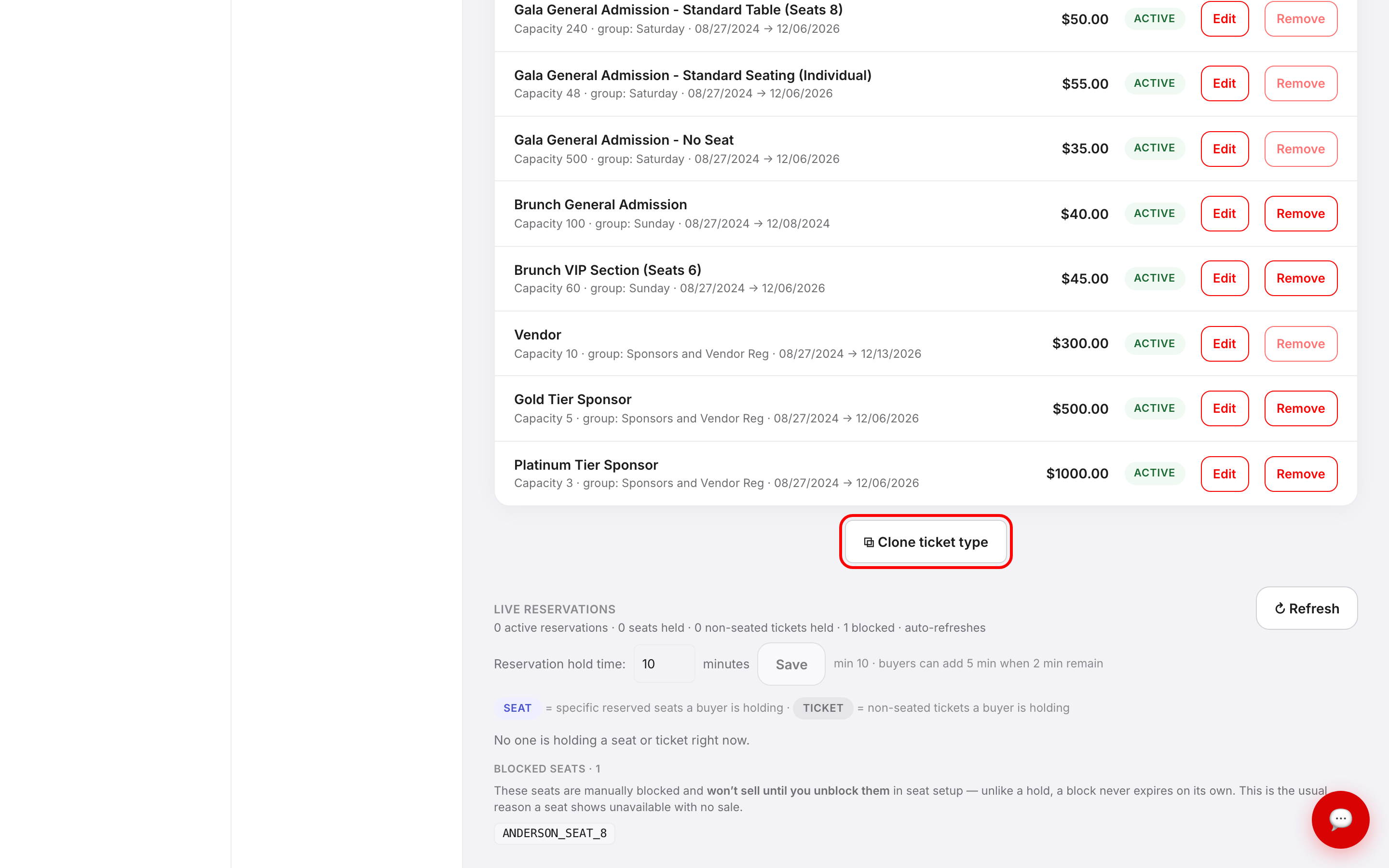
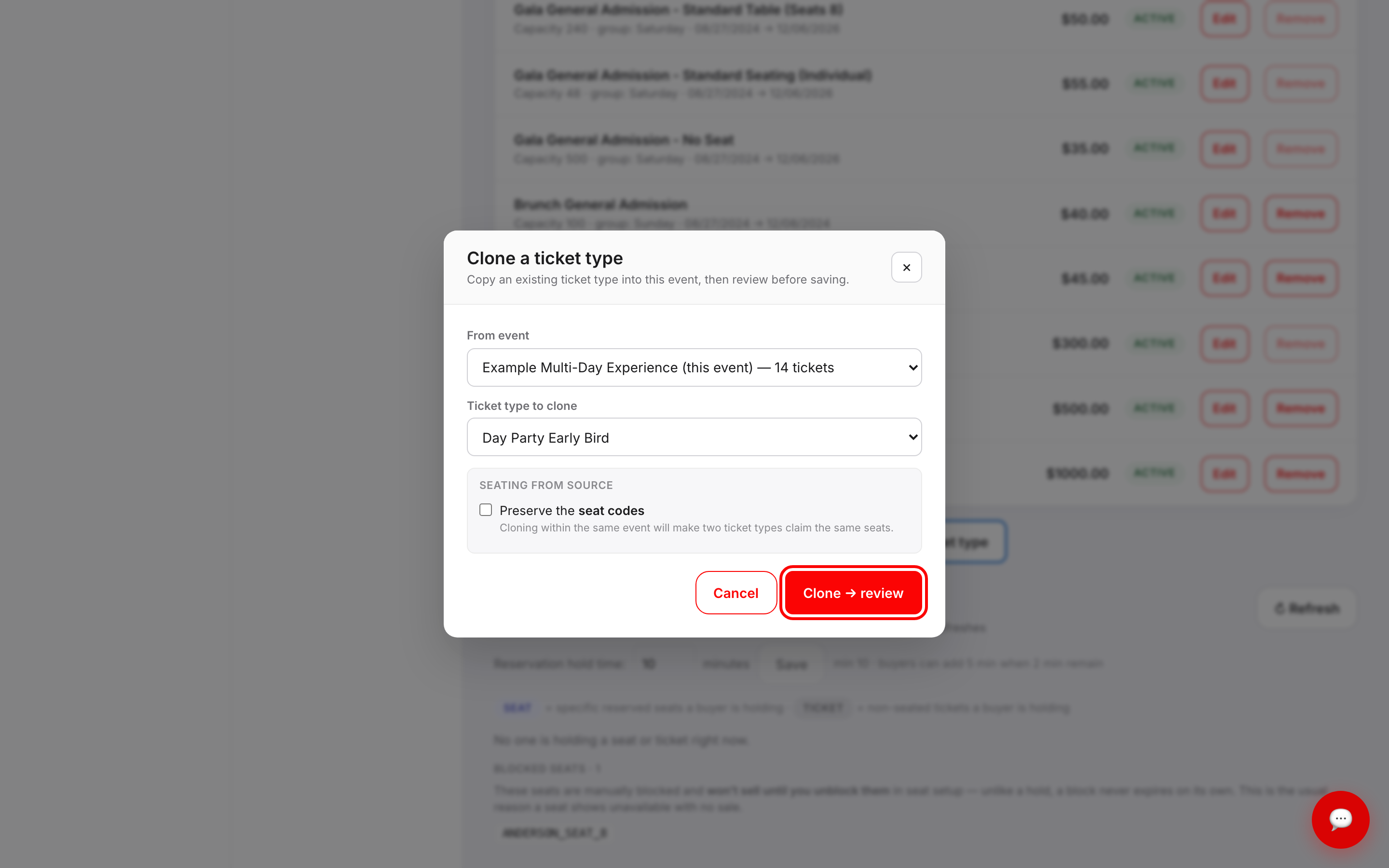
- 3. Choose a From event. Your current event is listed first and marked (this event), and every event shows how many ticket types it has.
- 4. Choose a Ticket type to clone.
- 5. Click Clone → review.
- 6. The ticket editor opens as New ticket type, pre-filled from the source.
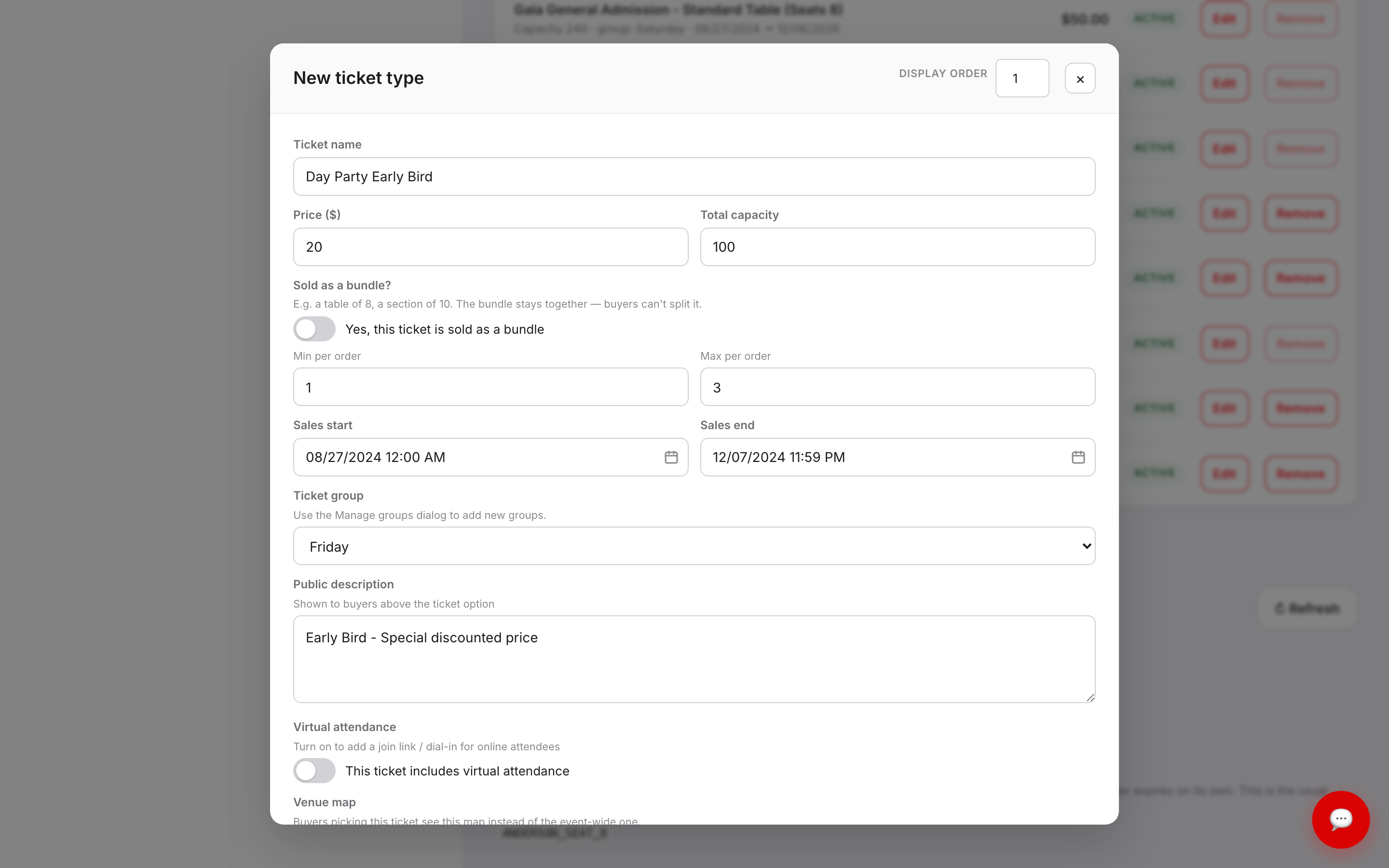
- 7. Change what needs changing — always rename it — then click Save.
Nothing is added to your event until you save in step 7. Closing the editor discards the clone.
What comes across
The copy brings the ticket name, price, total capacity, bundle setting, min and max per order, sales start and end, ticket group, public description, virtual attendance setting, and any checkout questions scoped to that ticket.
Two things deliberately don't come across:
- The sold count starts at zero. You're creating a new ticket type, not moving an existing one.
- Seating is left off unless you ask for it.
Seating from source
If the ticket you picked has its own seat map or seat codes, a SEATING FROM SOURCE block appears with up to two checkboxes:
- Preserve the ticket-specific seat map — carries over the venue map attached to that ticket.
- Preserve the seat codes — carries over the exact seat list.
Both are off by default, which is usually what you want. Read the warning under the seat-codes option carefully: cloning within the same event will make two ticket types claim the same seats. Two ticket types selling the identical seats will oversell them. Only preserve seat codes when the clone is going into a different event.
Troubleshooting
- The Clone ticket type button is greyed out — you don't have any cloneable ticket types yet. Build one ticket type anywhere in your account and the button comes alive.
- I now have two tickets with the same name — the clone keeps the source's name, so rename it in the editor before saving. If you already saved, click Edit on it and rename it there.
- An event is missing from the From event list — events with no ticket types aren't offered, and you only ever see events you own or co-manage.
- My add-ons didn't show up as options — add-on rows can't be used as clone sources. Clone the main ticket type instead; its add-on setup comes with it.
- The Ticket group is wrong after cloning across events — groups belong to a single event, so a group name from the source event doesn't exist here. Set Ticket group again before saving, or create the group first with Manage groups.
- I want to copy a whole event, not one ticket — use Duplicate event instead. Cloning is for a single ticket type.
Last updated 2026-08-15 · All FAQs & video tutorials