

Duplicate, Archive, or Close an Event
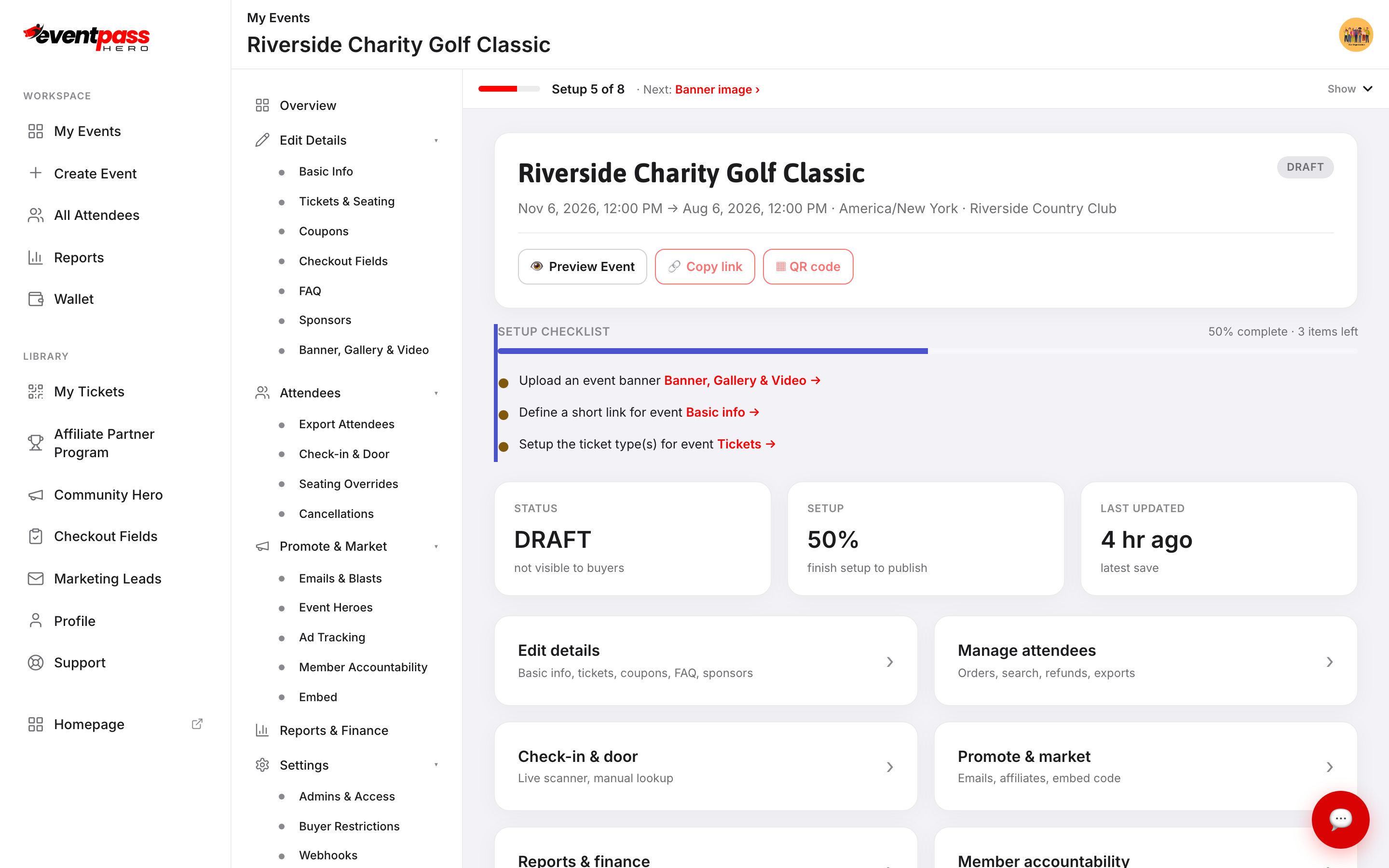
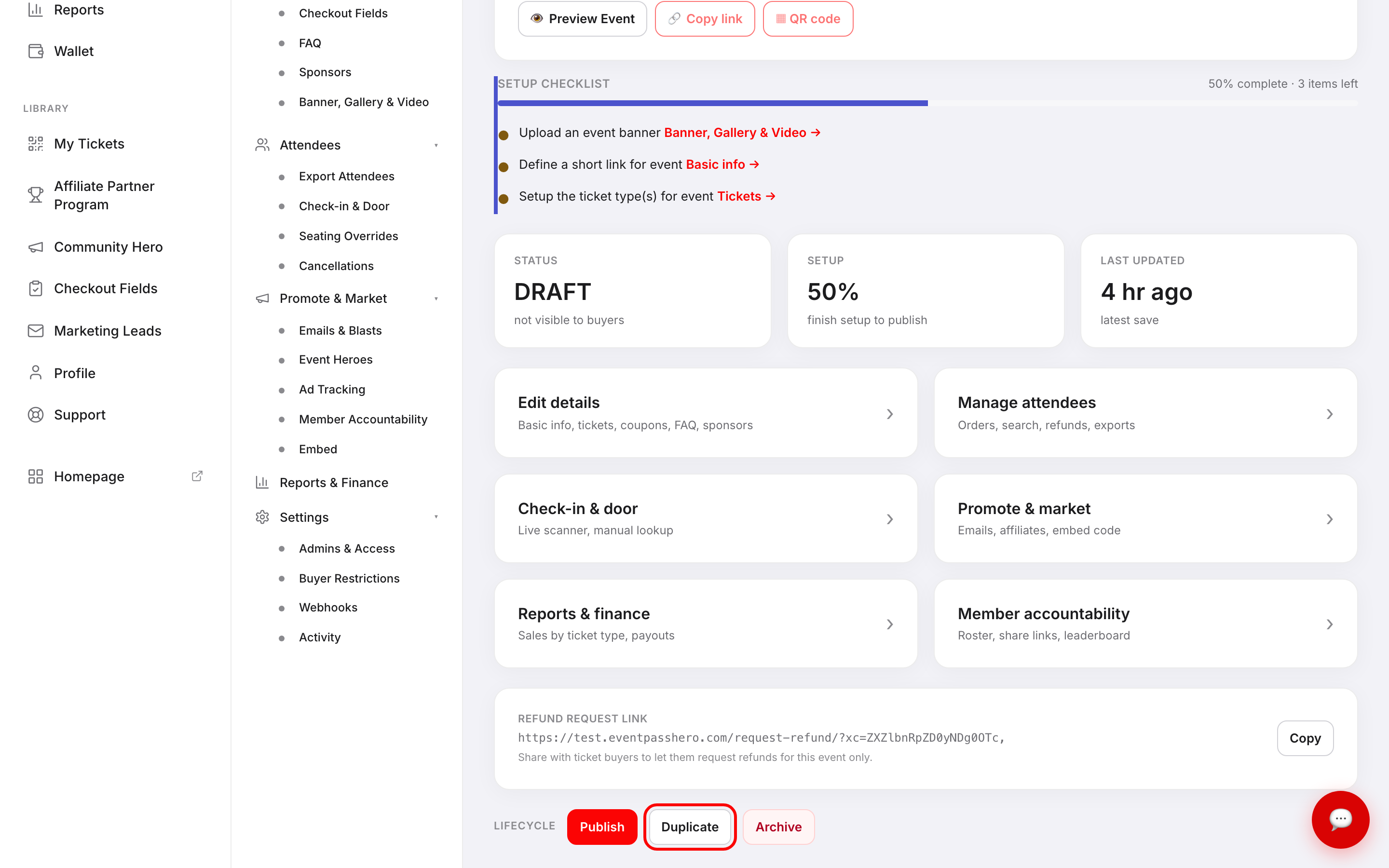
Every event's Overview screen has a Lifecycle section with three actions — Publish/Unpublish, Duplicate, and Archive. Use these to spin up your next event from an existing one, take down a live event, or tidy your dashboard after an event wraps.
Finding the Lifecycle section
Open any event from My Events and click Overview in the sidebar (or click the event name). Scroll down on the Overview screen to the Lifecycle row.
Duplicate an event
Click Duplicate to copy the entire event setup — title, ticket types, FAQ, sponsors, checkout fields, and settings — into a brand-new draft. The duplicate opens immediately so you can update the date, venue, and any details that change for the next event. Attendee data and past sales do not carry over.
Use this to save time on recurring events, annual fundraisers, or any event you run more than once.
Close ticket sales (Unpublish)
A published, live event shows Unpublish in the Lifecycle section. Click Unpublish to stop ticket sales immediately. The event page stays accessible to buyers who already purchased — they can still view their confirmation and QR code — but the Get tickets button disappears and new checkout is blocked.
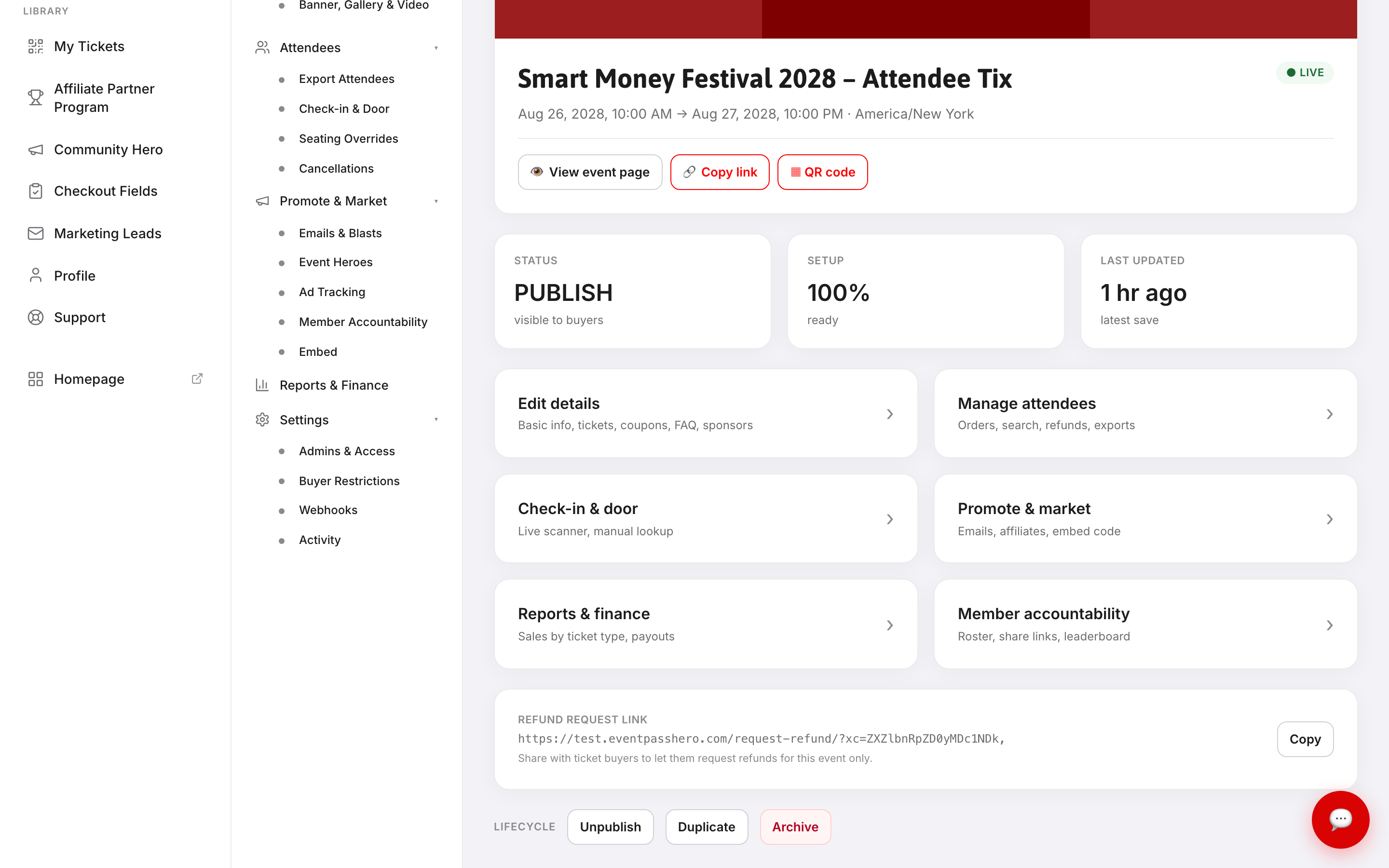
To reopen sales, click Publish again. Nothing is permanently changed by unpublishing.
Archive an event
Click Archive to remove the event from your main My Events list. Archived events are not deleted — all attendee records and sales history are preserved — they just don't clutter your dashboard. Buyers with tickets are unaffected and can still access their tickets.
To find an archived event, filter your My Events list by status.
Closing out after the event
After your event date passes, nothing special is needed to receive your payouts — funds have been paying out daily throughout the run. If you need to stop sales before the event date, use Unpublish. After everything wraps, consider archiving the event to keep your dashboard focused on upcoming events.
Troubleshooting
- I can't find the Duplicate button — it lives on the event Overview screen, not inside Edit Details. Click the event name from My Events to reach the Overview.
- I archived an event by mistake — filter My Events by archived, open the event, and click Publish or Unpublish on the Overview to restore it to your active list.
- Duplicate created the event but the dates are wrong — dates from the original event carry over. Edit the duplicated event's Basic Info to set the correct start and end dates before publishing.
Last updated 2026-08-14 · All FAQs & video tutorials