

Accept Donations on Your Event Page
If your event raises money as well as selling tickets, you can collect donations directly on your public event page. Switch the setting on, and a Donate block appears alongside your ticket listings. Supporters give whatever they like — no ticket purchase required, and no need to be attending at all.
Step-by-step
- 1. Open your event and go to Edit Details → Basic Info.
- 2. Scroll to the Buyer experience section and find the Toggles block.
- 3. Tick Allow donations at checkout.
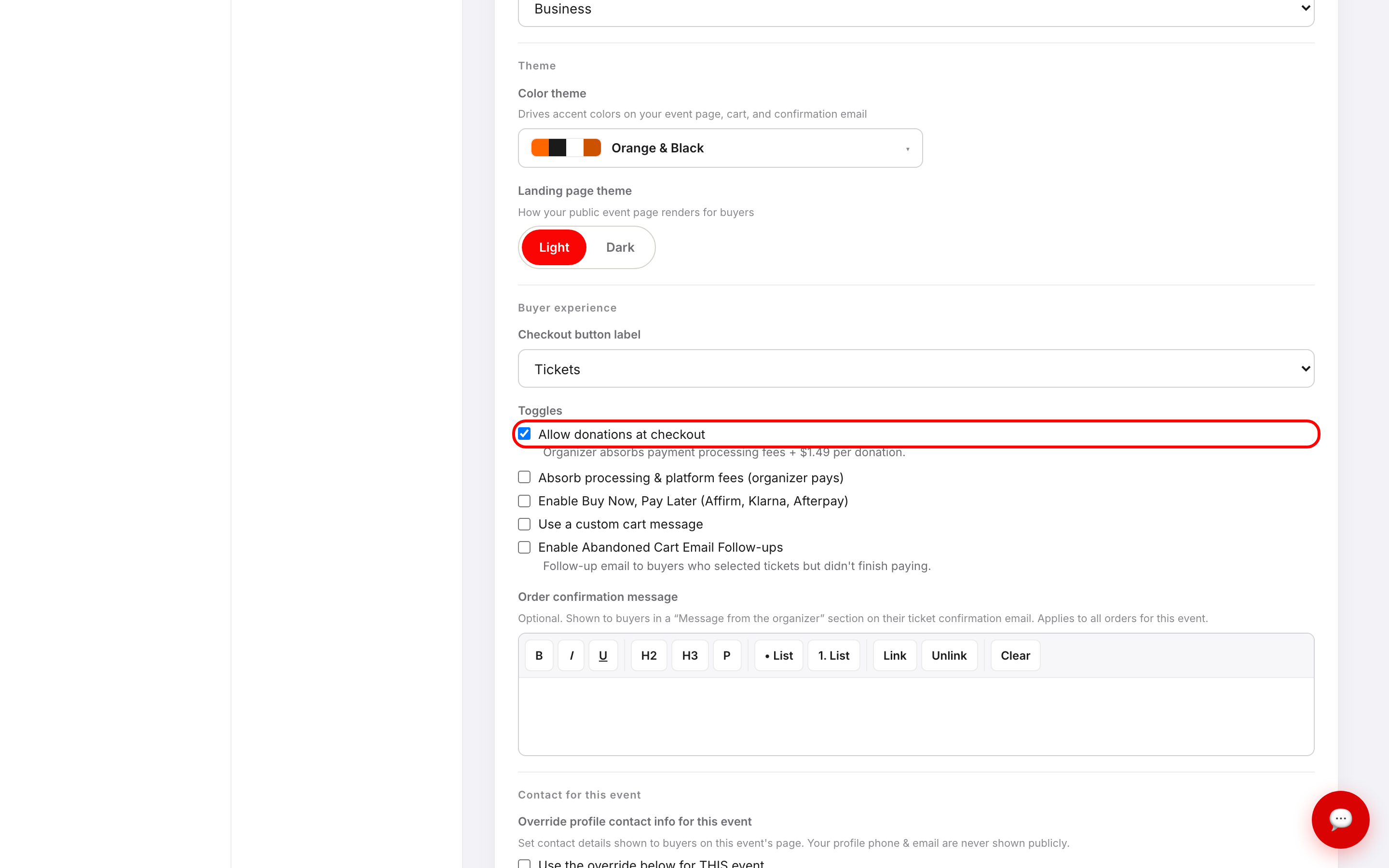
- 4. Click Save changes at the bottom of the screen.
What your supporters see
Despite the setting's name, donating isn't part of ticket checkout — it's its own card on your public event page, headed Support this event with a donation.

Donate opens a secure Stripe donation page in a new tab, headed with your event name and your organizer name. The supporter types any amount they like, enters an email for their receipt and a donor name or business, picks a payment method, and confirms. Nobody has to create an account or buy a ticket first.
The card only appears once your donation page has been generated, which happens automatically shortly after you save the setting.
Where donations show up
Donations are recorded separately from ticket orders, so they have their own places in your dashboard:
- Reports & Finance grows a DONATIONS card showing how many donations came in and the total raised. The card only appears once you've received at least one.
- Attendees → Export Attendees has a Donor list tab with each donor's name, business, email, phone, amount, and date. It's included in the attendee export, with Ticket Type listed as Donation.
Because donations aren't ticket orders, they're excluded from your NET SALES, ticket counts, and per-ticket-type breakdowns. That's deliberate — it keeps your ticket revenue reporting clean.
Fees on donations
You always cover the cost of a donation: card processing plus a flat platform fee per gift, both shown in the note directly under the toggle. This is independent of your Absorb processing & platform fees setting — passing fees to buyers on tickets doesn't pass them to donors.
Troubleshooting
- The Donate card isn't showing — check four things: the toggle is ticked and saved, your Stripe account is connected and in good standing, the event isn't passcode-protected (locked events show only the teaser), and you've given it a few minutes. Your donation page is generated in the background right after you save, and the card can't appear until it exists.
- A donor wants their gift back — donations aren't bookings, so they don't appear under Cancellations and can't be reversed with the order refund tools. Contact support with the donation's date and amount.
- My donation total doesn't match my ticket sales figures — it isn't meant to. Donations sit outside NET SALES entirely; read the DONATIONS card for that number.
- A donor says they never got a receipt — check the email address on their row in the Donor list; receipts go to whatever they typed into the form.
Last updated 2026-08-15 · All FAQs & video tutorials