

Reports and Exports
Knowing your numbers is how you grow. Every event has a Reports & Finance screen with net sales, net profit, fees, refunds, sales by ticket type, and the Stripe payouts that carried the event's money — and the workspace Reports screen rolls all your events into one revenue view. Wherever you see Export CSV, you can pull the data into a spreadsheet.
The event's Reports & Finance screen
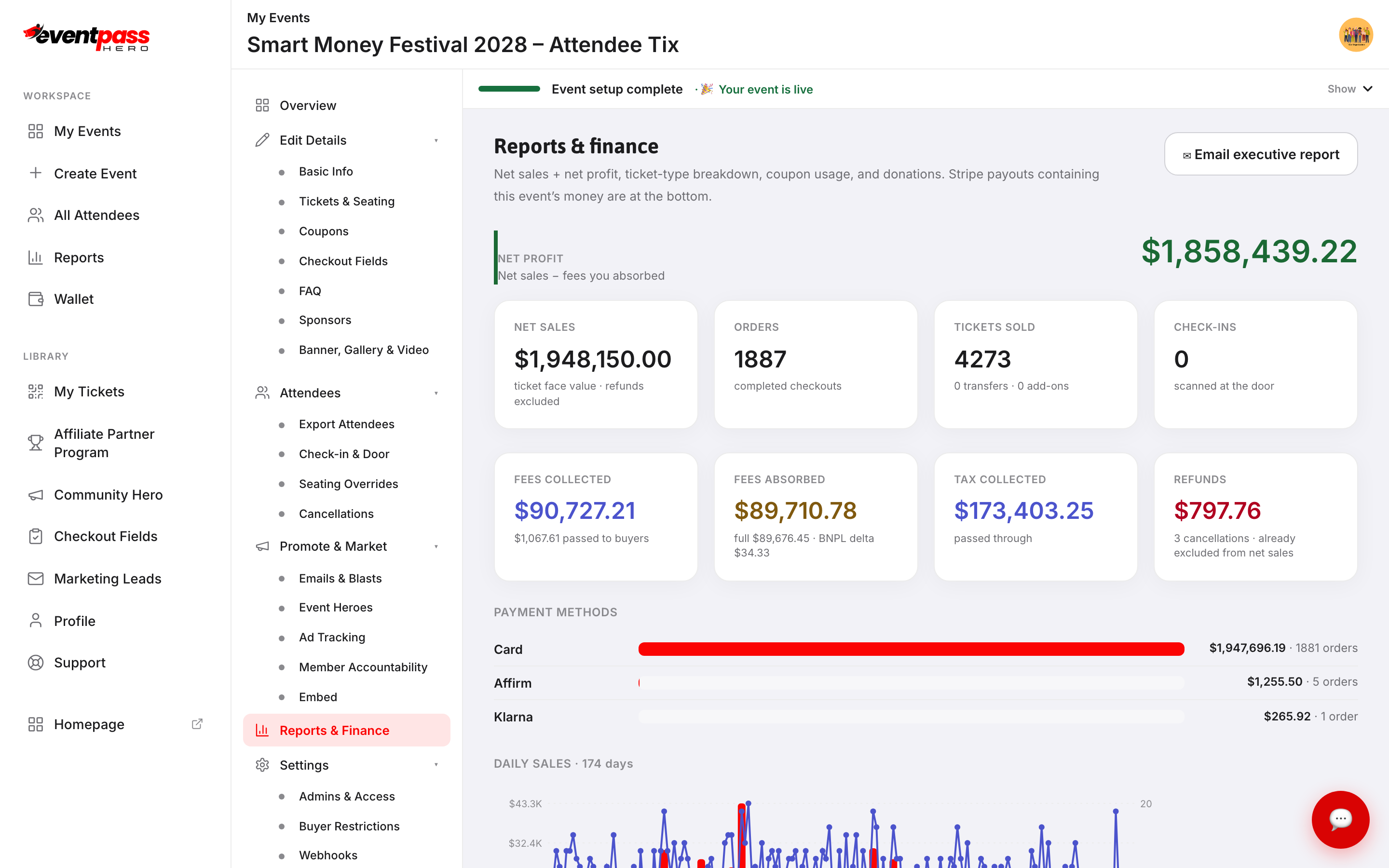
Open your event and click Reports & Finance. The headline cards give you the essentials at a glance: Net profit (net sales minus fees you absorbed), Net sales (ticket face value, refunds excluded), Orders, Tickets sold, Check-ins, Fees collected, Fees absorbed, Tax collected, and Refunds.
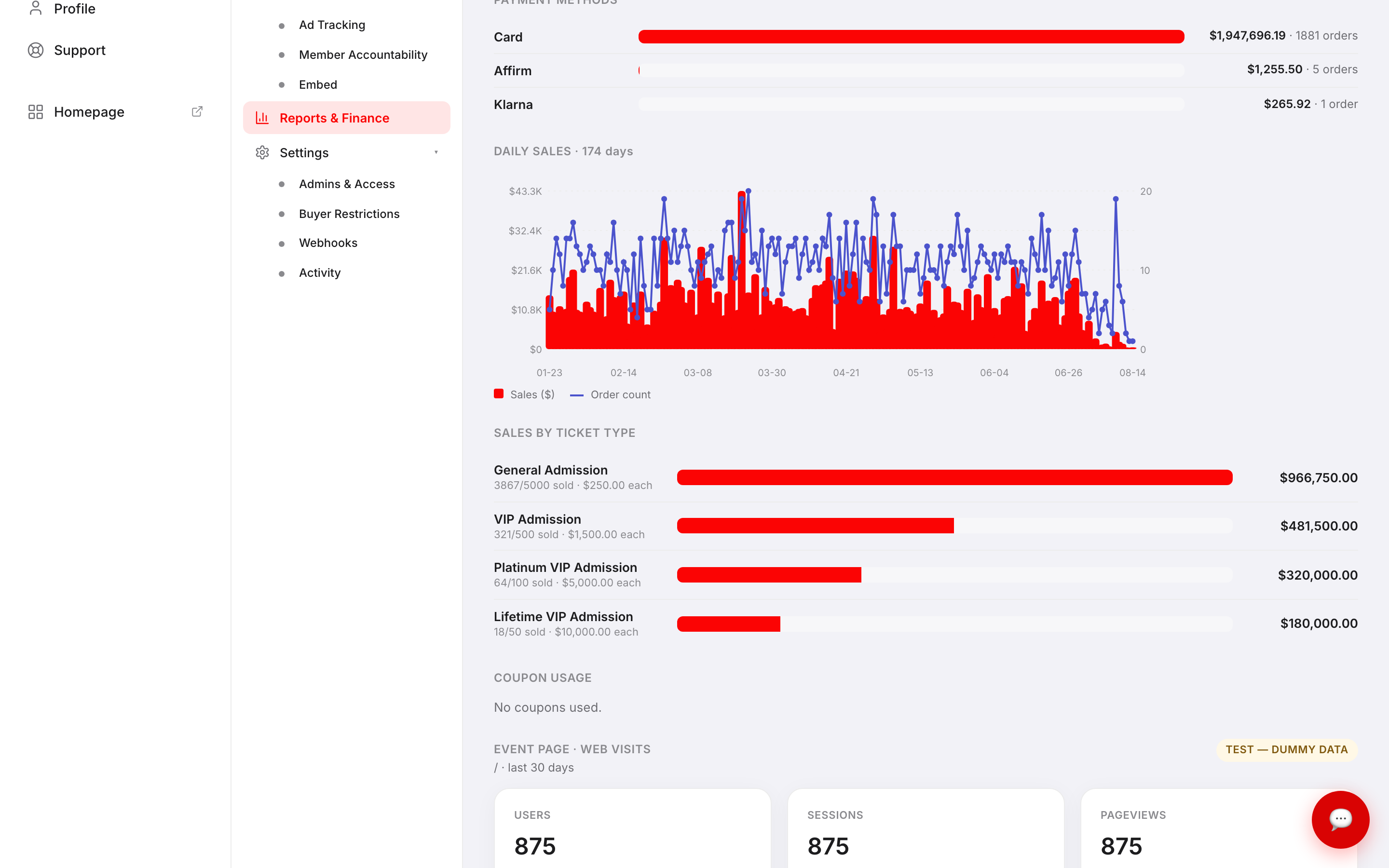
Scroll down for the detail: a payment-method breakdown, a daily sales chart, Sales by ticket type with sold-versus-capacity per type, Coupon usage, event-page web-traffic stats, Donations, and Stripe payouts · this event — the recent bank deposits that included this event's money.
The ✉ Email executive report button at the top sends the current numbers to your inbox on demand.
Export your attendees
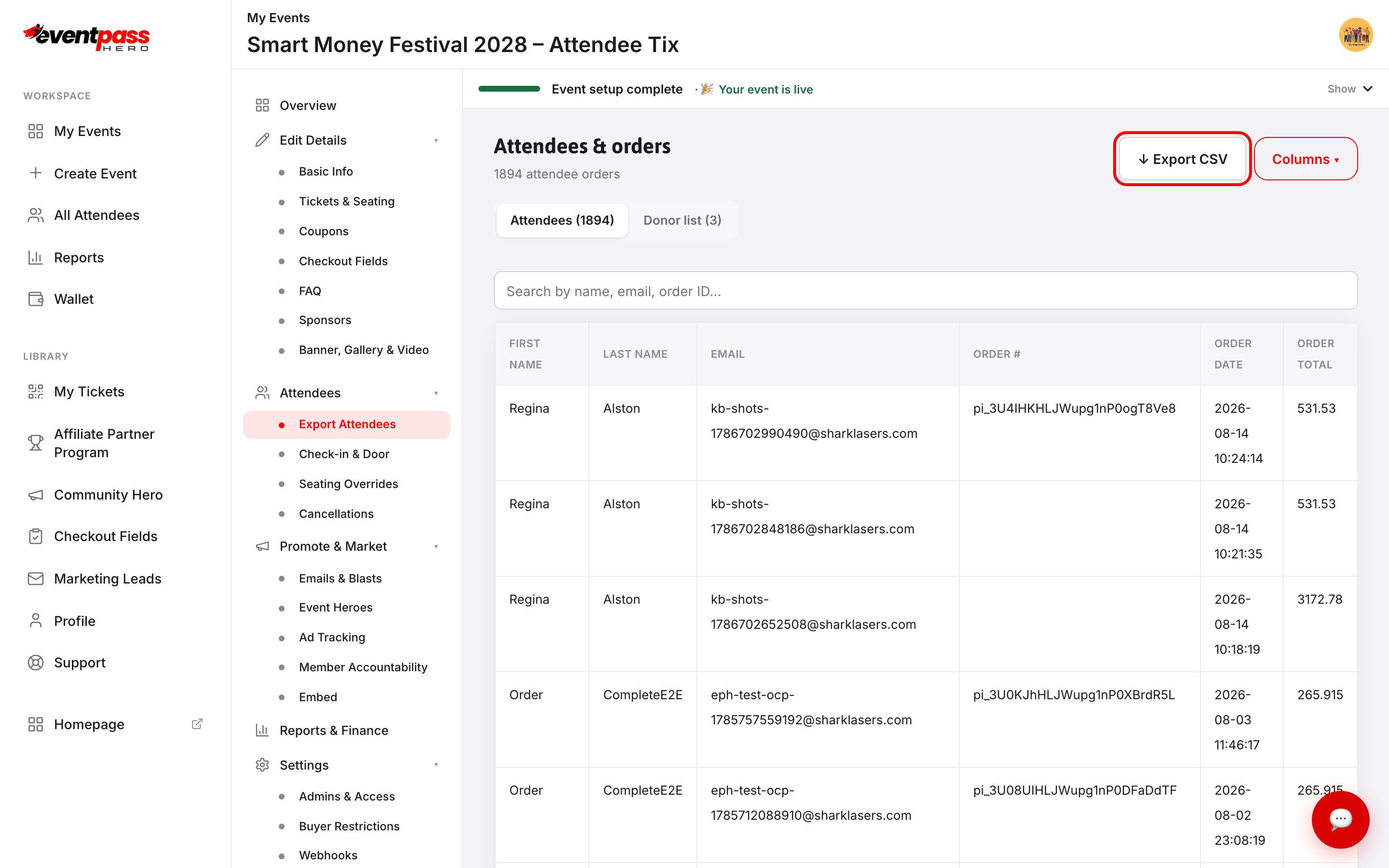
Click Export Attendees in the event sidebar. The Attendees & orders screen lists every order — with a Donor list tab for donations — and the ↓ Export CSV button downloads the full list. Use Columns to choose which fields ride along (names, emails, order totals, ticket types, checkout answers).
The workspace Reports rollup
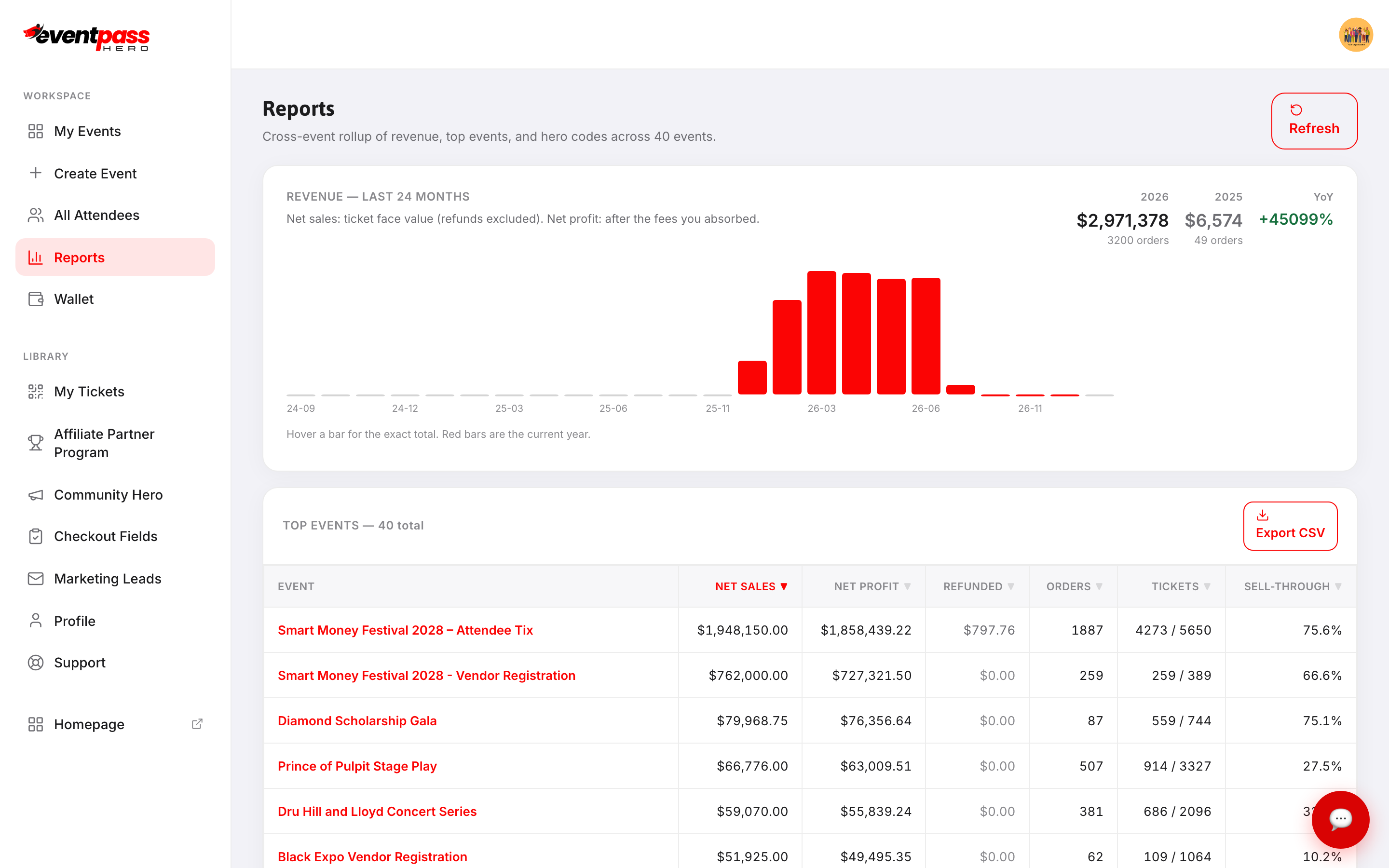
Click Reports in the left workspace sidebar (outside any event). You get your revenue for the last 24 months — this year versus last, with the year-over-year change — every event ranked in one table (net sales, net profit, refunded, orders, tickets, sell-through) with an Export CSV, and the hero-code leaderboard ranking every seller across all your events.
Get the numbers automatically every day
The daily executive report emails sales totals, sales by ticket type, sales by affiliate, and detailed transactions every morning. Turn it on and add recipients under Admins & Access → Daily executive report — ideal for boards and finance committees who need numbers, not logins.
Troubleshooting
- Net sales doesn't match your bank deposits — deposits are net of fees and refund clawbacks and can span multiple events. Use Wallet → Payout reconciliation to see exactly what's inside each deposit.
- Check-ins show zero — the counter fills on event day as tickets are scanned or checked in manually.
- A board member wants the numbers — add them to the daily executive report; they'll get everything by email without any dashboard access.
Last updated 2026-08-14 · All FAQs & video tutorials