
Organizer Dashboard Tour
When you log in to EventPassHero you land on your organizer dashboard — a single screen that shows all your events and keeps the workspace tools one click away. This tour covers the home screen, the workspace sidebar, and what opens up once you step inside an event.
The home screen
The home screen shows four summary cards at the top: All events, Upcoming (events in the next 90 days), Live now, and Pending review — any event waiting on platform review before it publishes. Below the cards is your full events list.
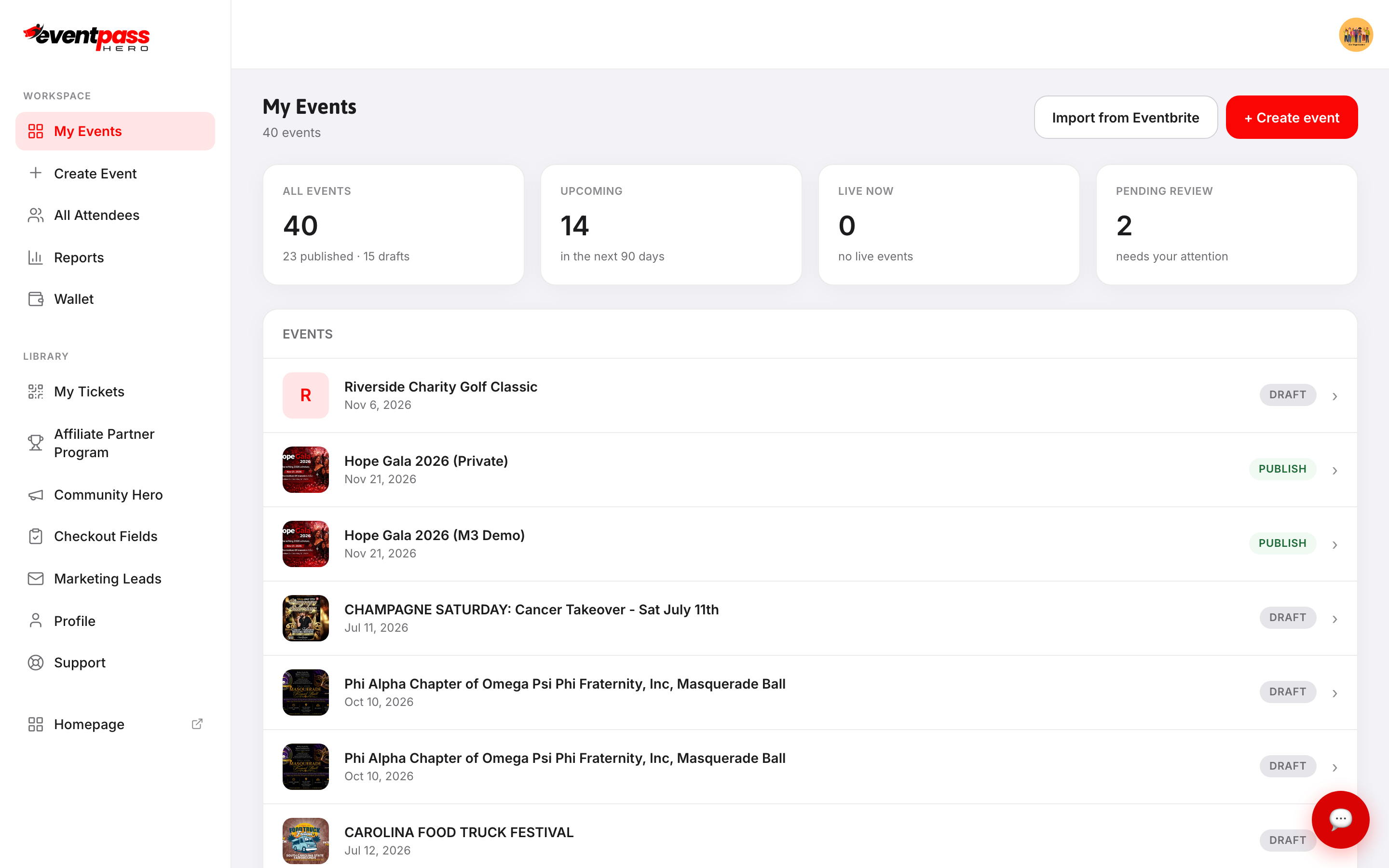
Each event row shows the event name, date, and a status badge: PUBLISH (live), DRAFT, PENDING, or ARCHIVED. Click any row to open that event's hub.
The workspace sidebar
The left-side navigation is split into two groups.
Workspace — tools that work across all your events:
- My Events — your events list and the + Create event button
- All Attendees — a searchable roster of every ticket holder across every event
- Reports — your 24-month revenue rollup and the hero leaderboard
- Wallet — your Stripe payout balance and connection status
Library — account-level tools:
- Affiliate Partner Program — your partner referral dashboard
- Checkout Fields — global custom checkout questions you can attach to events
- Marketing Leads — your contact list across all events
- Profile, Support
Inside an event
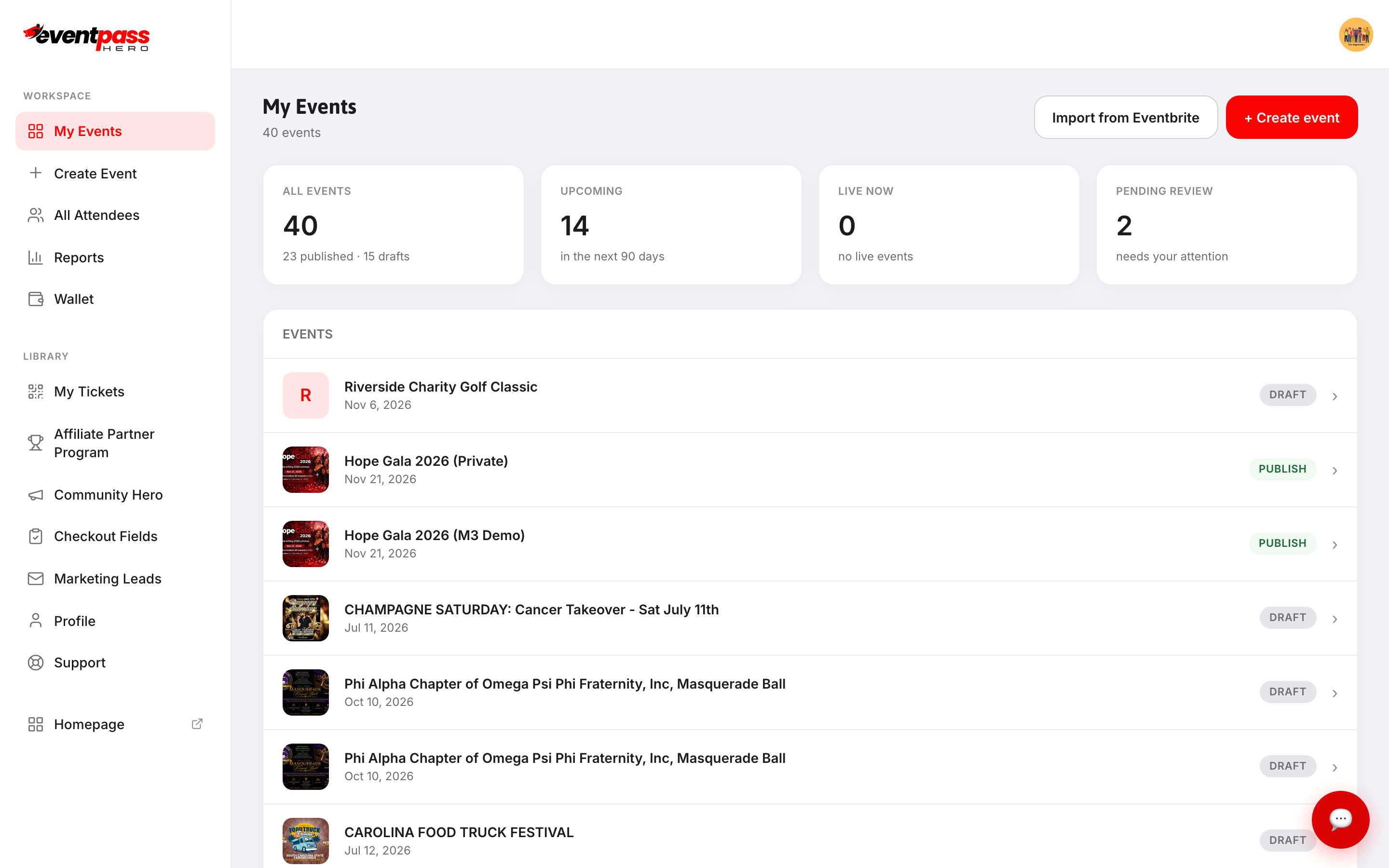
Click any event to open its hub. The hub gives you a status snapshot — whether the event is live, how complete the setup is, and when it was last updated — plus six quick-action cards.
From the hub you can jump straight to Edit details, Manage attendees, Check-in & door, Promote & market, Reports & finance, or Member accountability.
The inner left-side nav expands into every screen for that event:
- Edit Details — Basic Info, Tickets & Seating, Coupons, Checkout Fields, FAQ, Sponsors, Banner, Gallery & Video
- Attendees — Export Attendees, Check-in & Door, Seating Overrides, Cancellations
- Promote & Market — Emails & Blasts, Event Heroes, Ad Tracking, Member Accountability, Embed
- Reports & Finance
- Settings — Admins & Access, Buyer Restrictions, Webhooks, Activity
Troubleshooting
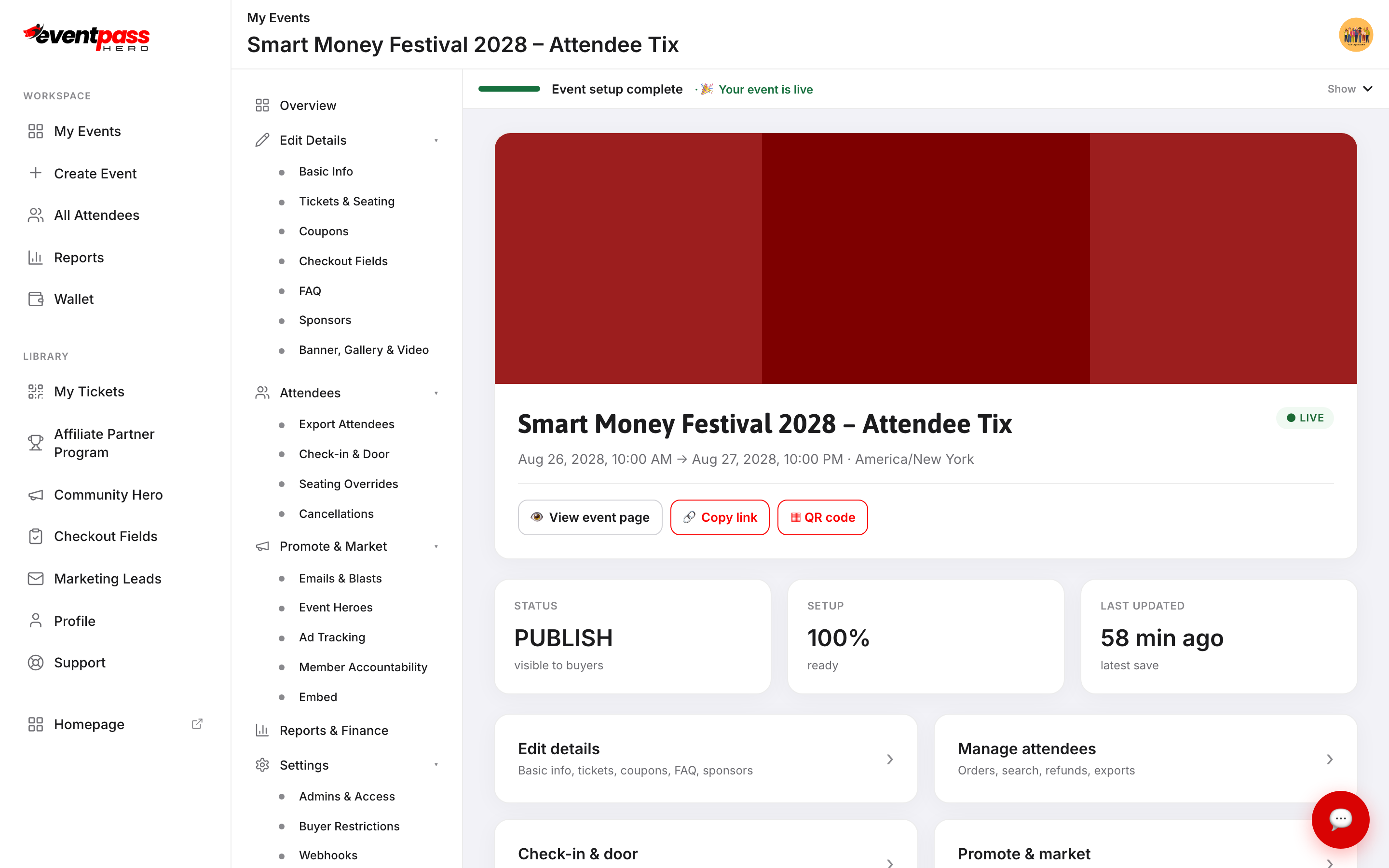
- You don't see the + Create event button — make sure you're on the My Events screen (top of the workspace sidebar), not inside an event.
- An event shows Pending review — the platform is reviewing your event before it goes live. You'll receive an email when it's approved. You can continue editing while it's under review.
- You see a co-organizer's event but can't edit it — you have check-in staff access, not admin access. Ask the event owner to grant you admin access under Admins & Access.
Last updated 2026-08-14 · All FAQs & video tutorials