

Payout Reconciliation — What's Inside Each Stripe Deposit
A deposit just hit your bank account — but which events was it for? Which orders? If you sell tickets for more than one event at a time, matching deposits to sales can eat a whole afternoon. Payout reconciliation does that work for you: every Stripe deposit, broken down by event and order, with refund clawbacks netted against the right event — tied out to the penny.
Step-by-step
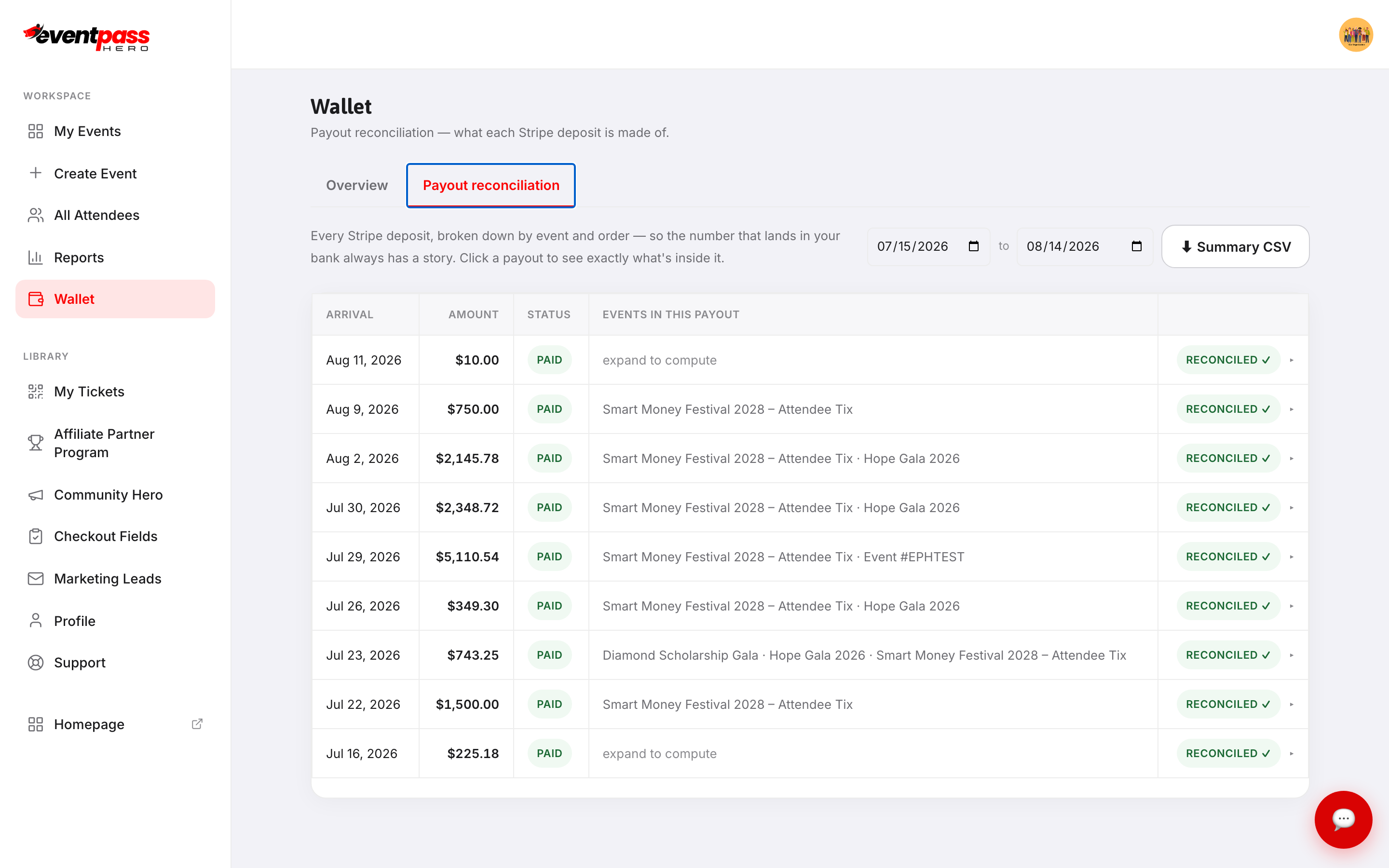
- 1. Open Wallet in the workspace sidebar and click the Payout reconciliation tab. Each row is one Stripe deposit: arrival date, amount, status, the events inside it, and a RECONCILED ✓ badge when the contents add up to the deposit exactly.
- 2. Click a payout to expand it. You'll see the roll-up — Sales, Refund clawbacks, Payout — then every event inside with its orders: order number, buyer, date, and the net amount each contributed.
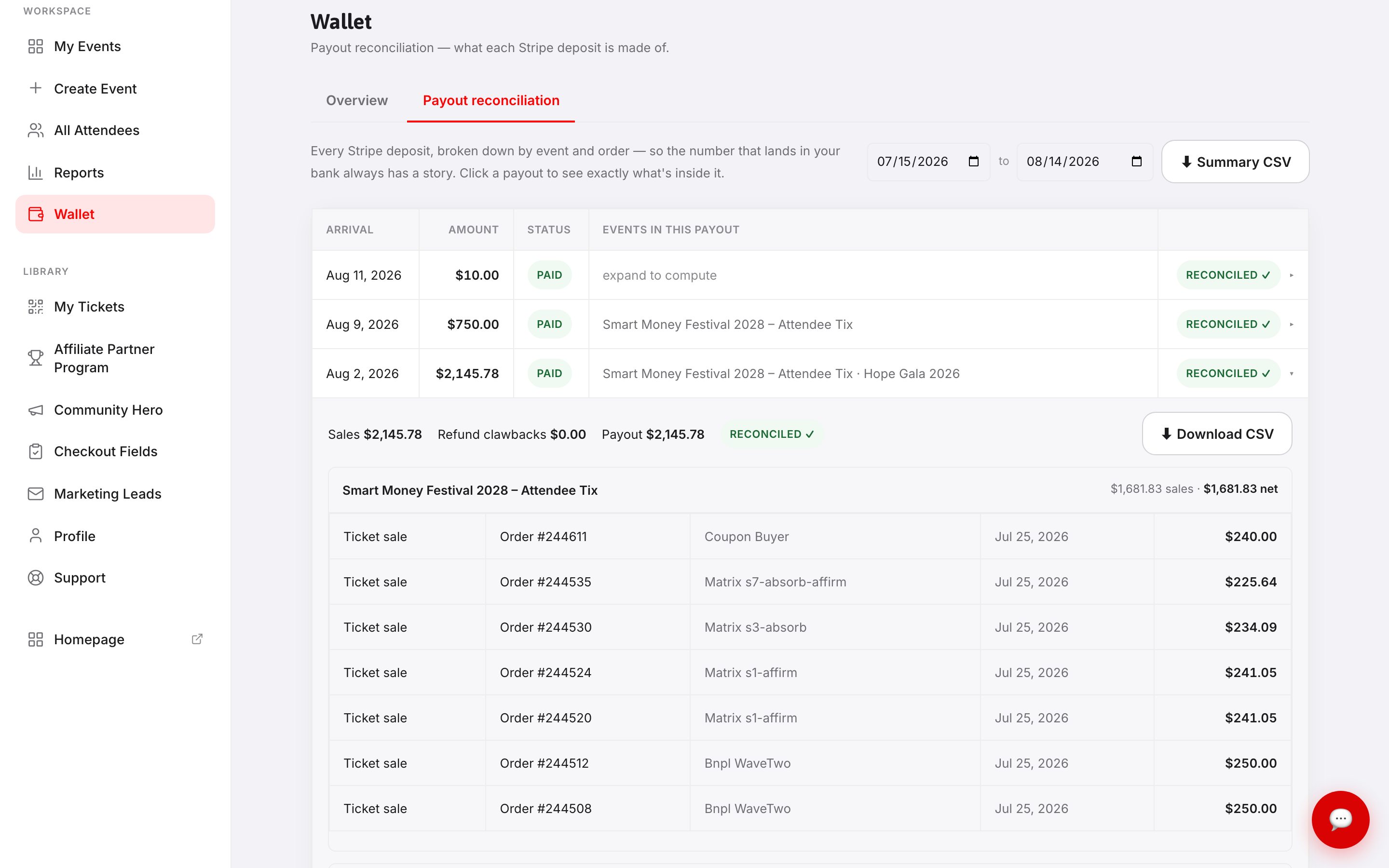
- 3. Click ⬇ Download CSV inside a payout for the order-level spreadsheet your treasurer or finance committee will love, or ⬇ Summary CSV at the top for the full list.
- 4. Use the date-range picker for month-end close — filter to the month, download the summary, and match it line by line against your bank statement.
Refund clawbacks
When you refund an order whose money already paid out, the refund is clawed back from a later deposit. The reconciliation view shows the clawback netted against the correct event inside that payout — so a deposit that looks "short" is explained on its own row rather than a mystery.
From the event's side
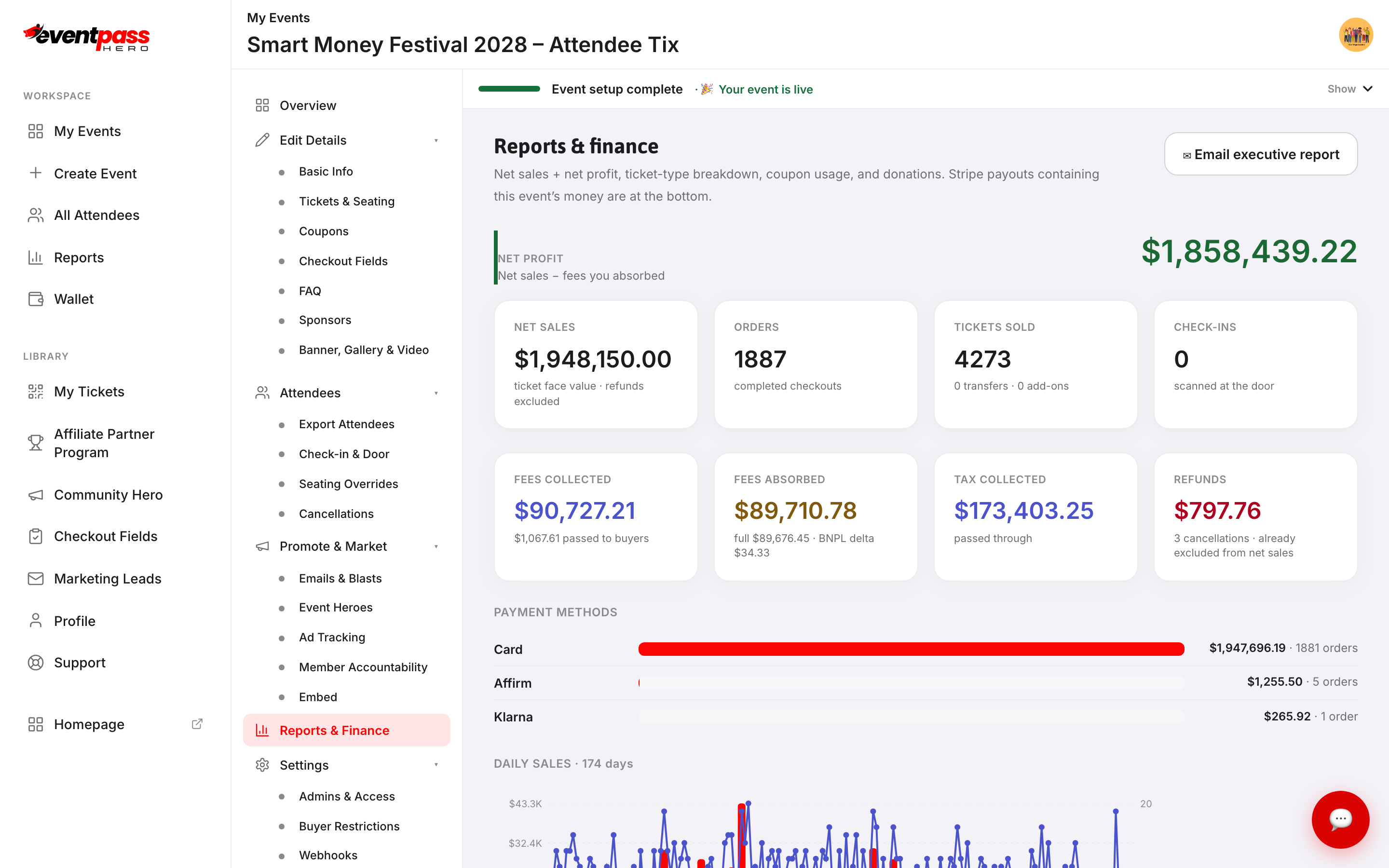
Each event's Reports & Finance screen has a Stripe payouts · this event section at the bottom — the recent deposits that carried this event's money, with each deposit's total, this event's share, and any clawbacks. It links straight back to the reconciliation tab.
The daily executive report email also lists your latest payouts, so leadership sees deposits land without logging in.
Troubleshooting
- A deposit is smaller than expected — expand it. A refund clawback or a second event's negative net is usually the answer, itemized on its own line.
- You need this for your accountant — the per-payout Download CSV maps one-to-one to bank deposits; the Summary CSV covers a whole date range.
- A payout says "expand to compute" — the event list for that deposit is computed on demand; click the row and the breakdown fills in.
Last updated 2026-08-14 · All FAQs & video tutorials