

Reassign Seats After Purchase
Need to move someone to a different seat after they've already bought? Go to Seating Overrides in your event sidebar, find the ticket, enter the new seat code, click Update, then email the affected attendees their new assignment — the confirmation email includes a venue map so they know exactly where to go.
Before you start
- Your event needs at least one sold ticket with a seat code assigned.
- You need to know the destination seat code (e.g.
TABLE-3_SEAT-2). Seat codes are defined when you set up your ticket types on the Tickets & Seating screen.
Step-by-step
- 1. Open your event from My Events and click Seating Overrides in the sidebar under Attendees.
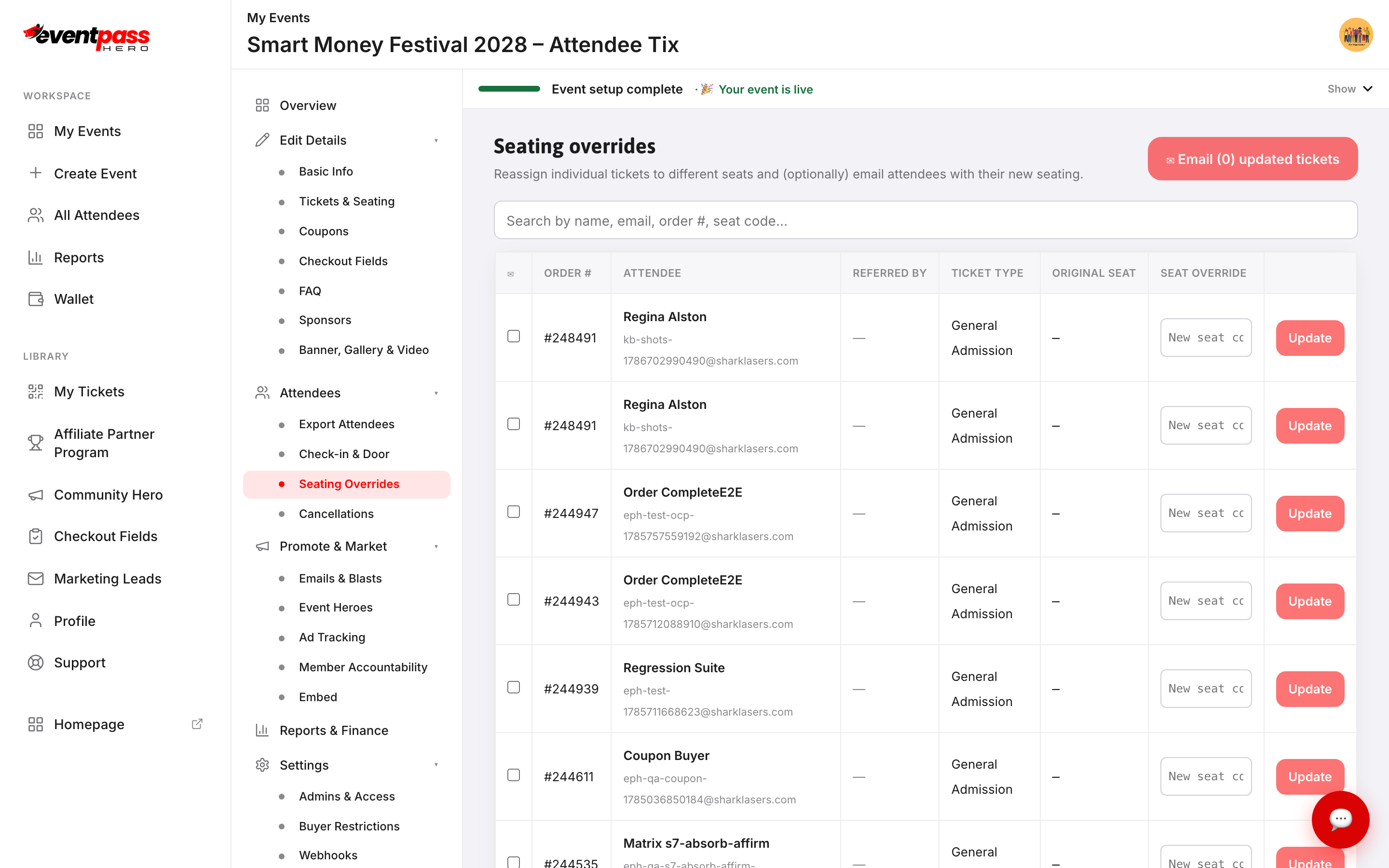
- 2. Find the ticket you need to move. Each row shows the Order #, attendee name, ticket type, and the Original Seat. The Seat Override column is blank until you enter a new code.
- 3. Type the new seat code into the Seat Override field on that row and click Update.
- 4. Repeat for any other tickets that need to move.
- 5. When you're done, click Email (N) updated tickets at the top of the screen to send attendees their new seating notification. The email includes the updated seat assignment and a link to the venue map.
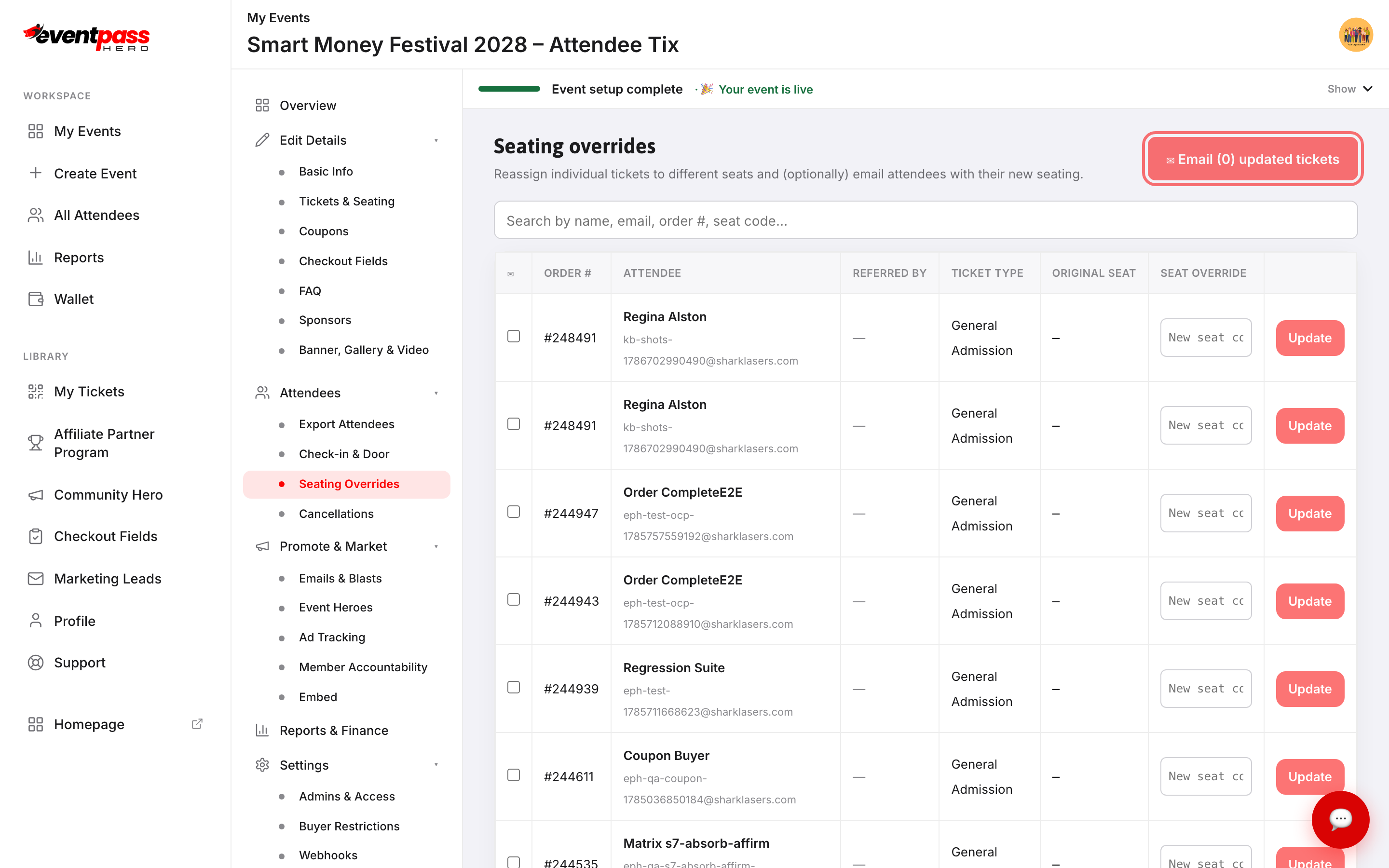
Searching for a specific attendee
Use the search box at the top of the Seating Overrides screen to filter by order number, attendee name, or email. This saves time on events with hundreds of sold tickets.
What the attendee receives
The override email shows the attendee's name, new seat code, and a link to the venue map image. The new seat shows right away on their ticket page, on the My Tickets page, in the ticket PDF, and on the event's seat map — the seat they left opens up for sale again. Their QR code doesn't change.
Wallet passes are refreshed within a minute or two. A Google Wallet pass updates on its own. An Apple Wallet pass can't be changed once it's on a phone, so the attendee adds the new pass from the button in the Email (N) updated tickets email. Their old pass still scans at the door, because the QR code is the same — only the seat printed on it is old.
Troubleshooting
- The Seating Overrides screen is empty — this screen only shows tickets once sales have been made. If no one has bought yet, the screen says "No tickets yet."
- The seat code I entered was rejected — seat codes are case-sensitive and must match one of the codes defined on the ticket type. Check the Tickets & Seating screen for the exact codes.
- I updated the seat but the attendee's ticket still shows the old one — the ticket page and My Tickets show the new seat immediately; ask the attendee to reload. If it's their Apple Wallet pass, send the updated tickets email so they can add the new pass.
Last updated 2026-10-11 · All FAQs & video tutorials