

Add Your Tickets to Apple Wallet or Google Wallet
Every EventPassHero ticket can be saved to your phone's wallet in one tap, so it's ready at the door even if your signal isn't. You can add passes from three places: your confirmation email, the order confirmation page, or My Tickets. The pass carries the same QR code as your emailed ticket — either one scans at the door.
From your confirmation email
Open the Ticket Order Success email you received after buying. It includes an Apple Wallet pass for your tickets — tap the wallet button on your phone and confirm Add.
From the order confirmation page
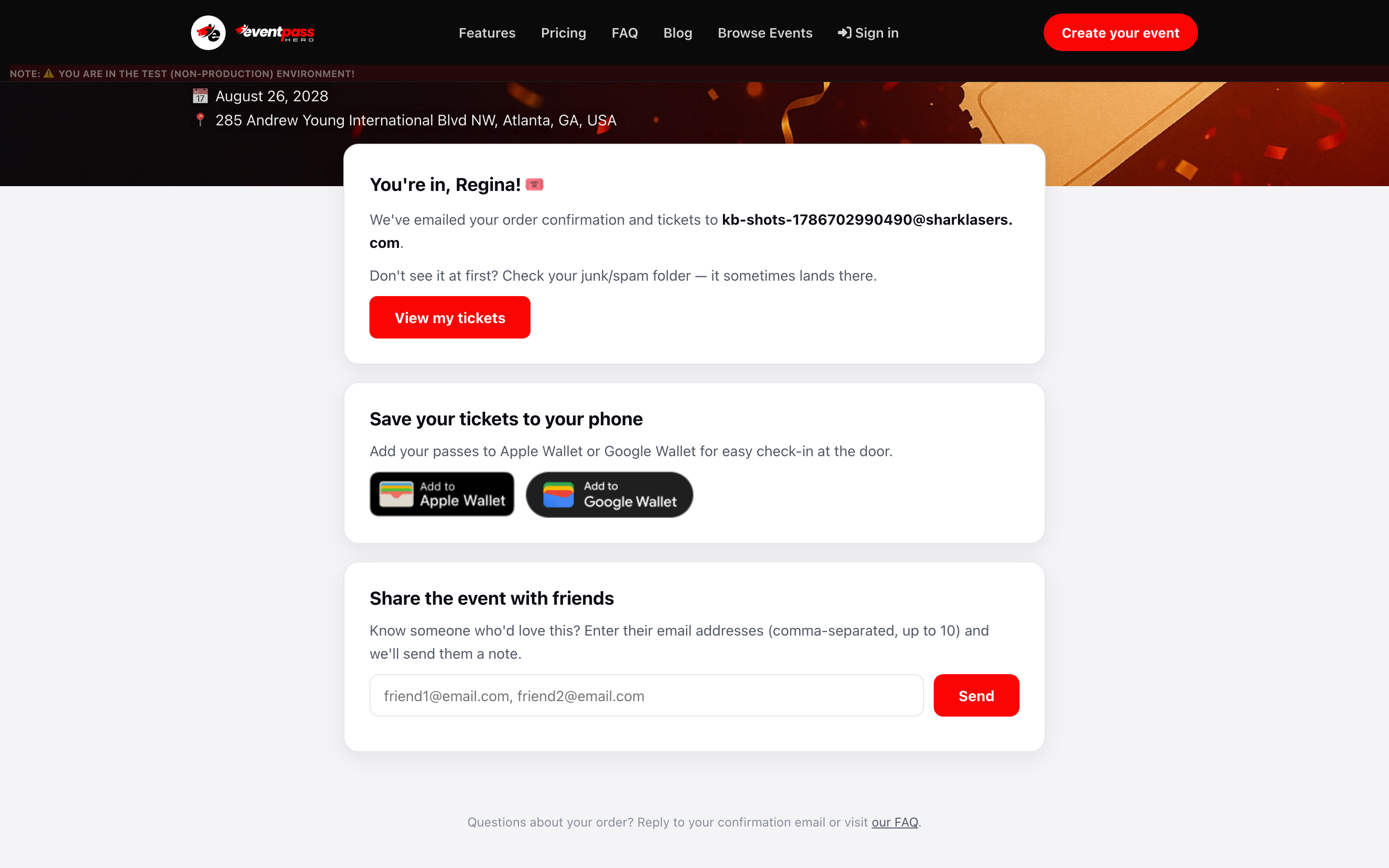
Right after checkout, the Order Complete page has a Save your tickets to your phone section. Tap the Apple Wallet or Google Wallet badge and confirm.
From My Tickets (signed in)
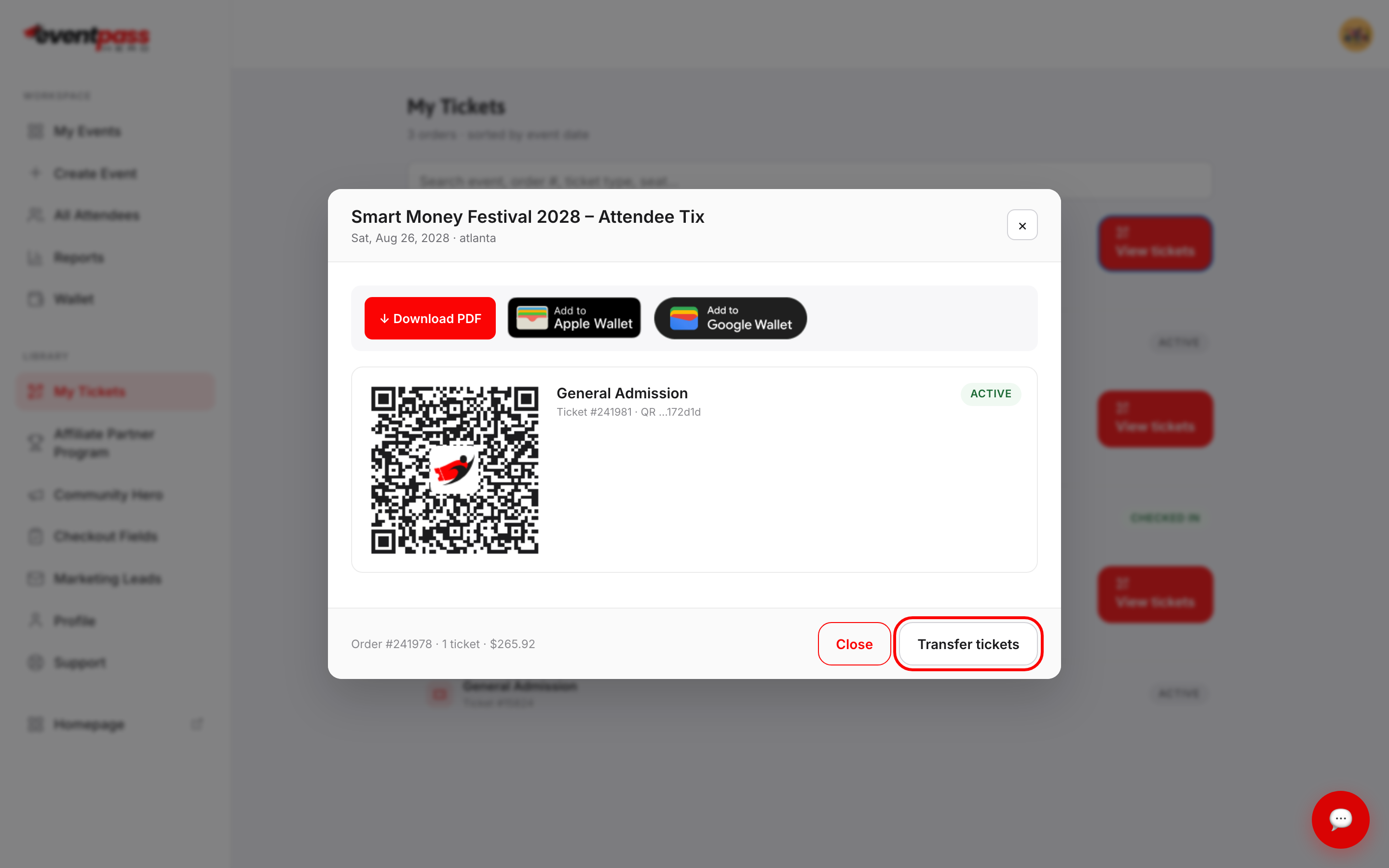
Sign in at eventpasshero.com, open My Tickets, and click View tickets on your order. The ticket view has Add to Apple Wallet and Add to Google Wallet buttons next to the PDF download.
If the organizer changes your seat
When an organizer moves you to a different seat, your My Tickets page and ticket PDF show the new seat right away. A Google Wallet pass updates on its own. An Apple Wallet pass can't be changed once it's saved, so add the new pass from the updated-tickets email the organizer sends. Your QR code stays the same, so the old pass still gets you in.
Do I need the wallet pass to get in?
No. The wallet pass is a convenience — the QR code in your email, on the tickets page, or on a printed PDF works exactly the same at check-in. Use whichever is easiest to pull up at the door.
Troubleshooting
- The wallet button doesn't appear on your computer — Apple Wallet and Google Wallet are phone features. Open the same email or page on your phone and the buttons will work.
- You have multiple tickets in one order — add each ticket's pass, or keep the group together and check everyone in from the ticket page's QR codes.
- Pass added but you can't find it — open the Wallet app (iPhone) or Google Wallet app (Android) and scroll; passes sort by date.
Last updated 2026-10-11 · All FAQs & video tutorials